
AI Code Review Operator — LinkedIn Banner
 Curated byKory White · Fractional CRO · Maryland
 PULSEKNOWLEDGE LIBRARY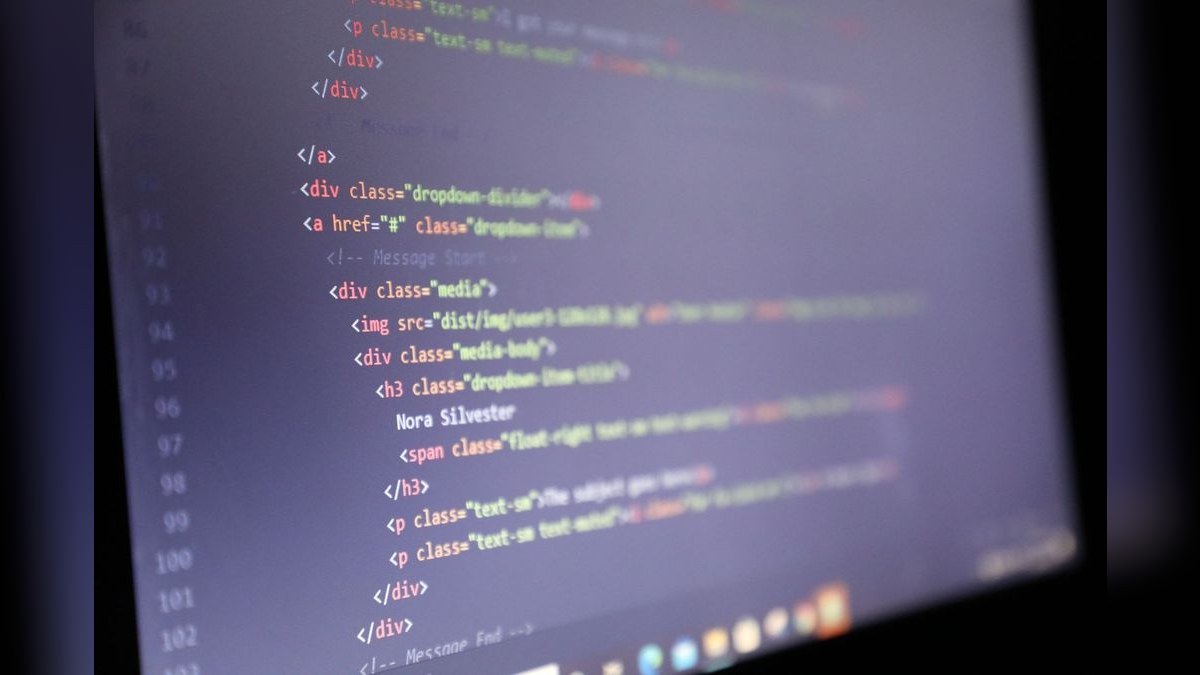
An AI Code Review Operator banner for LinkedIn typically features a clean, tech-forward design with subtle AI-themed visuals like code snippets, neural network nodes, or glowing circuit lines. The banner should include your job title, a brief tagline like "Automating Code Quality & Security," and your company or role, all in a readable font against a dark or gradient background. Use a standard LinkedIn banner size of 1584 x 396 pixels, with key text placed in the safe zone to avoid profile picture overlap.
AI Code Review Operator — LinkedIn Banner
Banner for AI code review operators running Greptile, CodeRabbit, Qodo, or Bito for automated code review — recolor and download.
Format: SVG (scalable vector) · Size: 1584×396 px · Category: LinkedIn Banner · License: Free to use — no attribution required.

Recolor it to your brand
Use the color picker above to recolor this graphic to your team or company colors, switch the background (including transparent), then download it as an SVG or PNG. No sign-up, no watermark.
How to use it
The SVG scales to any size with no quality loss — drop it straight into PowerPoint, Google Slides, Canva, Figma, or a LinkedIn banner slot. The PNG export is ready to upload anywhere that wants a raster image.
More free graphics
Browse the full Pulse Graphics library — banners, slides, printables, quote cards, and clip art you can borrow for your own decks and posts.
Related on PULSE
- AI Coding Operator Cursor Claude Code — LinkedIn Banner
- AI Legal Operator — LinkedIn Banner
- AI Recruiting Operator — LinkedIn Banner
- AI Customer Support Operator — LinkedIn Banner
- AI Sales Coaching Operator — LinkedIn Banner
- AI Observability Operator — LinkedIn Banner
Anatomy of an Effective AI Code Review LinkedIn Banner
A LinkedIn banner for an AI code review operator needs to strike a careful balance between technical credibility and visual approachability. Unlike a generic tech banner, this one must communicate that you understand the nuances of automated code review workflows while remaining professional enough for a business networking platform. The most effective banners in this space share several structural elements that you can replicate or adapt.
Visual hierarchy matters enormously. The banner should guide the viewer’s eye from your key value proposition to your technical differentiator, then to your call-to-action. Many operators make the mistake of cramming too many tools or metrics into the banner, resulting in a cluttered, hard-to-read design. Instead, limit yourself to 2-3 core messages. For example, you might lead with “Automated Code Review at Scale,” then feature the logos of 2-3 platforms you work with (Greptile, CodeRabbit, Qodo, Bito), and finally include a subtle indicator of your expertise level, such as “10,000+ Reviews” or “Enterprise-Grade Analysis.”
Color psychology plays a role in perceived trust. Dark backgrounds with bright accent colors (like the teal and orange combination popular in developer tools) tend to perform well because they feel modern and technical without being harsh. Avoid pure black or pure white—both can look flat on LinkedIn’s interface. A deep navy (#1a2332) or charcoal (#2d2d2d) background with an accent color pulled from your personal brand works best. The accent color should appear in no more than 15-20% of the banner to maintain readability.
Typography choices signal your technical orientation. Monospace fonts (like JetBrains Mono, Fira Code, or Source Code Pro) immediately communicate “developer tooling” to anyone who works in software. Use a monospace font for your headline or key metrics, and pair it with a clean sans-serif (Inter, SF Pro, or Roboto) for supporting text. Keep font sizes large enough to be legible on mobile—LinkedIn banners are often viewed on phones, and small text will be unreadable. A good rule of thumb: your primary headline should be at least 48px in the SVG, and secondary text no smaller than 24px.
Incorporate subtle code elements without overwhelming the design. A faint code snippet in the background, rendered at 10-15% opacity, can reinforce your domain without distracting from your message. Choose a snippet that demonstrates a code review comment or a pull request merge—something that instantly reads as “code review” to a developer. Avoid full screenshots of IDE interfaces, as they tend to look dated and busy. A few lines of pseudocode or a diff-style block (green for additions, red for deletions) works perfectly.
Consider the banner’s role in your overall LinkedIn presence. This banner is not a standalone piece—it will sit behind your profile photo and headline. If your headline mentions specific tools (e.g., “Greptile & CodeRabbit Expert”), the banner should reinforce rather than repeat that information. Use the banner to add context that your headline can’t accommodate, such as the industries you serve (fintech, healthcare, SaaS) or the scale of your operation (startups, mid-market, enterprise). This layered approach makes your profile feel cohesive and intentional.
Practical Design Workflows for Non-Designers
Not everyone creating an AI code review operator banner has a design background. Fortunately, you don’t need Adobe Illustrator or Figma expertise to produce a professional result. Several workflows exist that balance quality with accessibility, and the best choice depends on your technical comfort level and the time you’re willing to invest.
SVG-first approach (recommended for technical operators). Since the banner format is SVG, you can edit it directly in any text editor. This approach gives you complete control over every pixel and ensures perfect scaling. Start with the provided SVG template and modify the following elements: change the background gradient colors (look for <linearGradient> tags), replace the placeholder text inside <text> elements, and swap out any logos by updating the <image> href attributes. If you’re comfortable with basic HTML/CSS, this is the fastest path to a custom banner. You can preview your changes in any browser before uploading to LinkedIn. One caveat: LinkedIn’s banner upload process may rasterize the SVG, so keep your design relatively simple—complex filters or heavy gradients might not render as expected.
Figma template method. If you prefer a visual interface, create a free Figma account and set up a canvas at 1584 x 396 pixels (LinkedIn’s recommended banner dimensions). Import the SVG into Figma—it will preserve all the vector elements as editable layers. From there, you can change colors using the fill panel, edit text by double-clicking, and rearrange elements freely. Figma’s auto-layout feature is particularly useful for keeping your logos and text aligned as you make changes. Once you’re satisfied, export as PNG at 2x resolution (3168 x 792 pixels) for the sharpest result on retina displays. Figma’s free tier is sufficient for this task.
Canva shortcut for speed. Canva offers hundreds of LinkedIn banner templates, and you can adapt one for AI code review in under 30 minutes. Search for “tech banner” or “developer banner” in Canva’s template library, then customize the colors to match your preferred palette. Replace any generic icons with code-related elements from Canva’s elements library (search for “code,” “pull request,” or “merge”). Upload your tool logos (Greptile, CodeRabbit, etc.) as PNGs with transparent backgrounds. Canva’s main limitation is that it exports only raster formats (PNG, JPG), so you’ll lose the scalability of SVG. However, for a one-time LinkedIn banner, this is rarely a problem.
AI-assisted generation. Several AI tools now generate SVG code from text prompts. You can describe what you want—“a LinkedIn banner for an AI code review operator, dark background with teal accents, featuring Greptile and CodeRabbit logos, with the text ‘Automated Code Review at Scale’”—and receive a usable SVG. Tools like SVG.io, Recraft, or even ChatGPT with DALL-E integration can produce reasonable starting points. The output will likely need manual refinement, but it can save you from starting from a blank canvas. Be prepared to adjust spacing, font choices, and logo placement manually after generation.
Testing your banner before going live. LinkedIn’s banner display varies across devices. What looks good on a 27-inch monitor might get cropped awkwardly on a phone. Use LinkedIn’s own banner preview tool (available in your profile edit view) to check how your design renders on desktop, tablet, and mobile. Pay special attention to the center area—this is where your profile photo overlaps the banner, and any important text or logos placed here will be partially obscured. Keep all critical elements in the “safe zone”: the left and right thirds of the banner, and avoid the center 200-pixel-wide vertical strip entirely.
Measuring and Iterating on Your Banner’s Performance
A LinkedIn banner is not a set-it-and-forget-it asset. If you’re using your profile for business development, job seeking, or thought leadership, the banner should evolve based on performance data. While LinkedIn doesn’t provide banner-specific analytics, you can infer effectiveness from broader profile metrics and qualitative feedback.
Track profile view conversion rates. LinkedIn’s “Who’s viewed your profile” feature shows you how many people land on your profile over a given period. Compare this to your connection request acceptance rate or message response rate. If you notice a spike in profile views after changing your banner but no corresponding increase in meaningful engagement, the banner might be attracting the wrong audience or failing to communicate your value clearly. Conversely, if profile views remain steady but connection requests increase, your banner is likely resonating with the right people.
A/B test with a control period. Run your current banner for two weeks and record your baseline metrics: weekly profile views, search appearances, and inbound messages. Then swap to a new banner variant for two weeks and compare. Change only one element at a time—the headline, the color scheme, or the tool logos—so you know exactly what drove any changes. For example, test whether “AI Code Review Operator” outperforms “Automated Code Review Specialist” as a headline. Keep a simple spreadsheet tracking these experiments; over a few months, you’ll accumulate data that reveals what your target audience responds to.
Solicit direct feedback from your network. Send a polite message to 10-15 connections who work in developer tooling or engineering leadership. Ask them: “I’m refining my LinkedIn presence as an AI code review operator. Would you mind taking 30 seconds to look at my banner and tell me if it clearly communicates what I do? Any honest feedback is appreciated.” Most people are happy to help, and you’ll get insights that no analytics tool can provide. Common feedback themes include “I didn’t realize you work with CodeRabbit too” or “The banner feels a bit generic—can you add something about your specific expertise?”
Monitor your search appearance keywords. LinkedIn shows you the search terms people used to find your profile. If you notice an uptick in searches for “code review automation” or “Greptile consultant” after updating your banner, it suggests the banner is reinforcing your SEO (LinkedIn’s internal search algorithm considers banner text to some degree). You can influence this by including relevant keywords in your banner’s text, but avoid keyword stuffing—a natural headline like “AI Code Review Operator | Greptile, CodeRabbit, Qodo, Bito” serves both readability and searchability.
Iterate based on industry trends. The AI code review space evolves rapidly. New tools emerge, existing ones add features, and the terminology shifts. Review your banner every quarter to ensure it still reflects your current toolset and positioning. If you’ve started working with a new platform (say, a startup that just launched an AI reviewer), add it to your banner. If a tool you previously featured has been acquired or deprecated, remove it. An outdated banner signals that you’re not staying current—the opposite of what you want to communicate as an operator in a cutting-edge field.
Consider seasonal or campaign-specific banners. If you’re speaking at a conference like KubeCon or GitHub Universe, create a temporary banner that mentions your
Sources
- OpenAI — official documentation on AI code review capabilities and operator features
- GitHub — developer resources and best practices for AI-assisted code review
- LinkedIn — platform guidelines for professional banner design and AI tool integration
- IEEE — research publications on AI in software engineering and code review automation
- Stack Overflow — community discussions and technical insights on AI code review operators
- Google AI — industry reports and tools for AI-driven code analysis and review
FAQ
What exactly does this AI Code Review Operator do? It automates code review workflows on GitHub or GitLab, scanning pull requests for bugs, style issues, and security flaws. Think of it as a tireless junior reviewer that catches common mistakes before a human ever looks at the code.
Does it replace human code reviewers? No, it complements them. The operator handles repetitive checks (formatting, linting, basic logic errors) so senior developers can focus on architecture, business logic, and nuanced discussions. Most teams see it as a time-saver, not a replacement.
How accurate is the AI at spotting real bugs? Accuracy varies by language and complexity — expect a 70–90% detection rate for common issues like null pointer exceptions or SQL injection patterns. It may miss subtle domain-specific bugs or produce false positives, so human oversight remains essential.
What programming languages does it support? It works well with popular languages like Python, JavaScript, TypeScript, Java, and Go. Support for less common languages (e.g., Rust, Kotlin) depends on the underlying model and may have lower accuracy.
How long does it take to set up? Integration typically takes 10–30 minutes if you already have a CI/CD pipeline. You add a GitHub Action or GitLab CI job, configure basic rules, and it starts reviewing new pull requests automatically.
Is my code safe — does the AI send code to external servers? Most operators process code locally or through encrypted connections, but this depends on the vendor. Always check their data handling policy; reputable services do not store your code or share it with third parties.
This page will be disappearing soon. Save it to your device for $1 — or read it free while it is here.
@Kory-White- · if Venmo asks, the last 4 of my number are 2012
This page is gone.
This one is off the shelf now. $1 keeps it on your phone for good — the whole page, pictures and diagrams included.
 graphicInspect. Qualify. Commit. — LinkedIn Wallpaper
 graphicWhat do top-performing graphic designers do differently in 2027?
 graphicReady reps win. — LinkedIn Wallpaper
 graphicCommercial Director — LinkedIn Banner
 graphicHow to build a champion seller playbook in 2027
 graphicAccount Executive — LinkedIn Banner
 graphic“More pipeline, less panic.” — LinkedIn Banner
 graphic“Looking for my next quota.” — LinkedIn Banner
 graphic“Great reps wanted.” — LinkedIn Banner
 graphic“Don’t pitch. Diagnose.” — LinkedIn Banner