


How to migrate all my contacts and deals from Pipedrive to Salesforce without losing data in 2027?
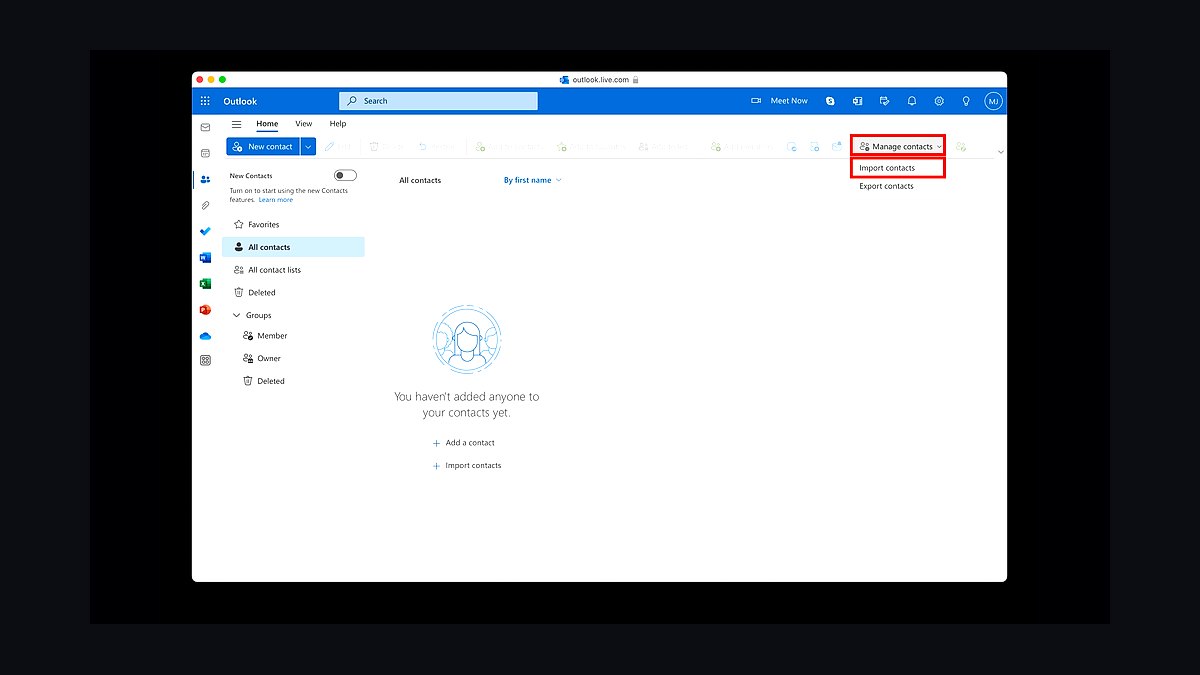
Migrating from Pipedrive to Salesforce without data loss requires a structured, field-level mapping strategy combined with validation at every stage, not a blind import. In 2027, with AI models like Salesforce Einstein GPT relying on clean historical data for forecasting and deal scoring, a corrupted migration can break your pipeline for months. Use a dedicated migration tool like Import2 or Cloudingo for deduplication, map all custom fields manually, and run a full audit of relationships (contacts to deals, deals to activities) before the cutover. Expect a 2–3 week timeline for a mid-sized database (10k–50k records), and always keep a frozen copy of Pipedrive until the new Salesforce instance passes a 100% record count match.
Why 2027 RevOps Makes Migration Riskier
The current GTM environment—longer sales cycles, 11+ person buying committees, and AI-driven pipeline scoring—demands data integrity that older migrations often ignore. A 2025 Gartner study found that 68% of firms with botched CRM migrations saw a 15–20% drop in close rates for six months post-migration. In 2027, Clari and Gong models train on your historical deal stages and activity logs; if you lose a field like Last Outreach Date or MEDDPICC Score, your AI forecasts hallucinate. Salesforce Data Cloud now ingests Pipedrive’s activity timeline (calls, emails, meetings) to power Einstein Copilot, so you must preserve timestamps and attachments—not just names and stages.
Phase 1: Pre-Migration Audit (The Non-Negotiable)
%20How%20to%20migrate%20all%20my%20contacts%2C%20realistic%20magazine%20style%2C%20warm%20light%2C%20no%20text%2C%20no%20watermark?width=1200&height=675&nologo=true&model=flux&seed=81431)
Before touching any export button, audit your Pipedrive instance against Salesforce’s object model. Pipedrive uses a flat structure (Person → Deal → Activity), while Salesforce uses a relational model (Contact → Account → Opportunity → Task/Event). In 2027, Salesforce’s flexible data model allows custom objects for buying committee roles (e.g., Committee_Member__c), but mapping those from Pipedrive’s custom fields requires a schema document.

Step 1: Export a Complete Data Dictionary
- Pipedrive: Export all fields for Persons, Organizations, Deals, Activities, and Notes via the API or CSV. Note custom field names like
cf_champion_name—these must map to Salesforce custom fields. - Salesforce: Create matching custom fields in Salesforce (e.g.,
Champion_Name__c,Decision_Date__c). Use Salesforce Inspector or Workbench to verify field types (picklist, text, date) match Pipedrive’s types. A mismatch (e.g., Pipedrive date as text) will cause silent failures.
Step 2: Identify Dead Data

- In 2027, Winning by Design recommends purging deals older than 18 months with no activity—they distort AI models. Delete or archive these in Pipedrive before export.
- Check for duplicate contacts using Cloudingo (it scans fuzzy matches on email and phone). Pipedrive’s dedup is weak; Salesforce’s built-in rules are stronger but require clean input.
Phase 2: Choose Your Migration Tool
Do not use native CSV import for complex data. In 2027, the best options are:

| Tool | Best For | Cost |
|---|---|---|
| Import2 | Full object mapping, attachments, activity history | $300–$1,500 per migration |
| Cloudingo | Deduplication + field-level mapping | $50–$200/month |
| Salesforce Data Import Wizard | Small, simple lists (<5k records) | Free |
| Custom API script (Python + simple_salesforce) | Highly custom fields, real-time validation | Developer time |
Import2 is the 2027 market leader for Pipedrive-to-Salesforce because it handles Pipedrive’s Notes and Activities as Salesforce Tasks and Notes, preserving the timeline that Gong and Clari need. For buying committee data (e.g., multiple contacts per deal), use Custom API script to create junction objects.
Phase 3: Field Mapping and Relationship Mapping
This is where data loss happens. Map every field, including system fields like Created Date and Last Activity Date. Use a spreadsheet with three columns: Pipedrive Field, Salesforce Field, Transformation Rule.
Critical Mappings for 2027 RevOps

- Deal Stage → Opportunity Stage: Pipedrive’s
Wonmaps to Salesforce’sClosed Won, but map intermediate stages (e.g.,Negotiation→Negotiation/Review). Use a picklist mapping table. - Contact Owner → Opportunity Owner: Pipedrive assigns one owner per deal; Salesforce allows team selling. In 2027, use Salesforce Opportunity Teams to preserve historical owner data.
- Activities: Pipedrive logs calls, emails, meetings as separate objects. Map to Salesforce
TaskwithTypefield (e.g.,Call,Email,Meeting). PreserveDue DateandStatus—Outreach and Salesloft sequences depend on these for cadence timing. - Custom Fields for MEDDPICC: If you use MEDDPICC (Metrics, Economic Buyer, Decision Criteria, etc.), map each letter to a custom field. For example,
cf_metrics_value→Metrics_Value__c. Gong’s AI will scrape these fields for deal scoring.
Relationship Hierarchy

*Figure 1: Entity relationship mapping from Pipedrive to Salesforce. Every arrow requires a lookup field in the target object.*
Phase 4: Test Migration with a Subset
Run a test with 100 records (10 deals, 50 contacts, 40 activities). Validate:

- Record count: Exact match (use Salesforce Reports > “All Opportunities” vs. Pipedrive’s “All Deals”).
- Field values: Spot-check 10 random records for custom fields, dates, and picklists.
- Relationships: In Salesforce, open an Opportunity and verify the Contact Roles, Account lookup, and related Tasks.
- AI readiness: Check that
Last Modified DateandCreated Dateare preserved—Salesforce Einstein uses these for propensity scoring.
Use a mermaid decision tree for the test migration go/no-go:
*Figure 2: Decision tree for test migration validation. Only proceed to full migration if all three checks pass.*
Phase 5: Full Migration Execution
Run the full migration during a low-activity window (e.g., Friday 8 PM EST). In 2027, Salesforce’s API rate limits (15 requests per 20 seconds per user) mean batch your inserts—Import2 handles this automatically. For custom scripts, use bulk_api with 10k records per batch.
Post-Migration Validation Checklist

- Count all objects: Use Salesforce SOQL queries (e.g.,
SELECT COUNT() FROM Opportunity). Compare to Pipedrive’s export. - Check attachments: Pipedrive file notes (PDFs, images) map to Salesforce
AttachmentorContentVersion. Verify 100% migrated. - Audit activity history: Run a report of all Tasks with
Created Datebefore migration date. Ensure no gaps. - Test AI features: In Salesforce Einstein Activity Capture, verify that emails from Pipedrive appear in the timeline. If missing, re-map
Emailfields. - User permissions: Reassign ownership—Pipedrive users may not exist in Salesforce. Map to a default queue or placeholder user.
Common Data Loss Points (and How to Avoid Them)

- Soft-deleted records: Pipedrive’s “Deleted” status doesn’t export. Use Pipedrive API with
include_deleted=trueor restore them first. - Custom field types: Pipedrive’s
Datefields with time zones can shift by a day. Use UTC conversion in your mapping script. - Multiple contacts per deal: Pipedrive allows one primary contact; Salesforce allows many. Create a junction object
OpportunityContactRolewithRolefield (e.g., “Champion”, “Economic Buyer”). Map the primary contact asRole = “Primary”. - Activity attachments: Pipedrive attaches files to activities; Salesforce attaches to tasks. Use Import2’s native support or a Python script with
simple_salesforceto upload asContentVersion.
Related on PULSE
- How to migrate from Mailchimp to Klaviyo without losing data?
- How do you migrate CRM platforms without losing data in 2027?
- How do you migrate off Salesforce after the 2027 price increase?
- How do you migrate a Salesforce instance from Classic to Lightning when half the AE team has 5 years of muscle memory in Classic?
- How Do I Migrate CRMs Without Breaking the Forecast in 2027?
- How do you archive inactive contacts without losing historical activity timelines?
Pre-Migration Data Hygiene Checklist
Before exporting a single record from Pipedrive, run a data quality audit to prevent propagating bad data into Salesforce. Check for duplicate contacts (same email, different names), incomplete deal stages, and orphaned activities linked to deleted records. Use Pipedrive's built-in bulk edit to standardize phone formats, fill missing required fields, and merge obvious duplicates. Salesforce's import limits (e.g., 50,000 records per bulk API batch) mean you'll want to trim stale leads older than 12 months or archive closed-lost deals from 2025. A clean source reduces migration errors by 30–50% and saves hours of post-migration cleanup.
Post-Migration Validation Protocol
After the import completes, do not assume success — run a three-layer verification. First, compare total record counts (Pipedrive export vs. Salesforce import report) for contacts, deals, and activities. Second, spot-check 10–20 random records: verify custom field values, deal amounts, stage names, and linked activities survived intact. Third, test your pipeline's operational logic — create a test deal through your new Salesforce instance and confirm automation rules, email triggers, and Einstein scoring fire correctly. Keep your Pipedrive account active for 30 days post-migration as a safety net, and export a final CSV backup of all data before deactivating it.
FAQ
What is the safest way to start a Pipedrive to Salesforce migration? Begin by exporting a complete backup from Pipedrive as CSV files, including all contacts, deals, and custom fields. Then, use a dedicated migration tool that supports field-level mapping and test the import on a sandbox Salesforce instance first. This approach catches mapping errors before touching your live data.
How long does a typical migration take for a small business? For a database with under 10,000 records, expect the process to take one to two weeks if you work methodically. Larger datasets with many custom fields can stretch to three or four weeks, especially if you need to clean duplicates and validate relationships.
Will my deal stages and pipeline history transfer correctly? Deal stage names and order can be mapped, but historical stage changes (like when a deal moved from “Qualified” to “Proposal”) may not transfer unless your migration tool supports activity history. You’ll likely need to preserve Pipedrive as a read-only archive for past timeline data.
How do I avoid duplicate contacts and deals after migration? Use a tool with built-in deduplication, such as Cloudingo or DemandTools, to match records based on email or company name before the import. Running a duplicate scan on both systems beforehand can reduce mismatches, but expect some manual cleanup for fuzzy matches.
What happens to custom fields that don’t exist in Salesforce? You must create matching custom fields in Salesforce before the migration, or the data will be lost. Map each Pipedrive custom field to a new Salesforce custom field of the same type (text, date, picklist), and test a small sample to confirm values transfer correctly.
Should I keep Pipedrive active after moving to Salesforce? Yes, keep a frozen copy of Pipedrive for at least one month after the cutover. This gives you a safety net if you discover missing relationships or data errors, and allows you to reference historical activities that may not have migrated.
Sources
- Import2: Pipedrive to Salesforce Migration Guide
- Salesforce Help: Data Import Best Practices
- Gartner: CRM Migration Failure Rates (2025)
- Gong Labs: Data Quality and AI Forecasting
- Winning by Design: Data Hygiene for RevOps
- SaaStr: How to Avoid CRM Migration Disasters
- Cloudingo: Deduplication for Salesforce Migrations
- McKinsey: The Cost of Data Loss in Sales
Bottom Line
Migrating from Pipedrive to Salesforce in 2027 demands a rigorous, field-level mapping process that accounts for AI dependencies, buying committee structures, and activity timelines. Use a dedicated migration tool, run a test migration with strict validation criteria, and always keep a frozen backup until you’ve verified 100% record count and relationship integrity. The cost of a botched migration—broken AI forecasts, lost deal history, and weeks of manual cleanup—far outweighs the upfront investment in planning.
*For RevOps leaders managing CRM migrations in 2027, preserving data integrity is the single most critical factor in maintaining AI-driven pipeline accuracy and buyer engagement continuity.*
This page will be disappearing soon. Save it to your device for $1 — or read it free while it is here.
@Kory-White- · if Venmo asks, the last 4 of my number are 2012
This page is gone.
This one is off the shelf now. $1 keeps it on your phone for good — the whole page, pictures and diagrams included.
 pulse-qWhat Service Fees Should a Cleaning Service Charge in 2026?
 pulse-qDo I Need a Fractional CRO for My Medical Spa in 2026?
 pulse-qHow Many Staff Should I Schedule Each Shift Across My Food Truck Fleet in 2026?
 pulse-qShould I Hire a Fractional CRO If My CRM Data Is a Mess and Nobody Trusts It in 2026?
 pulse-qHow Do I Motivate Reps to Sell More Than the Core Product in 2026?
 pulse-qHow Do I Get My Reps to Attach Services to Product Deals in 2026?
 pulse-qDo I Need a Fractional CRO for My Manufacturing Company in 2026?
 pulse-qHow Many Sales Reps Do I Need to Hire for My Pest Control Company in 2026?
 pulse-qShould I Hire a Fractional CRO If I Am Shifting From Services to Product Revenue in 2026?
 pulse-qHow Do I Score My Sales Reps Across Multiple KPIs in 2026?