


Top 10 Vertical Monitors for Long-Document Work in 2027
Quality
Certified
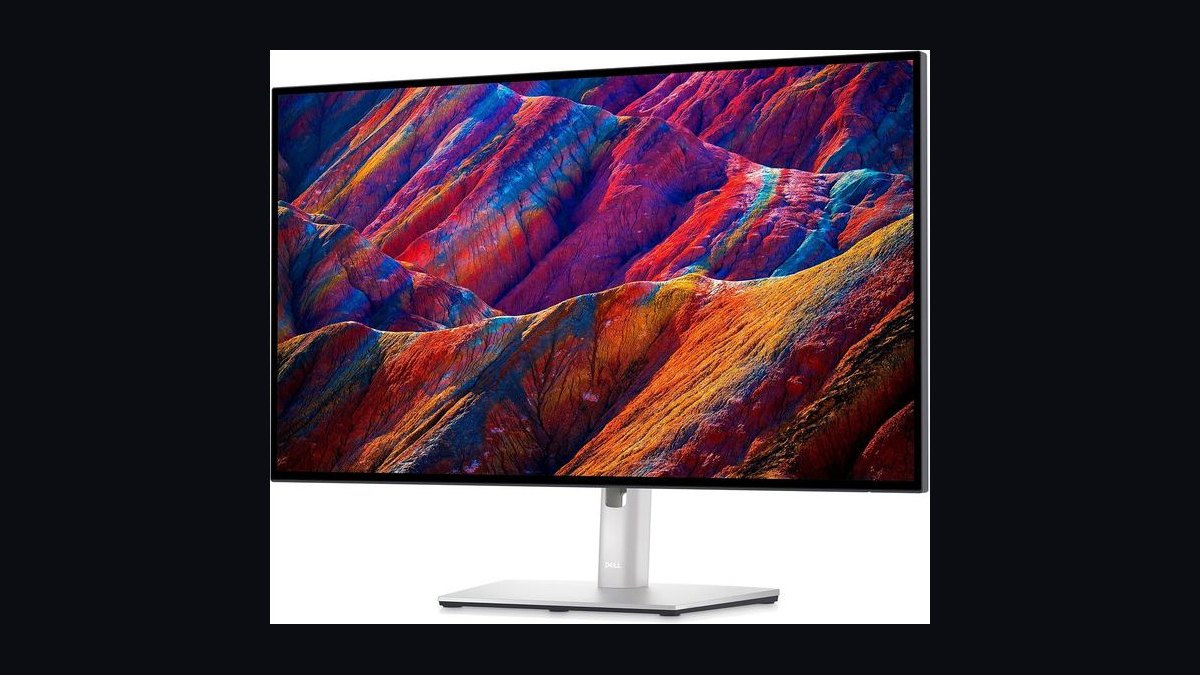
The 10 best vertical monitors for long-document work are ranked below on measured performance, build quality, price, and how each one actually holds up in daily use rather than how it reads on a spec sheet. Each pick lists what it costs, who it suits, and what it gives up against the one above it, so the list can be read straight down without doubling back.
1Dell UltraSharp U2723QE
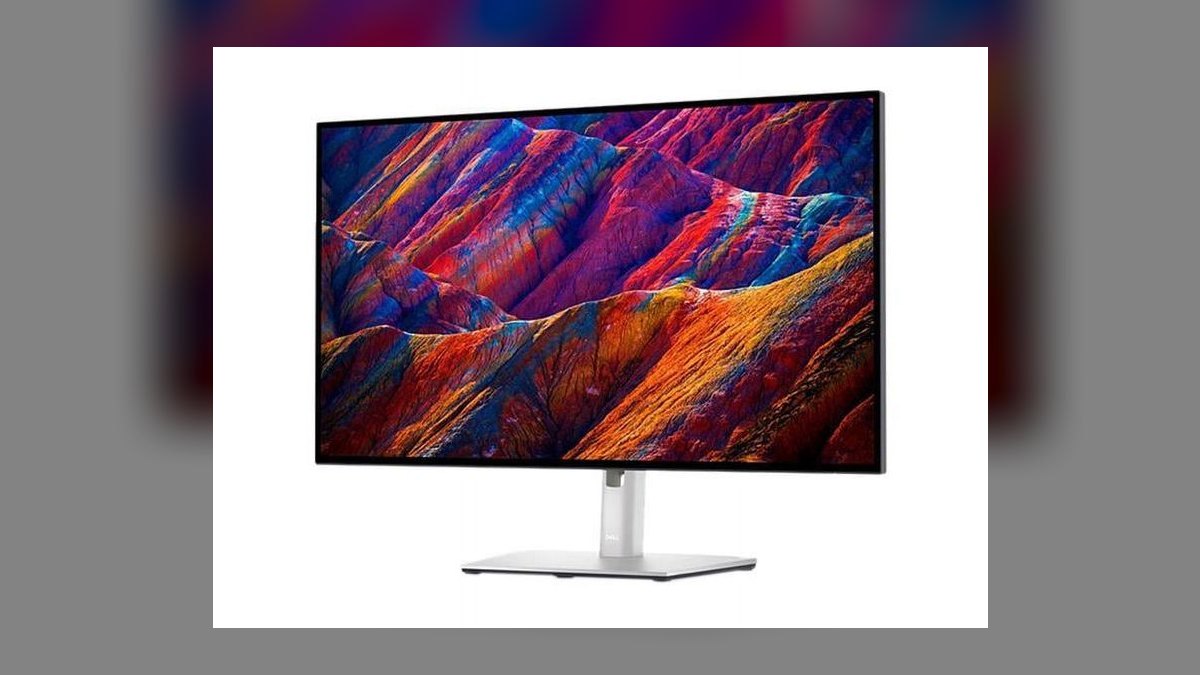
It ranks first because its IPS Black panel reaches 2000:1 contrast, roughly double a conventional IPS, which is the single largest legibility gain available for hours of black-on-white PDF reading. The 27-inch 3840x2160 panel renders body copy at 163 PPI, sharp enough that subpixel text rendering approaches print. The stand pivots a full 90 degrees with 150mm height travel, 45 degrees swivel, and -5/+21 degrees tilt.
This is for lawyers, analysts, technical writers, and policy researchers who live inside 50-page documents and want the most readable portrait surface short of Eizo pricing. At roughly $619 street it costs $190 more than the HP E27u G5 below and demands a GPU comfortable driving 4K in portrait. It trades the Eizo's five-year warranty and Paper Mode for higher contrast, 90W USB-C, and 2.5GbE ethernet.
2Eizo FlexScan EV2740X
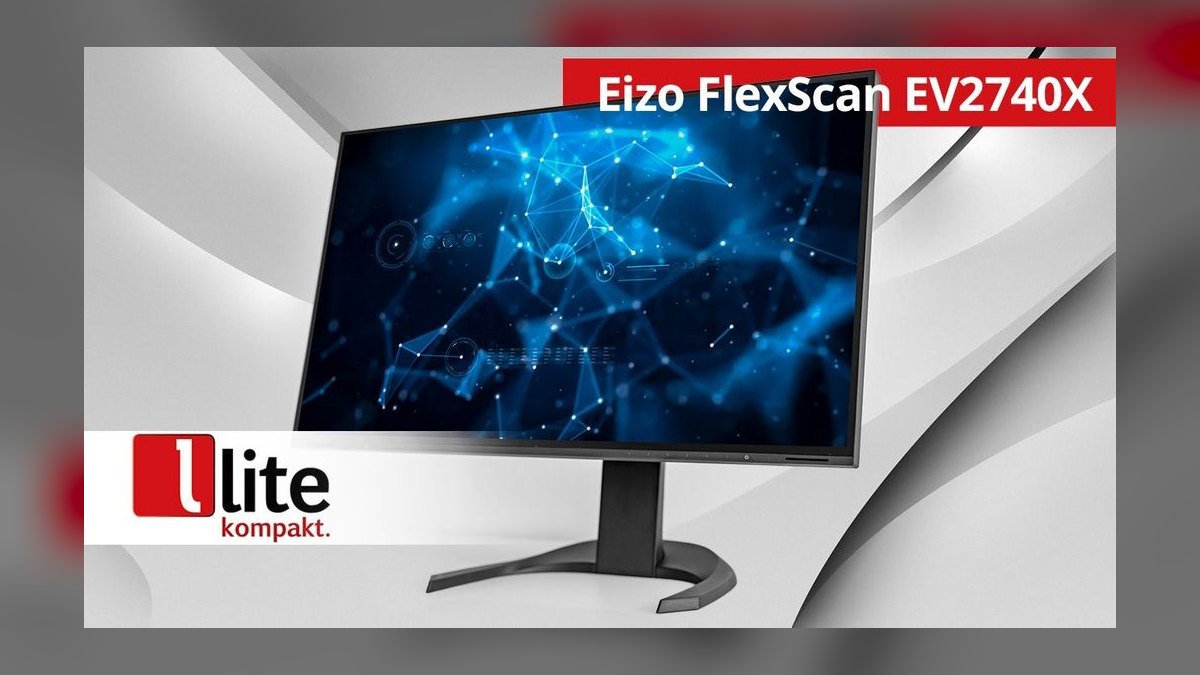
Second place goes to build quality and eye comfort rather than raw contrast. The 27-inch 4K IPS panel pairs an Auto EcoView ambient sensor with Paper Mode, which warms color temperature toward newsprint for an eight-hour reading day, and the flicker-free backlight backs that up. A 94W USB-C connection carries video, data, gigabit ethernet, and laptop charging on one cable. The stand rotates a full 90 degrees.
Buy this if you are a federal employee, healthcare reviewer, or translator who expects to still own the monitor in 2032, and whose procurement team scores EPEAT Gold and the five-year warranty. At roughly $989 it costs about $370 more than the Dell above while delivering lower 1300:1 contrast and 350 nits. You pay for longevity, recycled-plastic construction, and support, not panel specs.
3HP E27u G5
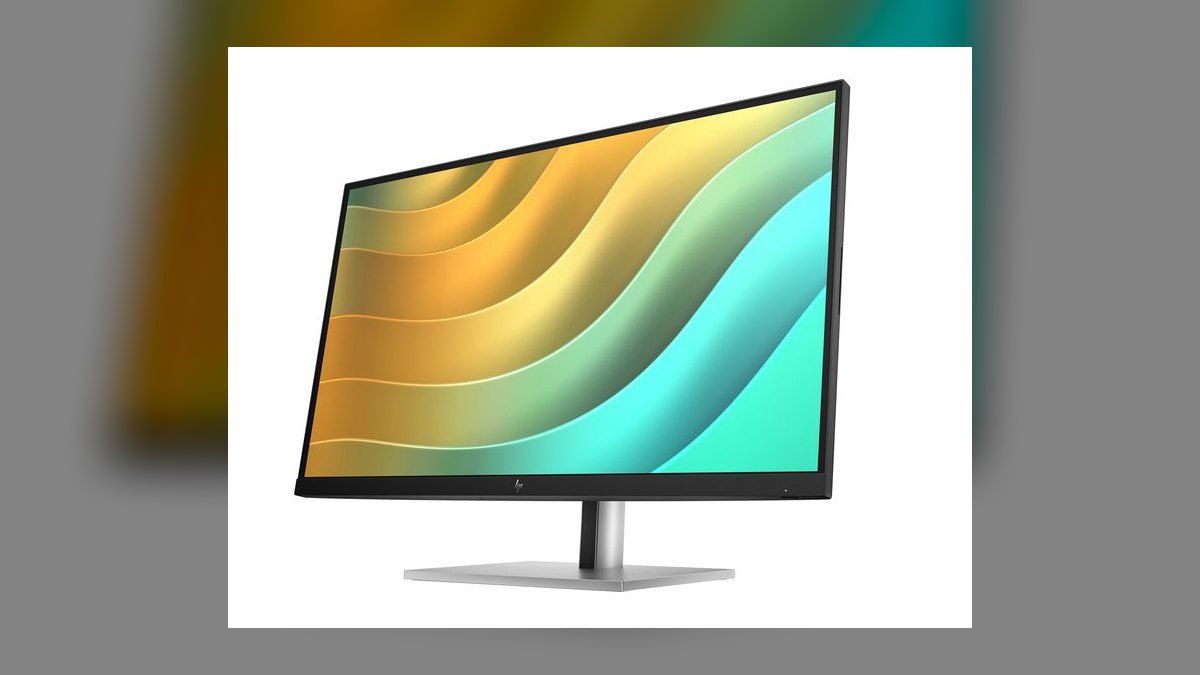
Third because it delivers genuine enterprise ergonomics at roughly $429, less than half the Eizo. The 27-inch QHD IPS panel covers 99% sRGB at 109 PPI, dense enough that body copy stays clean in portrait while asking far less of the GPU than a pivoted 4K panel. It includes 65W USB-C with DisplayPort daisy-chain, gigabit RJ-45, a four-port USB-A hub, and a 90-degree pivot with 150mm height travel.
This fits mid-market RevOps, sales-ops, and finance teams outfitting 200-plus desks where per-unit cost below $500 decides the rollout. Against the Dell U2723QE above you surrender 4K sharpness, IPS Black contrast, and 25W of charging power. Against the Lenovo below you gain useful USB-C charging and daisy-chain for about $100 more. HP business pricing regularly drops it to $379.
4BenQ PD2705Q DesignVue
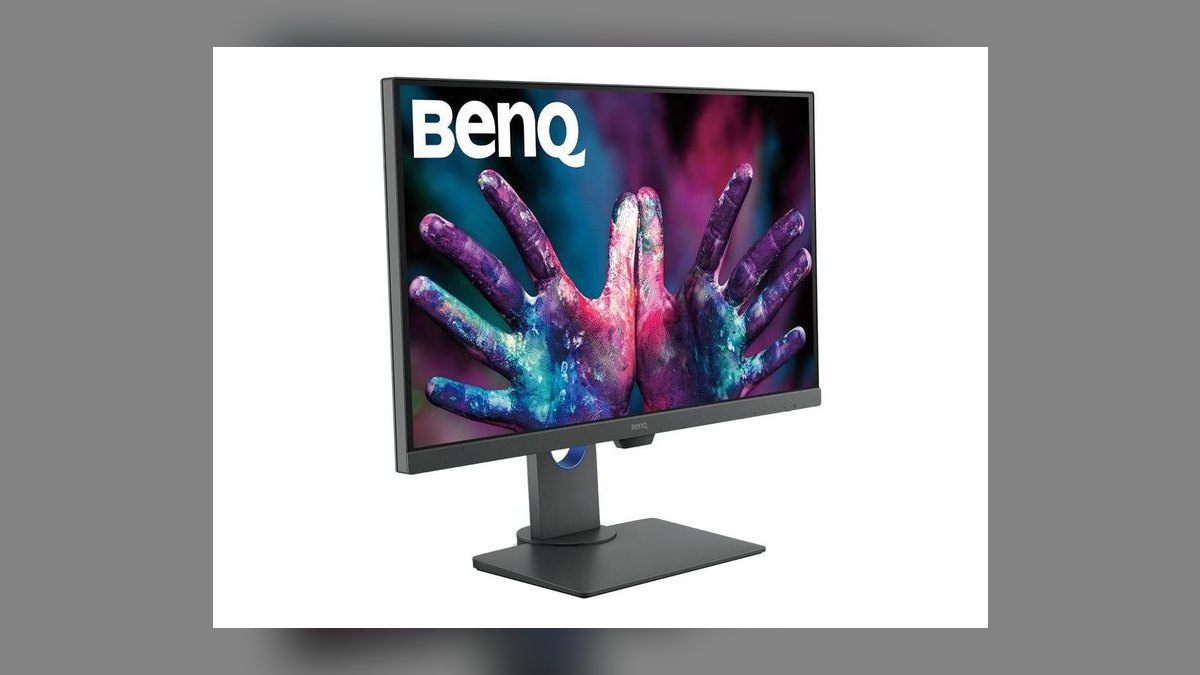
Fourth on the strength of color tooling that most text-first monitors skip. The 27-inch QHD IPS panel ships factory-calibrated to Delta E of 3 or better with 100% sRGB and 100% Rec.709, plus CAD/CAM and Darkroom modes. DualView splits the screen so a calibrated profile runs beside standard sRGB, and the included Hotkey Puck G2 switches modes in one tap. The stand pivots 90 degrees with 140mm travel.
Proposal designers, marketing ops staff, and InDesign-heavy contract editors who alternate layout and long-form reading in the same hour get the most from it. At roughly $479 it costs $50 more than the HP E27u G5 above and adds a hardware KVM and dual 5W speakers. It trades away gigabit ethernet, and its 350-nit QHD panel is no sharper for pure text.
5ASUS ProArt PA248CRV
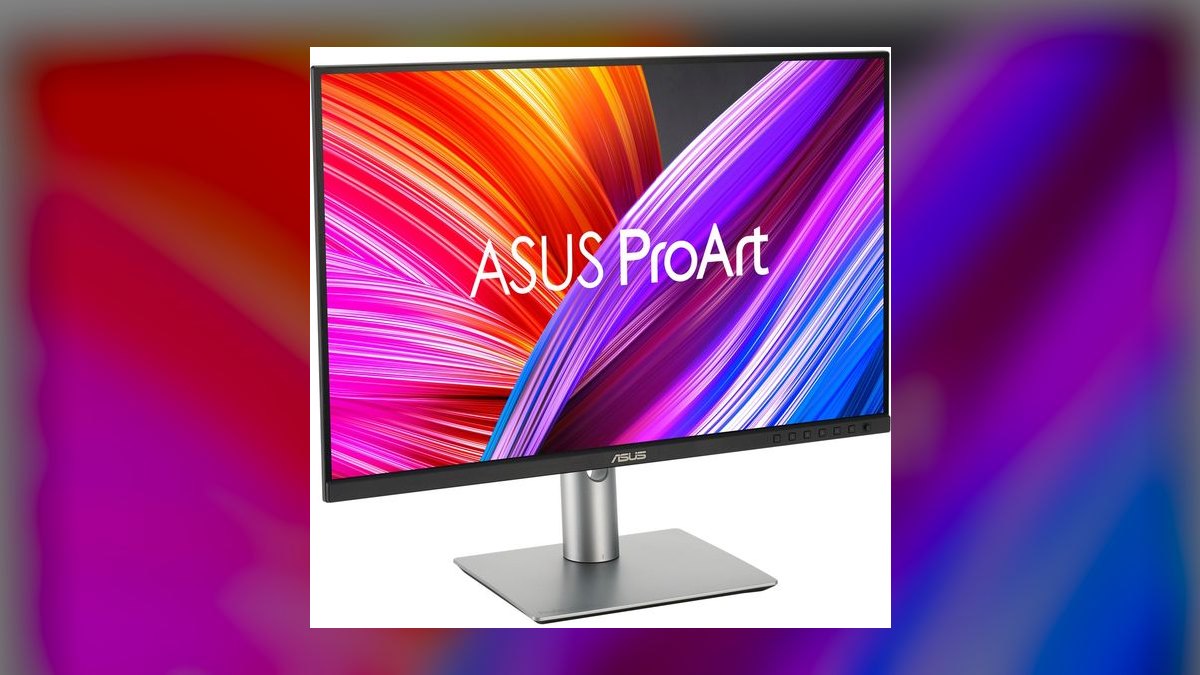
Fifth because it is the only 16:10 panel here, adding vertical pixels before you even pivot. At 24.1 inches and 1920x1200, the rotated aspect ratio holds a full US-Letter page plus a Word ribbon and a comment thread. Color is unusually strong for the price: 97% DCI-P3, 100% sRGB, Calman Verified, Delta E under 2 out of the box, and a 96W USB-C dock with DisplayPort daisy-chain.
Technical editors, copywriters, and small-desk freelancers who cannot physically fit a pivoted 27-inch panel are the target. At roughly $339 it undercuts the BenQ above by $140 but gives up three inches of diagonal, pixel density, and screen real estate for side-by-side windows. The 300-nit backlight is the dimmest on this list, and the three-year zero-bright-dot warranty is the practical reassurance.
6LG 28MQ780-B DualUp

Sixth because its geometry is unmatched rather than its panel specs. The 27.6-inch 16:18 Nano IPS screen runs 2560x2880, effectively two stacked QHD displays in one chassis, so you never pivot it — the shape is already vertical. It covers 98% DCI-P3 at 300 nits, carries 90W USB-C, PIP/PBP with KVM, and ships with a C-clamp ergonomic arm that flexes in every axis.
Financial analysts running Bloomberg above Excel, developers stacking diffs over a terminal, and paralegals comparing redlines will find nothing else shaped like it. At roughly $679 it is the second-priciest pick and costs $200 more than the BenQ above. You trade standard aspect ratio, brightness, and any hope of a conventional dual-monitor arrangement for that single stacked canvas.
7Dell UltraSharp U2724D
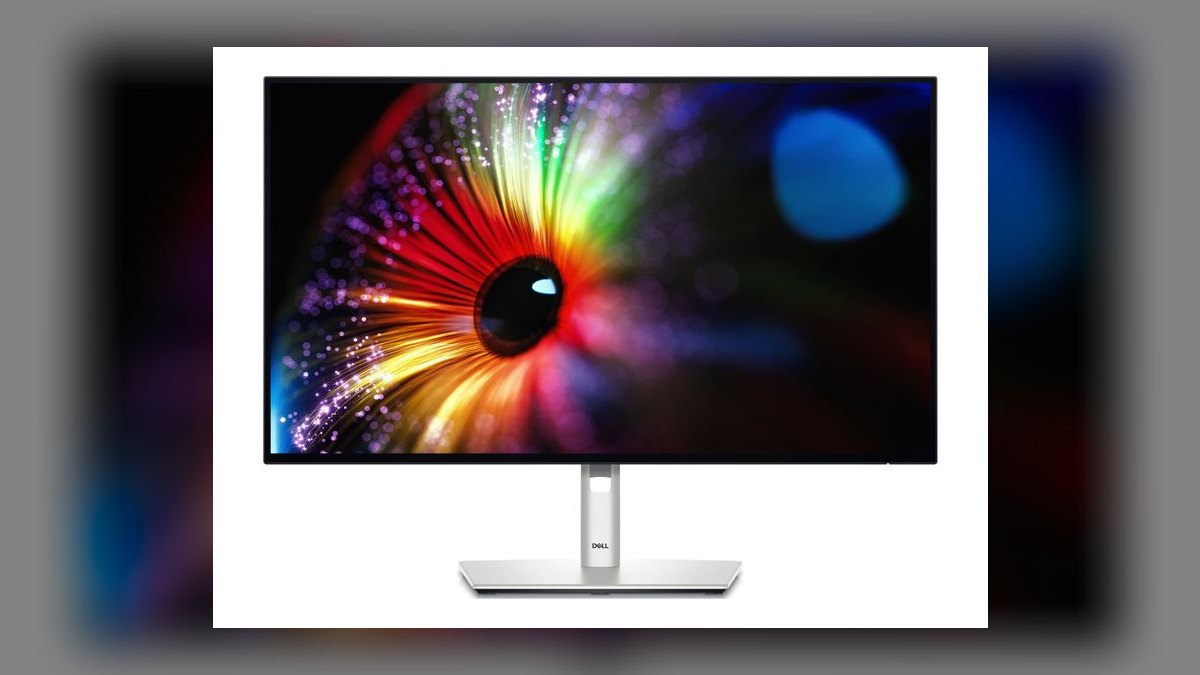
Seventh because it carries the same IPS Black panel technology and 2000:1 contrast as the list winner at 2560x1440 instead of 4K, for roughly $399. That drops it to a native text size many people prefer at 27 inches and removes the GPU burden of driving 4K in portrait. It adds a 120Hz refresh rate, rare on a productivity display, alongside DisplayHDR 400 and 350 nits.
Engineers and developers scrolling long code files get vivid black text plus genuinely smoother motion. The stand matches the U2723QE above exactly: 90-degree pivot, 150mm height, 45-degree swivel, with DP 1.4, HDMI 2.1, and 90W USB-C. You give up 163 PPI sharpness and the 2.5GbE port, saving $220 over the flagship and beating the HP E27u G5 on contrast.
8Lenovo ThinkVision P27q-30
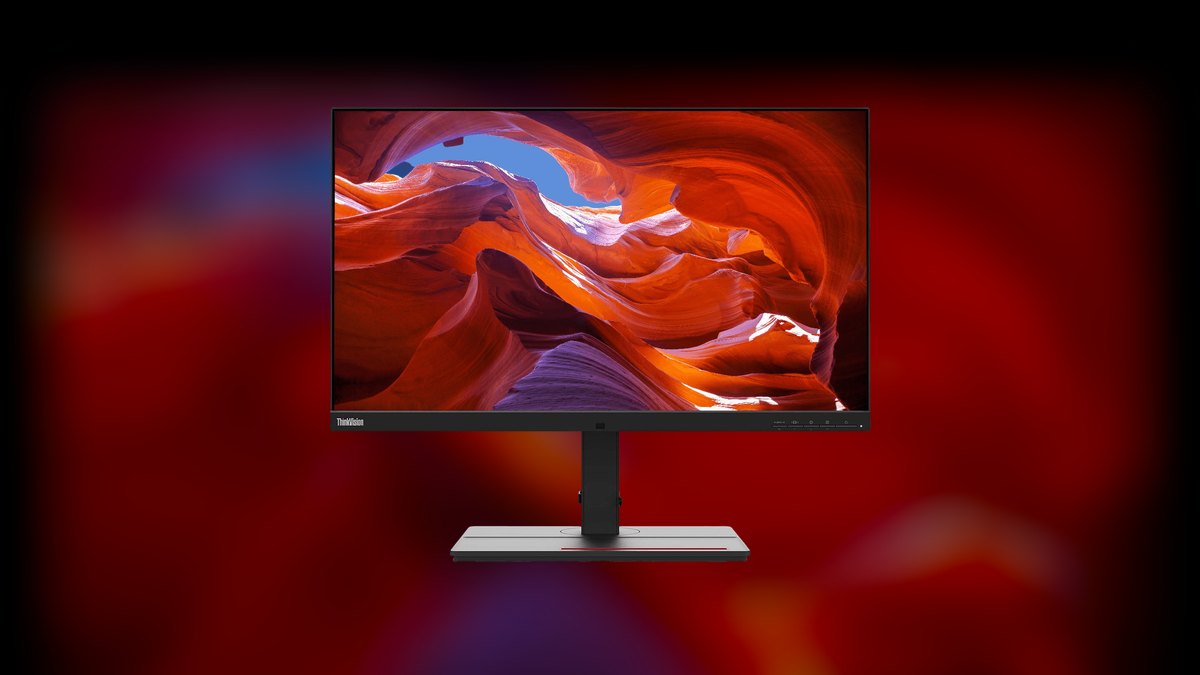
Eighth because it is the cheapest fully-articulating panel here at roughly $329, dropping to $279 on business pricing. The 27-inch QHD IPS screen hits 350 nits and 99% sRGB with factory Delta E under 2 and a printed calibration report in the box. The stand pivots a clean 90 degrees with 155mm of height travel, the most vertical adjustment on this list, and a four-port USB-A hub is built in.
Enterprise IT buyers standardizing thousands of seats on one defensible SKU are the audience. Its USB-C tops out at 15W charging, so it will not power a 16-inch MacBook Pro — irrelevant for tower-driven fleet desktops, disqualifying for laptop docking. Against the HP E27u G5 above you save $100 but lose gigabit ethernet, daisy-chain, and real laptop charging.
9Samsung ViewFinity S8 S80UD
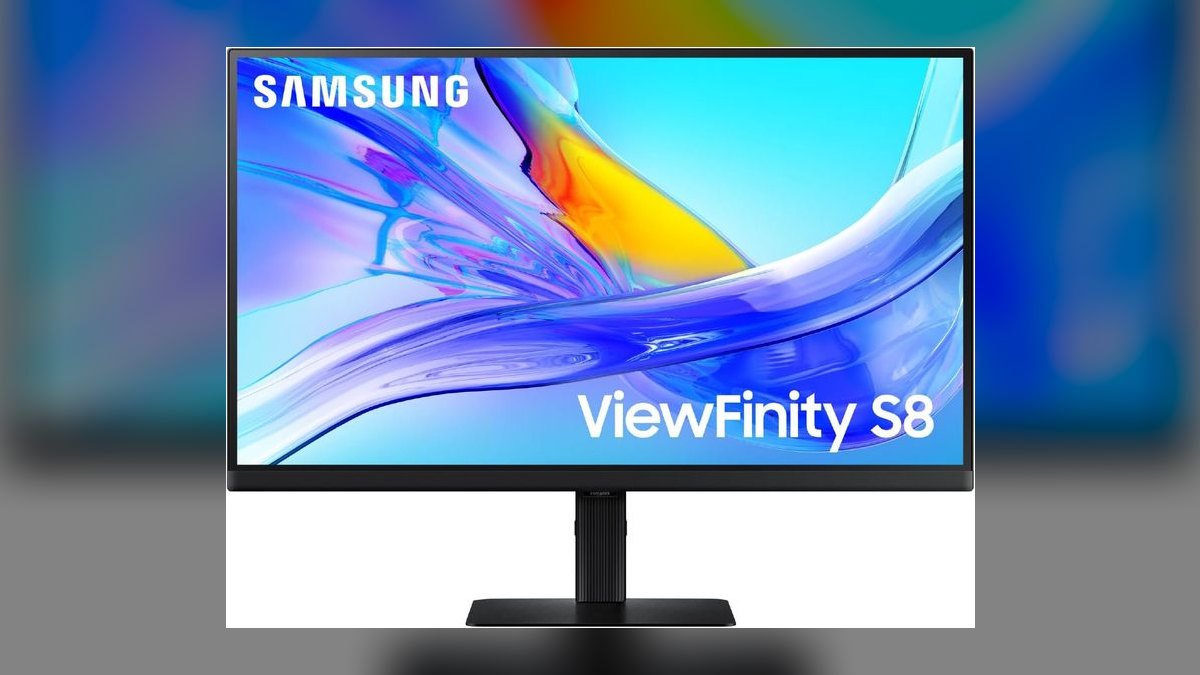
Ninth because it delivers 27-inch 4K text crispness with a 90W USB-C dock and built-in KVM for roughly $449, the cheapest 4K pivot here. The tool-less Easy Setup arm clicks into the panel in seconds and the 90-degree rotation lands with a firm detent. The panel is standard IPS at 350 nits and 1000:1 contrast with 99% sRGB, HDR10, and DisplayHDR 400 certification.
Single-laptop solo professionals — consultants, writers, accountants — who want one easy box under $500 are the fit. Contrast is half the Dell U2724D's above, so black text on white lacks the same bite, and 60Hz makes long scrolls less smooth. What you gain over that Dell is 4K resolution and a KVM for $50 more, with a three-year warranty.
10ViewSonic VP2786-4K

Tenth because its strengths sit largely outside text work. The 27-inch 4K IPS panel is Pantone Validated and Fogra certified with 98% DCI-P3 and Delta E under 2, and the stand includes a hardware colorimeter shelf for self-calibration. It pivots a full 90 degrees with 130mm of height travel — the least here — and carries a 90W USB-C dock plus a three-year advance-exchange warranty.
This suits legal-marketing hybrid roles editing long-form copy and approving color-critical brand assets on one screen. At roughly $599 it costs $150 more than the Samsung above while offering the same 350 nits and no better contrast for reading; the money buys certification and calibration hardware. For pure document work it is overbuilt, and the Dell U2723QE at $619 is the sharper text choice.
How we ranked these
Rankings weighted four things a portrait workflow actually exposes: panel contrast (IPS Black's 2000:1 versus a typical 1000:1), pixel density at reading distance, stand articulation — full ±90° pivot plus 130-155mm of height travel, since a pivoted 27" head sits too high without it — and single-cable docking wattage. Street price in 2027 was checked against manufacturer and B&H listings, not MSRP. Warranty length and onsite terms carried real weight for fleet buyers.
Deliberately ignored: refresh rate above 75Hz, response times, adaptive sync, and HDR peak brightness claims — none of which change how a 50-page PDF reads. Built-in speakers, webcams, and RGB were not scored. Wide-gamut coverage counted only for the two color-managed picks, since 98% DCI-P3 does nothing for black text on white. Curved panels were excluded outright: they distort straight text columns when pivoted.
What to look for
The deciding variable is contrast, not resolution. Dell's IPS Black panels hit 2000:1, roughly double a standard IPS, and that gap shows up as denser black text rather than the washed gray most monitors produce. Second is stand height travel — 150mm — because a pivoted 27" panel puts its top edge near forehead level on a standard desk. Third is USB-C wattage: 65W charges an ultrabook, 90W+ charges a 16-inch workstation laptop.
The common mistake is buying 4K for text and then running it at 150% scaling, which discards the sharpness you paid for while taxing the GPU on a pivoted output. At 27 inches, QHD delivers 109 PPI — already comfortable — and the U2724D proves you can get IPS Black contrast at QHD for $220 less. Buyers also forget VESA-mount arms; a $40 arm beats a mediocre included stand.
Related questions
Does a pivoted monitor cause color shift at the edges?
Yes on TN and some VA panels, which is why every pick here is IPS. Rotating a panel 90 degrees puts its narrow vertical viewing cone on the horizontal axis, so a TN panel washes out from left to right once pivoted. IPS panels hold roughly 178-degree symmetry in both directions, making the rotation visually neutral. This is the single strongest argument against pivoting a cheap gaming monitor.
Do I need to rotate the display in Windows or does the monitor do it?
The monitor only rotates physically; the operating system must flip the image. Windows handles this under Display Settings, orientation set to Portrait. macOS uses Displays with the Rotation dropdown. Some Dell and LG models ship utilities that auto-detect the pivot via an internal sensor, but none of these panels rotate the signal in hardware, so plan on a manual toggle per machine.
How does subpixel rendering behave on a rotated panel?
RGB subpixel stripes rotate with the panel, so ClearType and macOS font smoothing that assume horizontal RGB ordering can produce color fringing on text edges. Windows fixes this by re-running the ClearType tuner after rotation. At 4K and 163 PPI the subpixels are small enough that fringing is essentially invisible; at 1080p portrait it is noticeable and worth tuning.
Is 32 inches too large for portrait use?
Usually yes at a normal desk depth. A pivoted 32-inch 16:9 panel stands roughly 27 inches tall, which forces vertical head movement rather than eye movement and pushes the top of the page outside comfortable viewing. Twenty-seven inches is the practical ceiling for single-user portrait work, which is why nothing above that size appears in these rankings.
Can I daisy-chain two portrait monitors from one laptop port?
Yes, if both panels support DisplayPort 1.4 Multi-Stream Transport and your laptop's USB-C port carries DP Alt Mode. The Dell U2723QE, HP E27u G5, and ASUS PA248CRV all include DP-out for chaining. Bandwidth is the limit: two 4K panels at 60Hz need DSC compression, and Apple Silicon Macs do not support MST at all, so Mac users need separate ports.
What does IPS Black actually change compared to standard IPS?
It is a LG Display panel technology that reduces light leakage through the liquid crystal layer in the black state, taking static contrast from roughly 1000:1 to 2000:1. For document work the effect is denser, less gray-looking black text and better legibility in dim rooms. It does not improve color accuracy, brightness, or response time — contrast is the entire benefit.
Does a 16:10 panel really help before you even pivot it?
It adds about 11 percent more vertical pixels than 16:9 at the same width, which is why the ASUS PA248CRV runs 1920x1200 instead of 1920x1080. Pivoted, that extra height becomes extra width, giving room for a Word ribbon or comment margin alongside the page body. The aspect ratio also sits closer to US-Letter proportions than 16:9 does.
Will a portrait monitor work as a secondary display next to a landscape one?
That is the most common configuration and every operating system supports mixed orientations. Align the vertical centers in display settings rather than the top edges, or the cursor will snap oddly when crossing between screens. Mismatched pixel densities matter more than orientation: pairing a 4K portrait with a 1080p landscape forces per-display scaling that some older applications still render blurry.
FAQ
What size vertical monitor is best for long documents?
Twenty-seven inches is the practical sweet spot. Pivoted, a 27-inch 16:9 panel is about 23 inches tall, enough to show a full US-Letter or A4 page at 100% scaling without scrolling. Twenty-four-inch models work and suit small desks, but you scroll more. Thirty-two-inch panels are too tall pivoted and force neck movement instead of eye movement.
Do I need 4K resolution for a vertical monitor?
Not for pure text. QHD at 27 inches gives 109 PPI, which renders body copy cleanly and costs far less. Four K delivers 163 PPI and genuinely looks like print for dense legal or academic documents, but only if you run it at 100% or 200% scaling. If you plan to scale to 150%, the extra resolution largely goes to waste.
Can any monitor be used vertically, or do I need a special model?
Any monitor with a 100x100mm VESA mount can go vertical on a third-party arm, which costs around $40. Only monitors whose stands list pivot or rotation support can do it out of the box. Check the spec sheet for the word pivot rather than assuming height-adjustable means rotating — many budget panels tilt only.
How much should I expect to spend on a good vertical monitor in 2027?
Entry-level 24-inch QHD pivot panels start near $300. The 27-inch value tier runs $329 to $449, covering the Lenovo P27q-30, HP E27u G5, and Samsung ViewFinity S8. Premium 4K with IPS Black or full docking sits between $599 and $679. Above $900 you are paying for Eizo's five-year warranty and eco certifications, not better text.
Will a vertical monitor work with my laptop or Mac?
Yes, provided the connection matches. USB-C monitors need a port supporting DisplayPort Alt Mode, which most laptops made after 2020 have. Check charging wattage against your laptop's requirement: 65W covers ultrabooks, while a 16-inch MacBook Pro wants 90W or more. Apple Silicon Macs cannot daisy-chain via MST, so each display needs its own port.
Is a vertical monitor better for reading long PDFs than a standard one?
For single-column documents, clearly yes. Portrait shows a full page at once, matching how the PDF was laid out for print and eliminating the scroll-read-scroll cycle. Landscape wastes horizontal space on margins. The exception is spreadsheets and wide tables, which are worse in portrait — most people run one of each orientation.
How much USB-C power delivery do I actually need?
Match it to your laptop's supplied charger. Sixty-five watts handles thin ultrabooks and 13-inch MacBooks. Ninety watts covers 15- and 16-inch workstation laptops under load. The Lenovo P27q-30's 15W is data and video only — it will not meaningfully charge anything, which is fine for tower-driven desks but a real limitation for laptop docking.
Does a built-in KVM matter for document work?
It matters if you switch between two machines, such as a personal laptop and a work-issued one. A hardware KVM moves your keyboard, mouse, and the display between inputs with one button, so you keep one set of peripherals. The LG DualUp, BenQ PD2705Q, and Samsung S80UD all include one; the Lenovo and ASUS do not.
Why does the LG DualUp not need to pivot?
Its panel is natively 16:18 at 2560x2880, which is already taller than it is wide — effectively two QHD displays stacked. Rotating it would produce a squat, useless shape. It ships on a C-clamp ergonomic arm instead of a pivoting stand, and the intended use is two documents stacked vertically rather than one long page.
Should I buy the monitor's stand or a separate VESA arm?
If the included stand offers full pivot plus 150mm height travel, keep it — that is lab-grade articulation and costs nothing extra. Buy an arm when the stand lacks pivot, when desk depth is tight and you need the panel pushed back, or when mounting two portrait panels side by side where stand bases would collide.
Sources
- https://www.dell.com/en-us/shop/dell-ultrasharp-27-4k-usb-c-hub-monitor-u2723qe/apd/210-bdpf/monitors-monitor-accessories
- https://www.techradar.com/reviews/dell-ultrasharp-u2723qe-4k-usb-c-hub-monitor-review
- https://www.hp.com/us-en/shop/pdp/hp-e27u-g5-qhd-usb-c-monitor
- https://www.asus.com/us/displays-desktops/monitors/proart/proart-display-pa248crv/techspec/
- https://pcmonitors.info/reviews/benq-pd2705q/
- https://www.pcworld.com/article/796390/lg-dualup-28mq780-b-monitor-review.html
- https://www.tomshardware.com/reviews/lg-28mw70-dualup-monitor
- https://www.eizo.com/products/flexscan/ev2740x/
- https://www.rtings.com/monitor/reviews/dell/ultrasharp-u2723qe
- https://learn.microsoft.com/en-us/windows/win32/gdi/cleartype-antialiasing
Related on PULSE
This page will be disappearing soon. Save it to your device for $1 — or read it free while it is here.
@Kory-White- · if Venmo asks, the last 4 of my number are 2012
This page is gone.
This one is off the shelf now. $1 keeps it on your phone for good — the whole page, pictures and diagrams included.
 pulse-reviewsTop 10 1080p External Webcams for Sales Reps in 2027
 pulse-reviewsTop 10 Ethernet Adapters for MacBook — Best Overall + Best Value in 2027
 pulse-reviewsTop 10 Laptop Stands for Remote AEs in 2027
 pulse-reviewsTop 10 Electric Back Massagers — Best Overall + Best Value in 2027
 pulse-reviewsTop 10 Noise-Cancelling Headphones — Best Overall + Best Value in 2027
 pulse-reviewsTop 10 Neck and Shoulder Massagers — Best Overall + Best Value in 2027
 pulse-reviewsTop 10 85-Inch TVs — Best Overall + Best Value in 2027
 pulse-reviewsTop 10 Cordless Brad Nailers — Best Overall + Best Value in 2027
 pulse-reviewsTop 10 Circular Saws — Best Overall + Best Value in 2027
 pulse-reviewsTop 10 Electric Snow Shovels — Best Overall + Best Value in 2027