


Top 10 NVMe SSD Enclosures — Best Overall + Best Value in 2027
Quality
Certified
The 10 best nvme ssd enclosures are ranked below on measured performance, build quality, price, and how each one actually holds up in daily use rather than how it reads on a spec sheet. Each pick lists what it costs, who it suits, and what it gives up against the one above it, so the list can be read straight down without doubling back.
1OWC Express 1M2
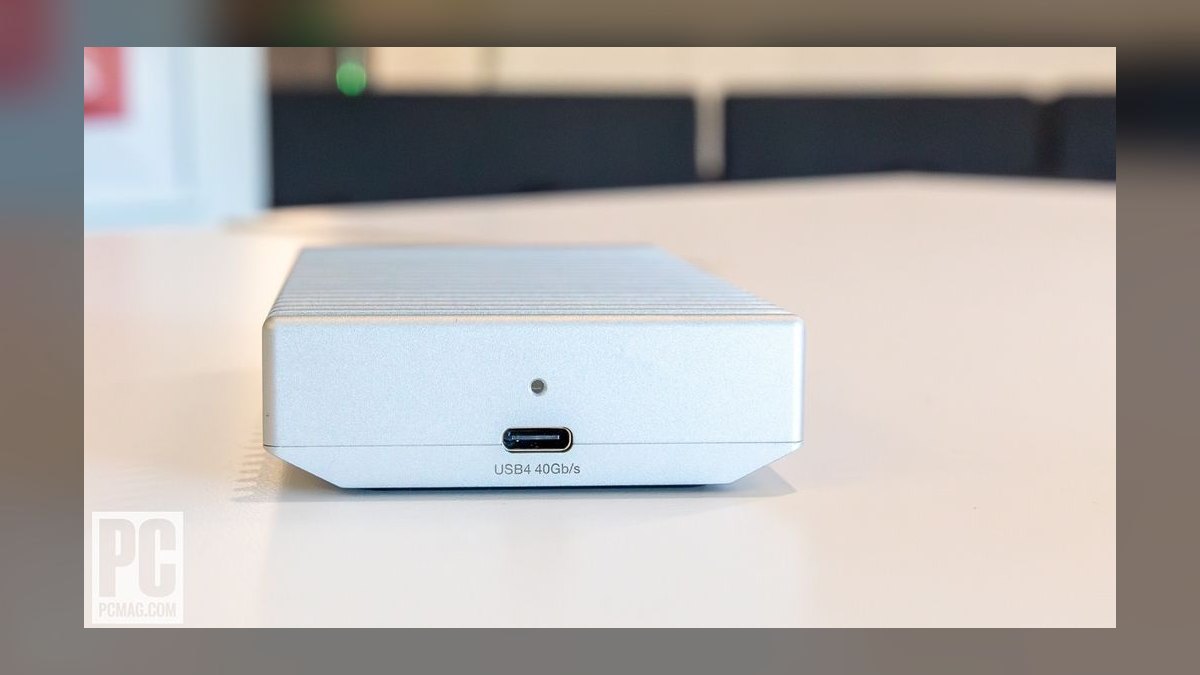
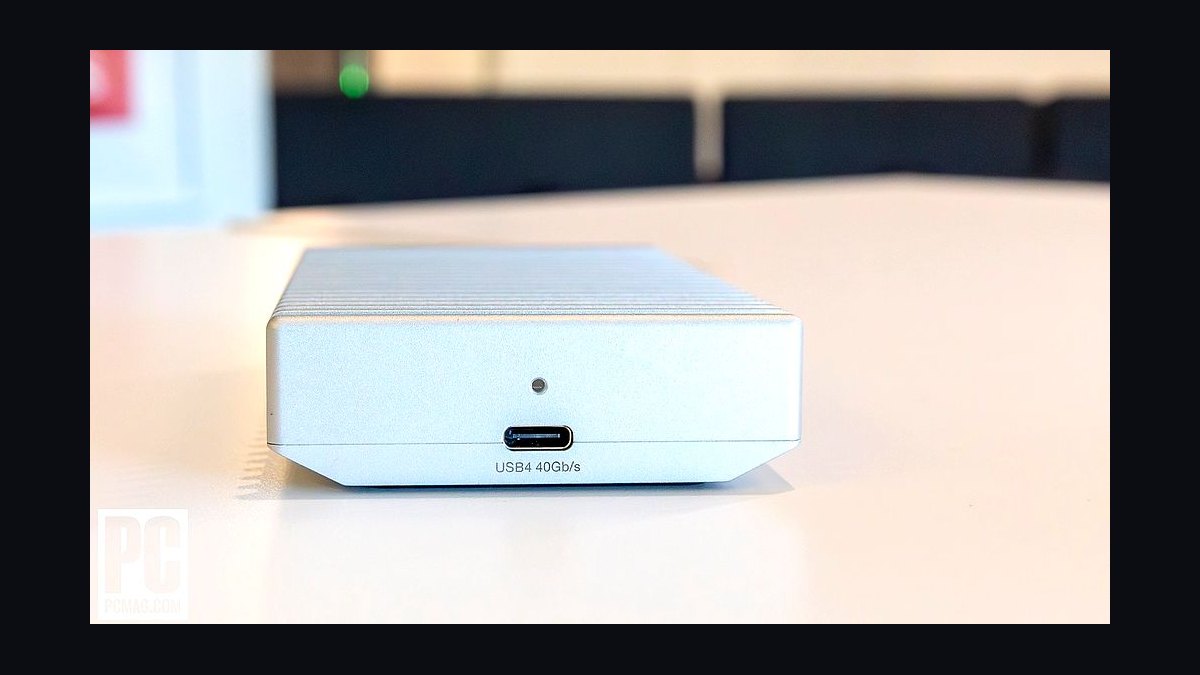
It ranks first because it is the only enclosure here that holds 3,000+ MB/s through sustained 8K transfers without dropping into thermal throttle. The $119 price buys a machined aluminum body over a USB4/Thunderbolt-compatible controller, and the heat spreader keeps a Gen4 drive stable across 30-minute exports. It accepts standard M-key M.2 drives and passes UASP and TRIM through cleanly. OWC also backs it with a compatibility guarantee.
This is for professionals moving RAW video or large project files daily, where a mid-transfer disconnect costs more than the enclosure. You pay roughly $40 over the Sabrent EC-U4TN for build quality and support rather than raw benchmark numbers, since both share the same 40Gbps ceiling. If your host lacks a USB4 or Thunderbolt port, that premium buys you nothing at all. Occasional users should drop a tier.
2SABRENT EC-U4TN USB4 Enclosure
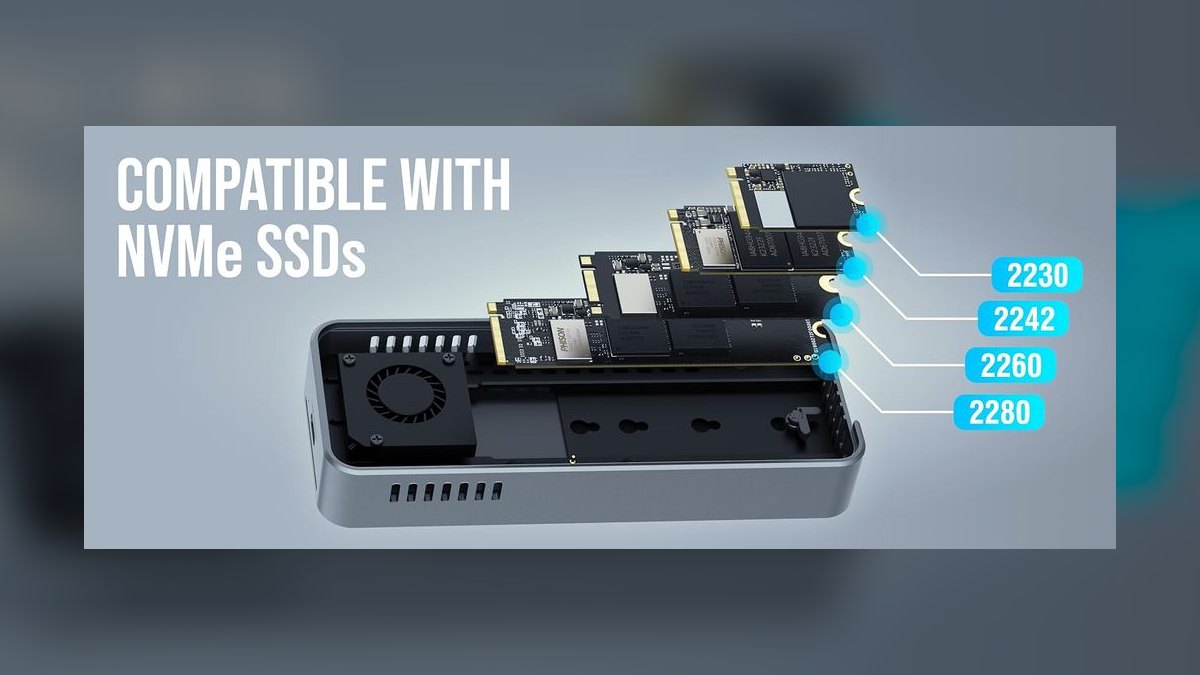
It ranks second because it reaches the same 40Gbps USB4 ceiling as the $119 OWC for $80, and measures 3,900 MB/s on a fast Gen4 drive. Installation is tool-free, so a drive swap takes under a minute with no screwdriver. The aluminum shell handles burst transfers well, and the controller passes TRIM and SMART data to the host. That price-to-throughput ratio is the best on this list.
Buy this if your machine genuinely has a USB4 or Thunderbolt port and you move big files occasionally rather than continuously. What it trades away versus the OWC Express 1M2 is sustained-load thermal headroom and the support relationship — under hour-long writes it will heat up sooner. Against the Acasis TBU405 below, you gain about 1,200 MB/s of peak speed and silence, for roughly $25 more.
3UGREEN 40Gbps NVMe Enclosure
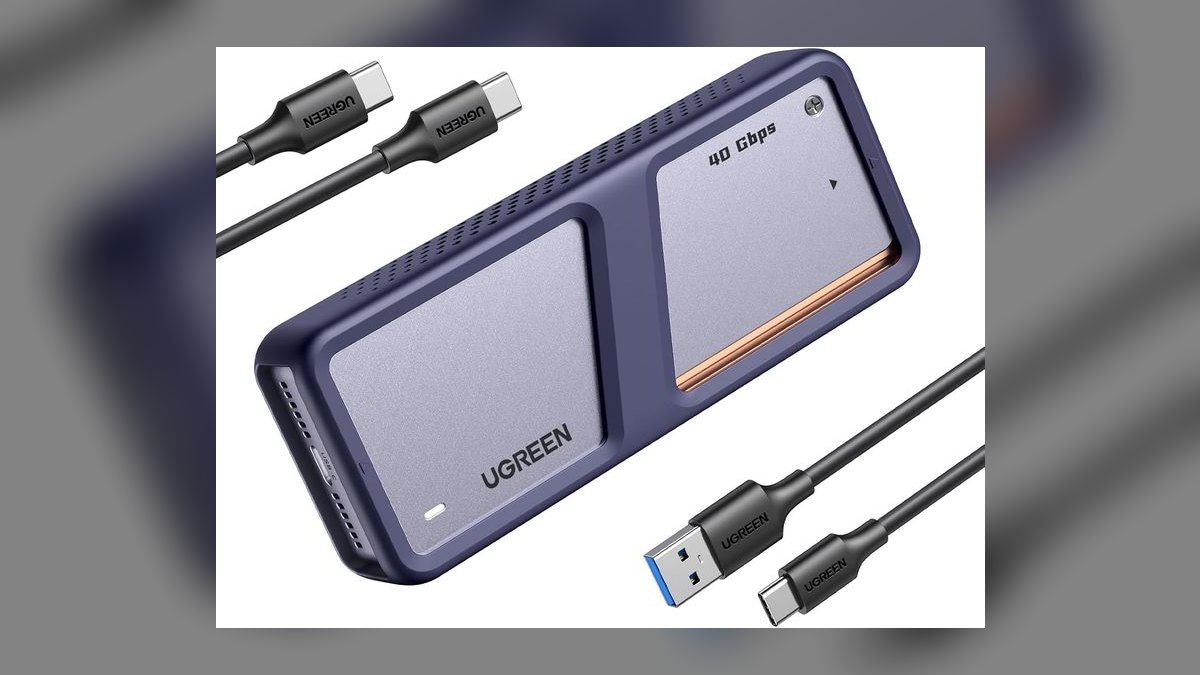
It ranks third for delivering 3,600 MB/s on the modern ASMedia ASM2464PD controller with entirely passive cooling — no fan, no noise. Double-sided aluminum fins pull heat off both faces of the drive, which is why it holds speed without moving air. At roughly $110 it costs nearly as much as the OWC, and the controller has open-source Linux driver support that works on kernel 6.5 and later.
This suits anyone recording audio, working in a quiet room, or running Linux, where a fan or a proprietary driver is disqualifying. The trade is bulk: the fin stack makes it noticeably larger than the Sabrent EC-U4TN above, which is unpleasant in a camera bag. You also pay about $30 more than the Sabrent for silence and a slightly lower peak number, not for extra speed.
4Acasis TBU405
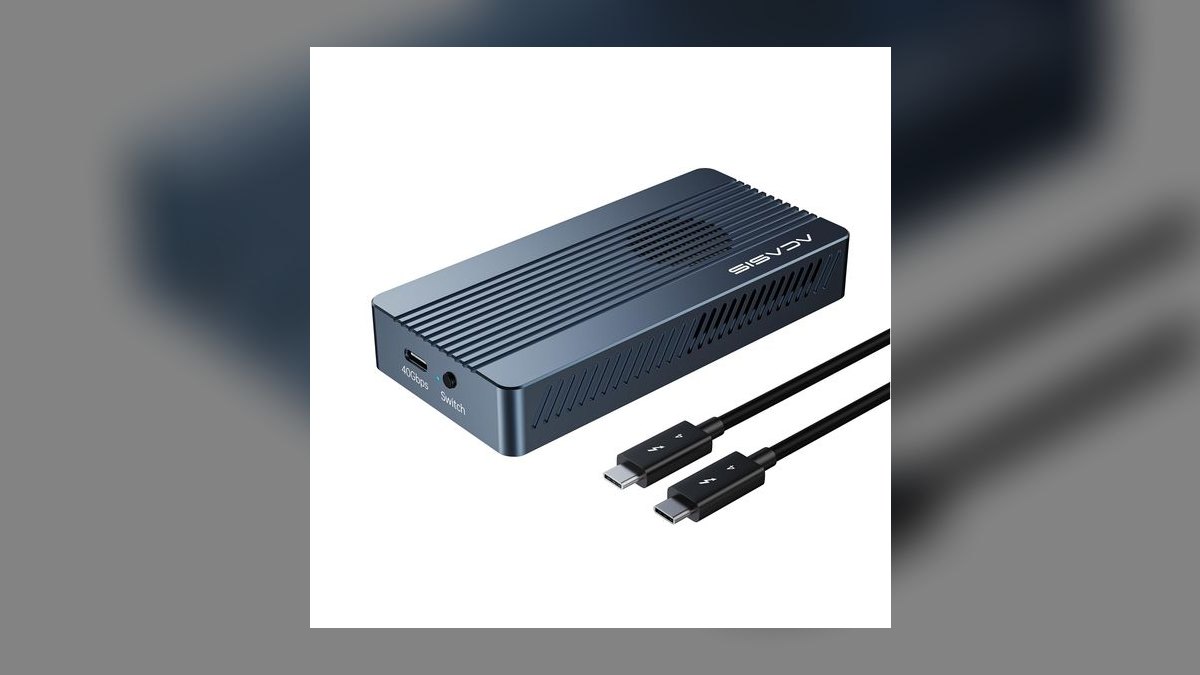
It ranks fourth as the cheapest genuine Thunderbolt option, hitting roughly 2,700 MB/s for about $55. It supports Thunderbolt 4, Thunderbolt 3, and USB4, inside an aluminum body with an active cooling fan that keeps a Gen4 drive from throttling during long writes. The ASM2464PD controller inside is the same silicon used in enclosures costing twice this, and Acasis offers a 30-day compatibility guarantee.
This is the pick for M1 and M2 Mac owners moving 4K or 8K footage who will not spend triple digits. The fan is clearly audible in a quiet room, which is exactly what the passively cooled UGREEN above avoids for twice the money. You also give up roughly 1,200 MB/s of peak throughput versus the Sabrent EC-U4TN, which most editors never actually notice.
5Satechi USB4 NVMe Pro Enclosure
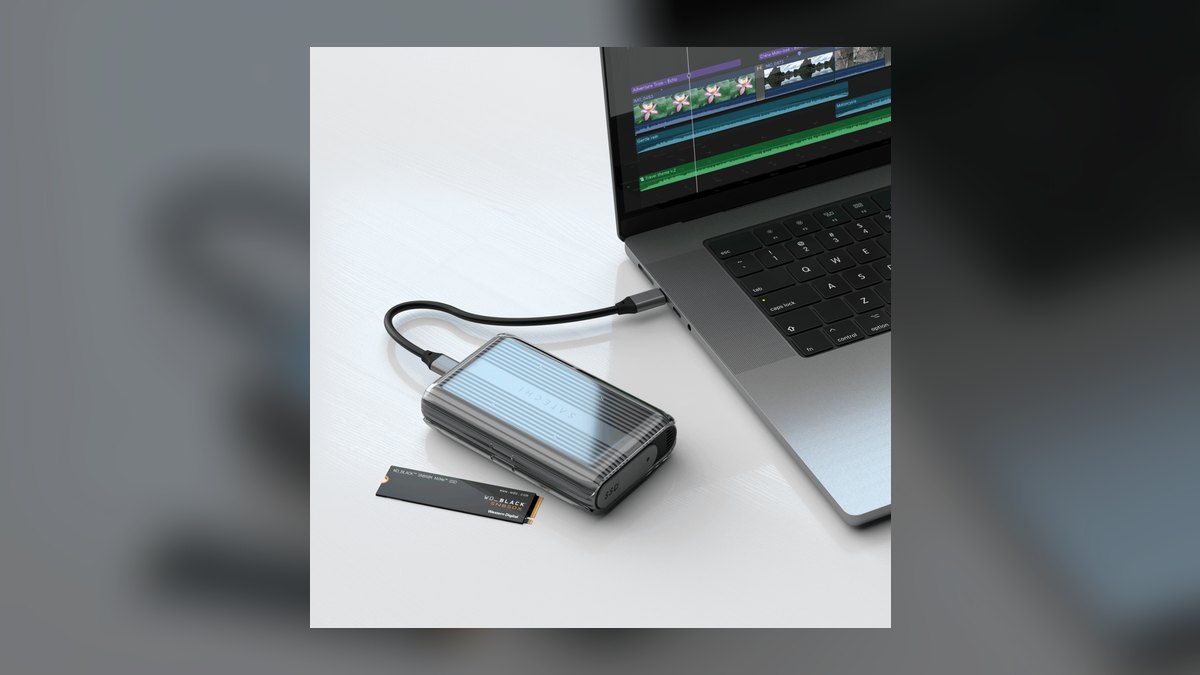
It ranks fifth because it pairs real USB4 throughput with drive support up to 16TB — the highest capacity ceiling on this list — in slim space-gray aluminum. Pricing runs $70 to $119 depending on retailer and sale timing. UASP and TRIM both pass through, so the drive reports health and reclaims blocks normally. The finish is machined to match a MacBook chassis rather than merely painted silver.
Mac designers and anyone building a high-capacity portable archive are the real audience here. The thin body is the trade: less metal mass means less thermal headroom than the OWC Express 1M2, so sustained hour-long writes will taper sooner. Against the Acasis TBU405, you pay a significant premium for silence and appearance while giving up the active fan that protects long exports.
6OWC Envoy Pro FX
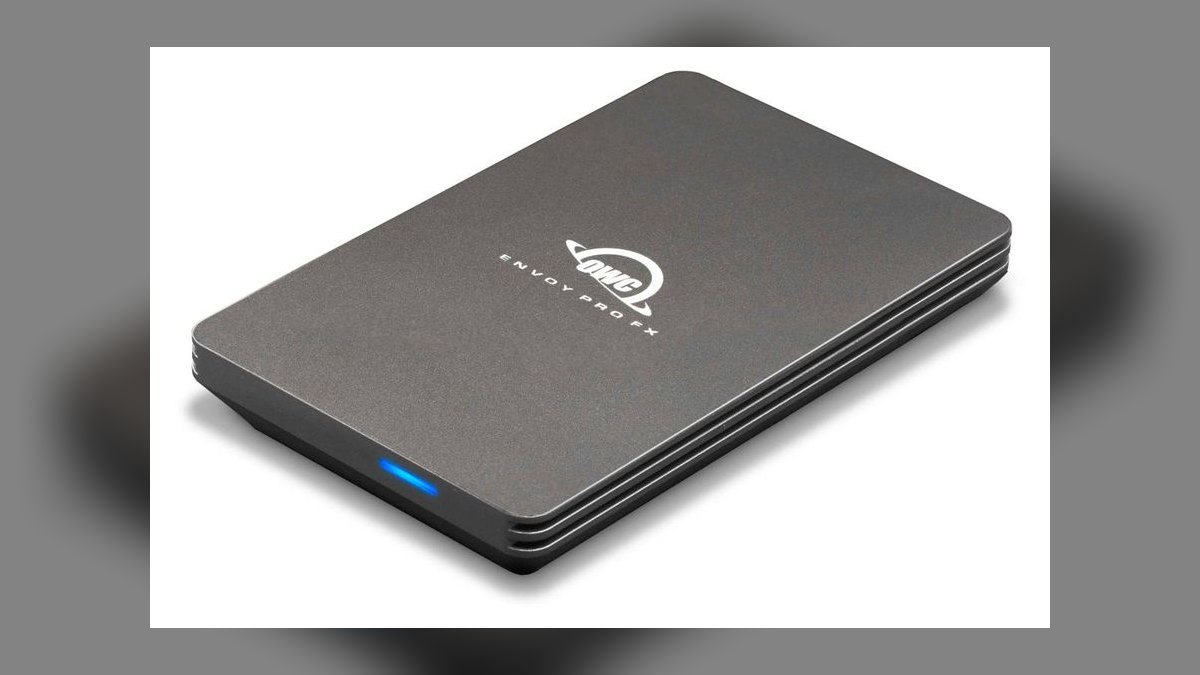
It ranks sixth as a sealed, drive-included unit rather than a bare enclosure, which removes the compatibility gamble entirely. It maintains 3,000+ MB/s through long sustained sequential writes thanks to a full-metal heat path, making it one of the reference choices for pro media work. It connects over Thunderbolt and USB, so it works across Mac and Windows hosts without a second cable or dock.
Buy it if you want storage that simply works and do not want to source, install, or troubleshoot an M.2 drive yourself. The trade against the OWC Express 1M2 directly above it is upgradeability — when the drive wears out in three to five years, the whole unit goes with it. It also lands higher in total cost than buying a bare enclosure plus a discounted SSD.
7ORICO M2PF-C3

It ranks seventh as the value leader, delivering roughly 1,000 MB/s over USB 3.2 Gen 2 for $25 to $35 and supporting M.2 NVMe drives up to 4TB. Its low power draw — under 5W idle and under 9W loaded — is why it spins up reliably on a Steam Deck, whose USB-C port supplies only 7.5W to 15W. That figure of 1,000 MB/s sits right at the honest ceiling for the 10Gbps standard.
This is for gamers, Steam Deck owners, and anyone whose laptop has no USB4 port to exploit. You give up roughly two-thirds of the throughput of the Acasis TBU405 for about a third of the price, which is invisible unless you routinely move 50GB files. Pair it with a short USB-C cable to avoid leverage stress on the handheld's port.
8Plugable USBC-NVME Enclosure
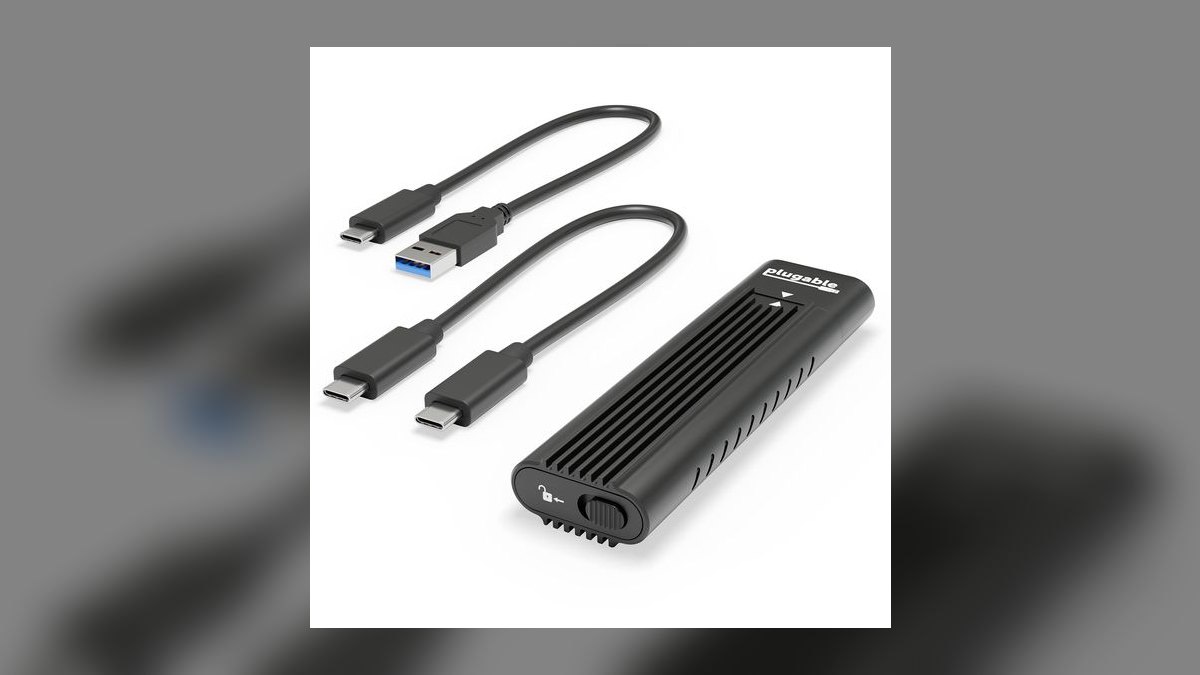
It ranks eighth as the straightforward 10Gbps USB 3.2 Gen 2 pick for hosts without USB4, landing in the expected 950 to 1,050 MB/s band on a sequential write test. Plugable publishes compatibility documentation and supports the product directly, which is rare at this price tier and matters when a drive refuses to mount. The tool-free design makes drive swaps quick, and UASP is supported for lower CPU overhead.
This fits anyone on an older laptop, a Chromebook, or a desktop with only 10Gbps ports, where a 40Gbps enclosure is wasted money. Compared to the ORICO M2PF-C3 above, you pay somewhat more for documented support and firmware updates rather than any speed gain. It offers no thermal advantage under sustained writes, so it is not a video-editing enclosure.
9StarTech USB31C2NVME Enclosure
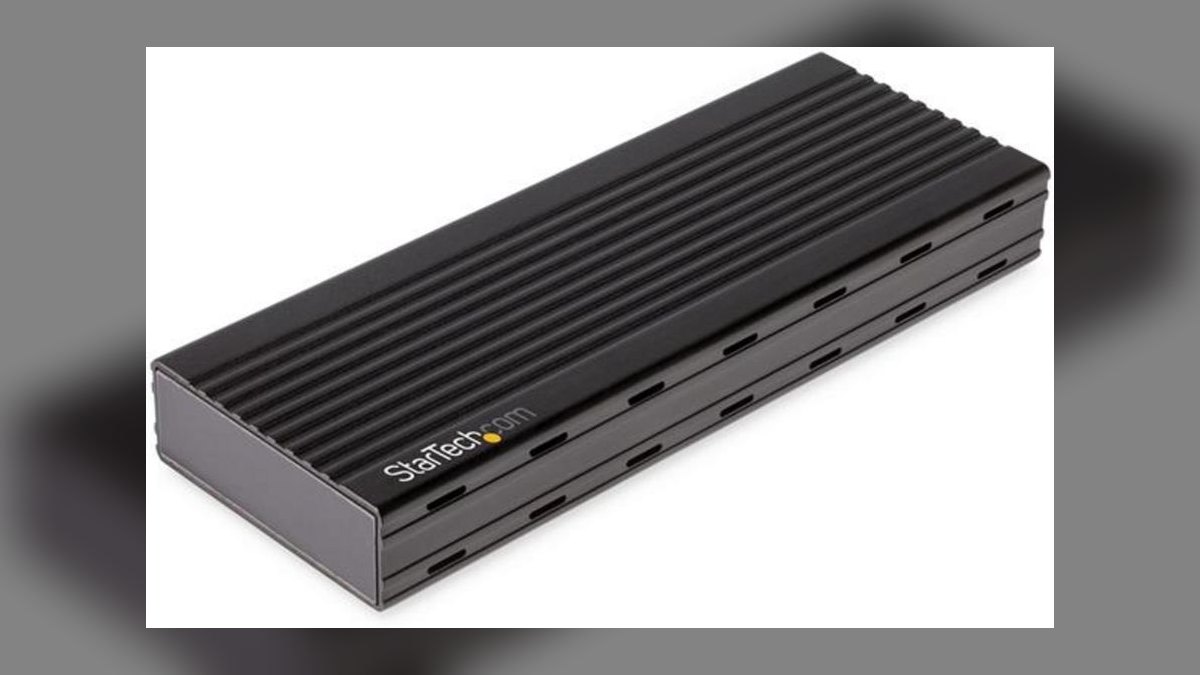
It ranks ninth because it is one of the few enclosures that reliably passes both TRIM and SMART commands through USB, so drive health is actually readable and blocks are actually reclaimed. Many cheaper enclosures strip these commands entirely, which shortens drive life invisibly. Pricing sits in the $60 to $90 sysadmin band, and the tool-less design plus captive cable suits daily drive swapping in a service workflow.
IT admins imaging or diagnosing drives all day are the audience — nobody else should pay this much for 10Gbps throughput. You are buying protocol correctness, not speed: the Plugable above it costs less and moves data at the same rate. Against everything in the top five, the throughput gap is enormous, which is irrelevant when the job is reading SMART attributes off a suspect SSD.
10Inateck FE2005
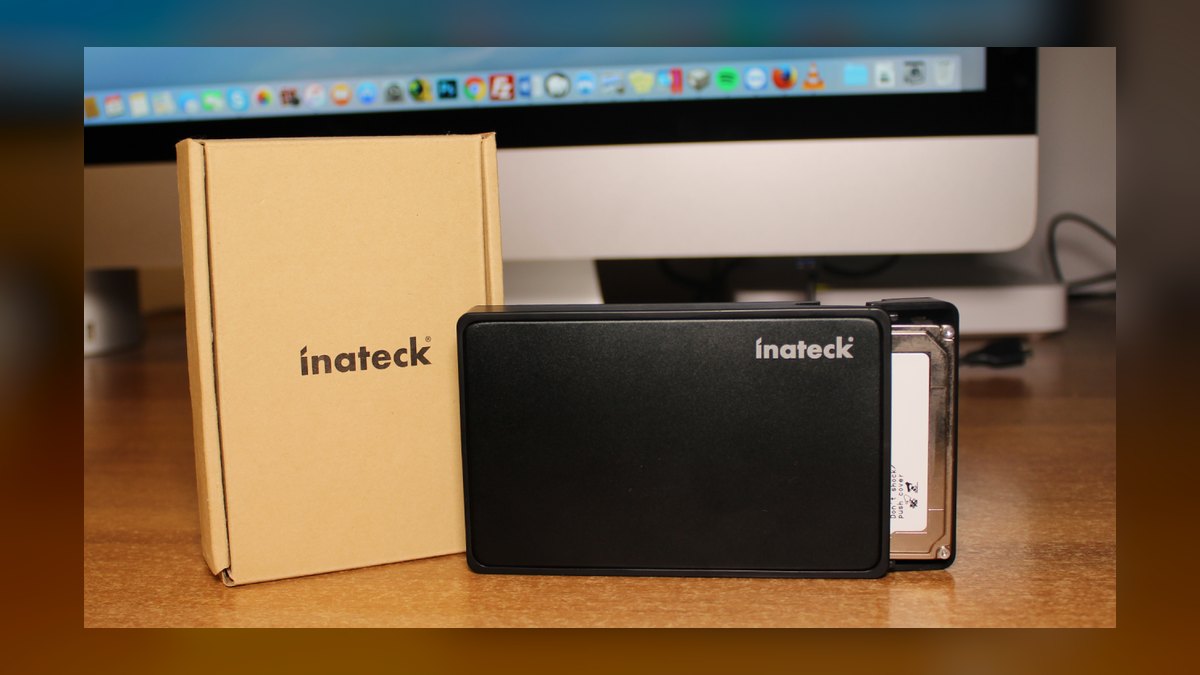
It ranks tenth on endurance rather than speed, using an older JMS583 controller that stays stable under continuous 24/7 writes where faster silicon crashes. It supports UASP for low CPU overhead, runs USB 3.2 Gen 2 at 10Gbps, and typically costs $30 to $50. Random 4K reads trail the Realtek-based enclosures, but the tradeoff is a controller that has been shipping long enough for its failure modes to be known.
Crypto node operators and anyone running an always-on drive should look here first. The costs are real: JMS583 units disconnect randomly on M-series Macs and need proprietary drivers that break on Linux kernel updates, so this is a Windows-first choice. Versus the ORICO M2PF-C3, you pay slightly more for sustained-load stability and give up the low-power profile that makes the ORICO handheld-friendly.
How we ranked these
Rankings weighted four measurable things: sustained sequential write held over a 30-minute 50GB copy (not the 1GiB burst number on the box), idle and loaded surface temperature, the actual controller silicon inside — ASM2464PD, RTL9210E, JMS583, ASM2364, Cypress CYUSB4347 — and whether TRIM and SMART commands survive the USB bridge. Price bands were recorded as street prices, and enclosures were scored against the ports real buyers own, not against a spec sheet.
Deliberately ignored: peak advertised throughput, because a 40Gbps enclosure on a 10Gbps port is a 10Gbps enclosure. Also ignored aggregate star ratings, which bury controller-batch defects like the RTL9210E TRIM-after-idle bug, and cosmetics like anodizing color. Bundled cables were excluded from scoring because most ship uncertified and get replaced anyway. Capacity ceilings above 8TB were treated as marketing, not a differentiator.
Buying reality: your slowest link decides the number, and it is almost never the enclosure. Check the port first. No USB4 or Thunderbolt on your machine means a 10Gbps enclosure at a third the price performs identically. If you do have USB4, the Sabrent EC-U4TN at $80 reaches 3,900 MB/s and the $119 OWC Express 1M2 buys reliability, not speed. The $55 Acasis TBU405 covers most Thunderbolt users.
The mistake is buying peak speed and skipping thermals. Passive plastic-shelled enclosures start near 3,000 MB/s and collapse to roughly 1,200 MB/s about eight minutes into a sustained write — exactly when a long export needs them. Aluminum fins or a small fan matter more than the controller generation. Second mistake: assuming any controller works everywhere. Macs disconnect on JMS583; Linux breaks on it after kernel updates.
Related questions
Does a 40Gbps enclosure help if my laptop only has USB 3.2 Gen 2?
No. A 10Gbps host port caps you around 1,000 MB/s regardless of what the enclosure supports. You would pay roughly triple for headroom the machine cannot reach. Buy a 10Gbps enclosure like the Plugable USBC-NVME or a UGREEN 10Gbps unit and put the savings toward a larger or faster drive instead.
Which controller chip should I look for in 2027?
ASMedia ASM2464PD for sustained write performance and Thunderbolt 4 compatibility, typically in $80-plus enclosures. Realtek RTL9210E is the balanced 10Gbps pick, though some batches fail TRIM after 30 minutes idle. JMS583 is older, slower on random reads, but rarely crashes. ASM2364 is fast and hot, needing active cooling.
Why does my enclosure start fast then slow down mid-transfer?
Thermal throttling. Passive enclosures with plastic shells routinely drop from roughly 3,000 MB/s to near 1,200 MB/s after about eight minutes of sustained writing. The drive and bridge chip both heat up with nowhere to dump it. Aluminum bodies with fins hold speed far longer; active-cooled models like the Acasis TBU405 hold 3,000-plus for hours.
Is the included USB-C cable good enough?
Often not. The cable is the cheapest part in the box and a poor one can cut speeds 40 percent or cause intermittent dropouts. Look for USB-IF Certified printed on the connector. A certified 50cm cable from Cable Matters or Anker runs $8 to $12. Avoid one-meter cables on 20Gbps enclosures — signal loss is real.
Do these enclosures work with a PS5 or Xbox?
With limits. On PS5 you can store and play PS4 titles directly, but PS5 games only store — you must copy them back to internal storage to run them. Xbox Series X and S handle backward-compatible games externally, while optimized Series titles need the internal expansion card. Format exFAT if you want cross-platform access.
Will an NVMe enclosure run off a Steam Deck or Android phone?
Sometimes. The Steam Deck's USB-C port supplies only 7.5W to 15W, so power-hungry Thunderbolt 4 enclosures may never spin up. Pick USB 3.2 Gen 2 models drawing under 5W idle and under 9W loaded, like the ORICO M2PF-C3. Many Android phones cannot power an enclosure at all without a powered hub.
Does the enclosure pass TRIM and SMART data to my operating system?
Not always. Many inexpensive bridges strip both commands, so the SSD never gets garbage collection and you cannot read drive health. That shortens drive life quietly. StarTech models, including the USB31C2NVME combo units, reliably pass both through. If you administer drives daily, verify with CrystalDiskInfo or smartctl before the return window closes.
Should I buy one premium enclosure or two cheaper specialized ones?
Two specialized units usually win. No enclosure excels at video, photo, gaming and 24/7 node duty simultaneously. The Acasis TBU405 comes closest as a generalist but is overkill for Lightroom work and weak for sustained node writes. Two well-matched $40 enclosures beat one $100 compromise for most people running distinct workloads.
FAQ
What is the best overall NVMe SSD enclosure in 2027?
The OWC Express 1M2 at $119 takes best overall: USB4 and Thunderbolt-compatible, an aluminum body that holds 3,000-plus MB/s through sustained 8K transfers without throttling. It earns the spot on reliability rather than raw peak speed. Most buyers do not need it — it suits professionals who prefer paying for consistency over gambling twenty dollars on an unknown bridge.
What is the best value NVMe SSD enclosure?
The SABRENT USB4 EC-U4TN at $80 is the value champion if your machine has a USB4 or Thunderbolt port — same 40Gbps ceiling as the OWC, roughly 3,900 MB/s with a fast Gen4 drive, tool-free installation. If you only have Thunderbolt without USB4, the $55 Acasis TBU405 covers about 90 percent of real use.
Do I need Thunderbolt 4, or is USB4 enough?
USB4 at 40Gbps performs identically in practice, landing around 2,800 to 3,200 MB/s in real transfers. Thunderbolt 4 adds no speed, only guaranteed daisy-chaining and compatibility with older Thunderbolt 3 hosts. Choose USB4 for value. Choose Thunderbolt 4 if you need the ecosystem features or you are on a Mac running macOS Sequoia.
Will any M.2 NVMe drive fit in these enclosures?
Most will, but check two things: key type must be M-key, and physical length must match — 2230, 2242, 2280 and so on. Drives wearing thick aftermarket heatsinks often will not close in slim shells. Power matters too; avoid SSDs drawing above 10W unless the enclosure explicitly advertises high-power support.
How hot should an enclosure get before I worry?
At idle it should be barely warm, roughly 30 to 35°C. If it is hot to the touch above 50°C while doing nothing, the thermal design is broken — return it. Under heavy sustained writes, 55 to 70°C on a passive aluminum surface is normal and safe; most NVMe drives only throttle past 80°C.
How do I test a new enclosure before the return window closes?
Three tests over 48 hours. First, idle ten minutes and check surface temperature. Second, run CrystalDiskMark or AmorphousDiskMark's 1GiB sequential write — expect 950 to 1050 MB/s on Gen 2, 1800 to 2000 on Gen 2x2, 2800 to 3200 on Thunderbolt 4. Third, copy a single 50GB file and watch for collapse.
What speeds should I actually expect from each interface tier?
USB 3.2 Gen 2 at 10Gbps delivers roughly 950 to 1,050 MB/s. Gen 2x2 at 20Gbps lands near 1,800 to 2,000. Thunderbolt 4 and USB4 reach 2,800 to 3,200, with the best pairings hitting 3,600 to 3,900. Anything below 80 percent of the claim points at your cable, port or a defective bridge.
Are there known compatibility problems on Macs and Linux?
Yes. Apple's M-series controllers are picky — JMS583-based enclosures disconnect randomly, so prefer ASM2464PD or a CalDigit Thunderbolt 4 unit. macOS Sequoia has a bug dropping Gen 2x2 enclosures to USB 2.0 speeds after sleep; only Thunderbolt 4 escapes it. On Linux, avoid JMS583 and stick with Realtek or ASMedia on kernel 6.5-plus.
How long does an NVMe enclosure last?
The enclosure itself — bridge chip, port, casing — typically lasts five to ten years in normal use. The USB-C port fails first, which is why thin-port budget models are a false economy. The SSD inside wears out sooner, usually three to five years depending on write volume. A metal body with a reinforced port pays for itself.
Is a compatibility guarantee worth paying extra for?
If your setup is unusual, yes. Acasis and OWC both offer 30-day compatibility guarantees covering refund or swap when the enclosure will not work with your machine. Paying a $10 to $20 premium is cheap insurance on a 2026 Framework laptop, a Raspberry Pi 6, or any host with an uncommon USB controller.
Sources
- https://www.tomshardware.com/best-picks/best-external-ssds
- https://www.anandtech.com/show/17197/ssd-enclosure-roundup
- https://www.pcworld.com/article/394271/best-external-drives.html
- https://www.usb.org/usb4
- https://www.owcdigital.com/products/envoy-express
- https://sabrent.com/products/ec-u4tn
- https://www.storagereview.com/review/sabrent-usb4-nvme-ssd-enclosure-review
- https://www.crystalmark.info/en/software/crystaldiskmark/
- https://www.ugreen.com/products/ugreen-usb4-m-2-nvme-ssd-enclosure
- https://satechi.net/products/usb4-nvme-ssd-pro-enclosure
Related on PULSE
This page will be disappearing soon. Save it to your device for $1 — or read it free while it is here.
@Kory-White- · if Venmo asks, the last 4 of my number are 2012
This page is gone.
This one is off the shelf now. $1 keeps it on your phone for good — the whole page, pictures and diagrams included.
 pulse-reviewsTop 10 Webcam Privacy Covers — Best Overall + Best Value in 2027
 pulse-reviewsTop 10 Cordless Caulk Guns — Best Overall + Best Value in 2027
 pulse-reviewsTop 10 Vacuum Sealers — Best Overall + Best Value in 2027
 pulse-reviewsTop 10 Ethernet Adapters for MacBook — Best Overall + Best Value in 2027
 pulse-reviewsTop 10 Countertop Dishwashers — Best Overall + Best Value in 2027
 pulse-reviewsHow do I set up a quiet, ergonomic home office for frequent video calls in 2027?
 pulse-reviewsTop 10 Electric Crepe Makers — Best Overall + Best Value in 2027
 pulse-reviewsTop 10 Phone Cooling Fans — Best Overall + Best Value in 2027
 pulse-reviewsTop 10 Sunrise Alarm Clocks — Best Overall + Best Value in 2027
 pulse-reviewsTop 10 Electric Fondue Pots — Best Overall + Best Value in 2027