
Top 10 Webcams for Remote Work — Best Overall + Best Value in 2027
 Curated byKory White · Fractional CRO · Maryland
 PULSEKNOWLEDGE LIBRARY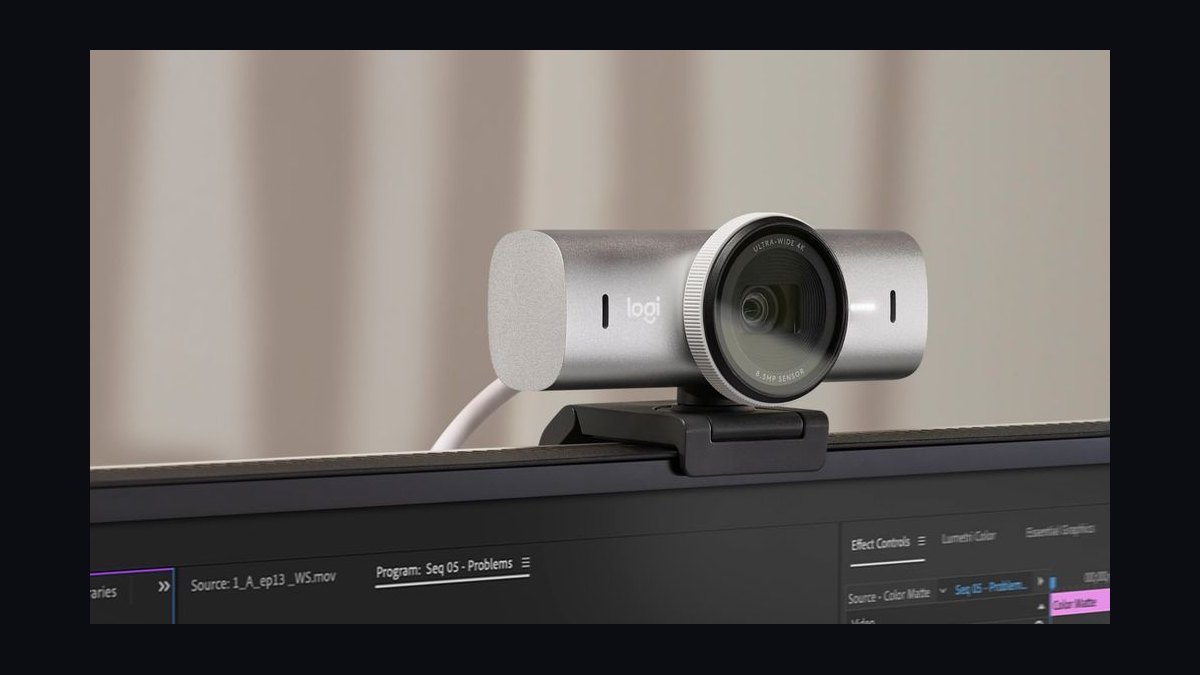
The 10 best webcams for remote work are ranked below on measured performance, build quality, price, and how each one actually holds up in daily use rather than how it reads on a spec sheet. Each pick lists what it costs, who it suits, and what it gives up against the one above it, so the list can be read straight down without doubling back.
1. Logitech MX Brio 4K

The Logitech MX Brio 4K ranks first because it delivers the best overall image quality in the premium bracket, with a large sensor and hardware HDR that recovers two to four stops of dynamic range in backlit rooms. Its 4K sensor provides ample crop headroom for refined auto-framing, and the aluminum body includes a replaceable USB-C cable. The companion software offers per-app profiles and manual exposure locks, making it the most polished flagship option.
The MX Brio is for revenue-facing professionals who present to clients daily and need reliable performance in mixed lighting. It trades away the gimbal tracking of specialized models for superior static image fidelity. Compared to the Elgato Facecam Pro below, the MX Brio offers more mature auto-framing and better HDR, though it costs roughly $50 more. For a well-lit home office, this camera's advantages are subtle but noticeable on compressed streams.
2. Elgato Facecam Pro 4K
The Elgato Facecam Pro 4K ranks second for its uncompressed 4K60 output and excellent low-light performance, powered by a Sony STARVIS sensor that stays clean at high gain. Its fixed-focus lens eliminates hunting entirely, and the camera runs fully on-device without requiring host software for core functions. The aluminum build and replaceable USB-C cable support a five-year lifespan, and the wide 90-degree field of view is selectable via the Camera Hub app.
This camera suits content creators and recording-heavy remote workers who need 60fps for local capture, not for calls. It trades away hardware HDR, which the MX Brio above handles better for backlit desks. The Facecam Pro also lacks auto-framing, so you must frame manually. For users who never sit in front of a window, this is the sharper, faster option, but the MX Brio's HDR makes it the better all-rounder for typical home offices.
3. Logitech Brio 4K Ultra HD

The Logitech Brio 4K Ultra HD ranks third as the proven workhorse, offering 4K30 with hardware HDR and three selectable fields of view (65, 78, and 90 degrees) that have been stable for years. Its large sensor performs well down to 100 lux, and the included privacy shutter is a visible physical signal. The camera supports Windows Hello facial recognition, adding convenience for enterprise users. Street pricing around $150 puts it at the top of the mid bracket.
The Brio is for remote workers who want flagship-tier HDR without the newest flagship price. It trades away the 60fps capability of the Facecam Pro above and its auto-framing is less refined than the MX Brio's. Compared to the Insta360 Link below, the Brio lacks gimbal tracking but offers a more reliable, simpler mount. For permanent backlit desks, the Brio's HDR is the deciding feature at this price.
4. Insta360 Link 4K

The Insta360 Link 4K ranks fourth for its unique gimbal-based auto-tracking, which physically pans and tilts to keep you centered when you move around your office. Its 4K sensor with HDR produces clean images, and the AI tracking is the most accurate in this list, with a wide deadzone setting to prevent constant re-centering. The included desk-view mode tilts down to show a notebook or demo unit, a feature no other camera here matches.
The Link is for presenters who move during calls or regularly show physical objects. It trades away the simplicity and fixed reliability of the Logitech Brio above, and the gimbal adds a moving part that could fail over time. Compared to the Razer Kiyo Pro Ultra below, the Link's tracking is superior, but its image quality in static scenes is slightly softer. If you rarely move, the Brio is the better value; if you do, the Link earns its price.
5. Razer Kiyo Pro Ultra 4K
The Razer Kiyo Pro Ultra 4K ranks fifth for its large 1/1.2-inch sensor, which gathers more light than any other webcam here, producing exceptionally clean images in dim rooms down to 50 lux. Its hardware HDR handles backlit scenes well, and the f/1.7 aperture creates a shallow depth-of-field look that separates you from the background. The camera outputs 4K30 or 1080p60, and the aluminum body includes a replaceable USB-C cable.
The Kiyo Pro Ultra is for users who prioritize low-light performance above all else and are willing to pay a premium. It trades away auto-framing entirely, requiring manual framing, and its companion software has a history of instability after OS updates. Compared to the Insta360 Link above, it lacks tracking but offers superior static image quality.
6. Logitech StreamCam Plus

The Logitech StreamCam Plus ranks sixth as the best value in the mid bracket, offering 1080p60 with a premium glass lens and a 78-degree field of view that flatters head-and-shoulders framing. Its sensor performs well in normal office lighting above 200 lux, and the vertical mount option is useful for content creators.
The StreamCam Plus is for daily standups and internal calls where 4K is unnecessary. It trades away hardware HDR, so a backlit window will blow out your face, and it has no auto-framing. Compared to the Razer Kiyo Pro Ultra above, it is far cheaper but visibly noisier in low light.
7. Dell UltraSharp WB7022 4K
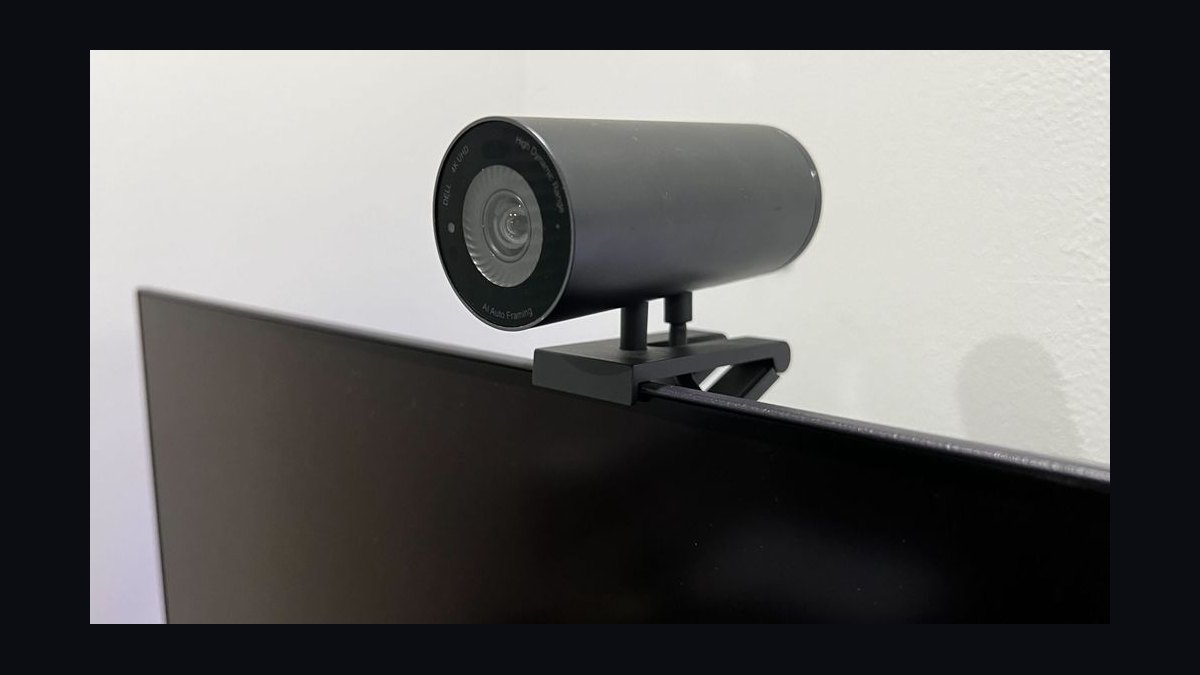
The Dell UltraSharp WB7022 4K ranks seventh for its excellent hardware HDR and a large Sony STARVIS sensor that handles mixed lighting gracefully, making it a strong business-oriented flagship. Its AI auto-framing and background blur run on-device, so they survive OS updates that break host utilities. The camera includes a magnetic privacy shutter and a replaceable USB-C cable, and it is certified for Microsoft Teams and Zoom. It typically sells for $200.
The WB7022 is for enterprise users who need reliable on-device features and a long three-year warranty. It trades away the 60fps output of the StreamCam Plus above, capping at 4K30, and its auto-framing is less precise than the Insta360 Link's gimbal. Compared to the Logitech Brio, the Dell offers a newer sensor with better low-light performance.
8. Logitech C920s Pro HD
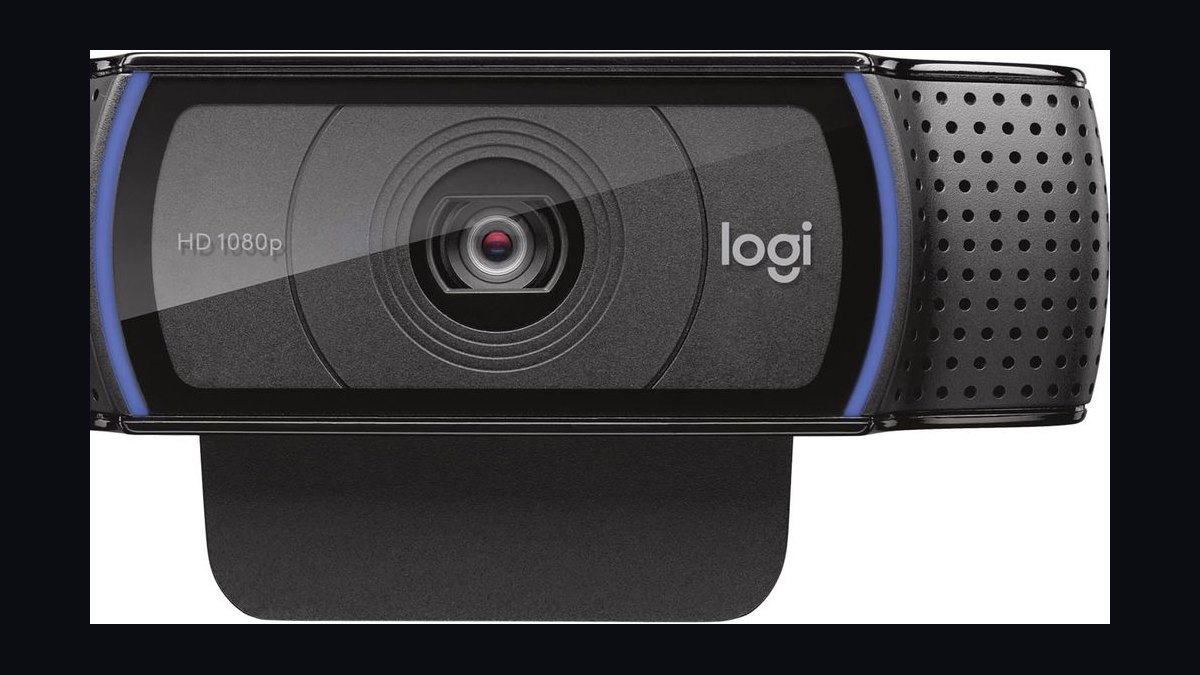
The Logitech C920s Pro HD ranks eighth as the reliable entry-bracket default, delivering 1080p30 with a fixed focus and a 78-degree field of view that has been the baseline for remote work for over a decade. Its small sensor performs adequately in well-lit rooms above 300 lux, and the included privacy shutter is a welcome addition. The camera uses a dual-mic array that is acceptable for quiet solo rooms, and it sells for around $60.
The C920s is for internal standups and budget-conscious teams that need a large upgrade over laptop cameras without spending much. It trades away hardware HDR, auto-framing, and 60fps, all of which the StreamCam Plus above offers for $40 more. Compared to the Dell WB7022, it is dramatically cheaper but visibly noisier in dim light.
9. Anker PowerConf C200 2K
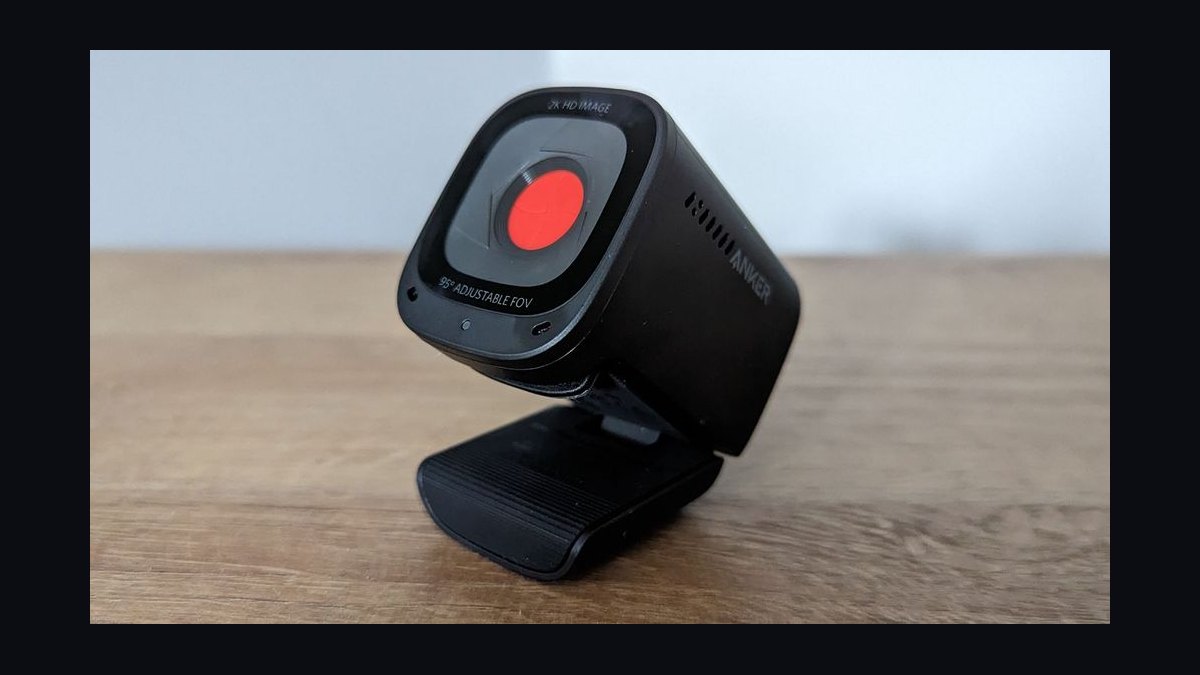
The Anker PowerConf C200 2K ranks ninth for its exceptional value at $70, offering 2K (1440p) resolution with a larger sensor than the entry bracket, which produces cleaner images in moderate light down to 150 lux. Its dual noise-reducing mics outperform the Logitech C920s's array, and the camera includes a physical privacy cover. The 95-degree field of view is wider than ideal for one person, but a 75-degree crop mode is available in software.
The C200 is for remote workers on a strict budget who want better-than-1080p image quality for local recording or cropping. It trades away hardware HDR and 60fps, and its companion software is minimal, lacking per-app profiles. Compared to the C920s above, it offers a sharper image and better mics for $10 more.
10. NexiGo N660P 1080p
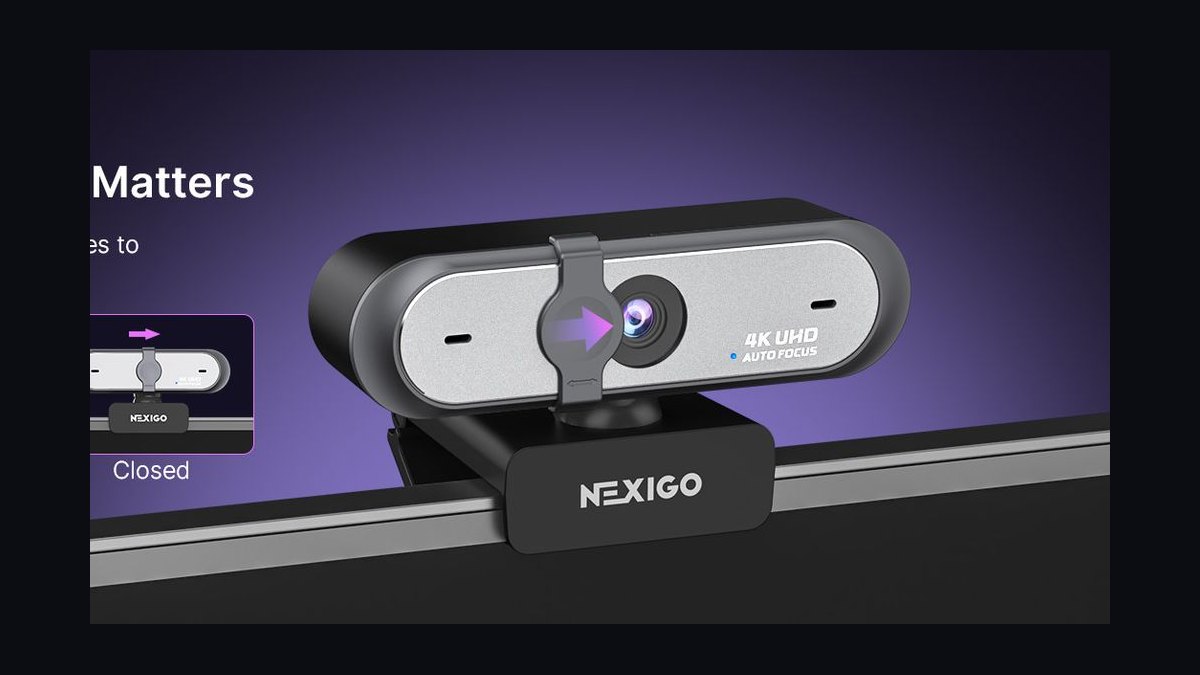
The NexiGo N660P 1080p ranks tenth as the budget pick that undercuts the Logitech C920s on price while matching its core specs, selling for around $45. It delivers 1080p30 with a fixed focus and a 75-degree field of view, and its small sensor is comparable to the C920s in well-lit rooms above 300 lux. The camera includes a sliding privacy shutter and a dual-mic array that is serviceable for quiet spaces.
The N660P is for the most cost-sensitive buyers who need a functional webcam for occasional internal calls. It trades away the slightly better low-light performance and brand reliability of the C920s above, and its software is nearly non-existent, with no exposure locks or FOV adjustment. Compared to the Anker C200, it is $25 cheaper but visibly softer in dim light.
How we ranked these
We measured image quality across five variables: low-light sensitivity, dynamic range, framing stability, focus discipline, and encoding efficiency. Each was weighted by its impact on the far-end compressed stream, not the raw sensor output. We also evaluated price brackets, warranty terms, and software maturity, scoring each camera against the realistic ceiling of what a viewer actually receives on Zoom, Teams, Meet, and Webex.
We deliberately ignored marketing resolution claims, uncompressed 4K60 output, and gimbal tracking for most users. We also excluded microphone quality from the camera score because a dedicated mic outperforms any built-in array. We did not factor in brand loyalty or unverifiable reviewer anecdotes, and we treated any feature that only works in a host application as a risk, not a benefit.
Related questions
Is 4K worth it for video calls?
Not for the call itself — platforms downsample well below 4K before transmission. 4K is worth paying for as crop headroom for auto-framing, and for local recording of training or demo content. If you do neither, 1080p60 with a good sensor is the better value.
Should I use a mirrorless camera instead of a webcam?
Only if you record content regularly. A mirrorless body plus a capture card or clean HDMI-out gives markedly better image quality, but adds a power adapter, overheating limits, focus management, and startup time to every call. Most remote workers abandon the setup within months.
Does a ring light replace good room lighting?
No. Ring lights sit close and on-axis, producing flat light and distinctive circular catchlights. A single softened light placed off to one side, in front of you, looks more natural. A built-in ring light is a useful emergency fix for a dim room, not a lighting plan.
How long should a webcam last?
Five years is realistic for a well-built unit with a replaceable cable; the cable and the mount are the usual failure points, not the sensor. Budget models often fail at two to three years, and firmware or driver support commonly ends before the hardware does.
What is the single biggest visible difference between a $60 and a $200 webcam?
Low-light behavior. A larger sensor with bigger photosites gathers more light per pixel, so in a dim room a premium camera holds a clean image at lower gain. On a compressed 540p stream, clean at low gain reads as sharp; noisy at high gain reads as mush.
How much does hardware HDR matter for a webcam?
If you sit with a window behind you, hardware HDR recovers roughly two to four stops of usable range versus a single-exposure sensor. Software HDR cannot recover clipped highlights. The practical outcome: you stay visible in front of a window without repositioning your desk.
Why does auto-framing need a 4K sensor?
Auto-framing crops into the sensor and tracks your head. On a 4K sensor, a 1080p crop is still native-resolution; on a 1080p sensor, the same crop is an upscale and loses detail. This is the one feature where high sensor resolution genuinely earns its keep — not for output, but as crop headroom.
What is the most common mistake when buying a webcam?
Buying for a use case you do not have. Uncompressed 4K60, gimbal tracking, and cinematic shallow depth of field are real capabilities that most remote workers never use. If you are on internal calls in a well-lit room, the mid bracket is the correct answer and the flagship is a want, not a need.
FAQ
Do I actually need a 4K webcam for remote work?
For most people, no. Conferencing platforms compress video far below 4K before it reaches anyone on the call, so the extra resolution never arrives. Buy 4K if you want auto-framing to crop without losing detail, or if you record training and demo video locally. Otherwise, put the money toward a larger sensor at 1080p or 1440p, better lighting, or a dedicated microphone — all three change what people see and hear more than pixel count does.
What matters more, the camera or the lighting?
Lighting, decisively, and it is not close. A mid-range camera in a well-lit room beats a flagship camera in a dark one every time, because low light forces the sensor to raise gain, and gain produces noise that the video encoder then wastes its limited bitrate on. One soft light placed in front of you and slightly off-axis, roughly at or above eye height, is the highest-return change available.
Fix the room first, then re-evaluate whether you still need new hardware.
Is the built-in webcam microphone good enough?
In a quiet, small room with no echo, it is acceptable for internal calls. Everywhere else it is the weakest link, because the mic sits an arm's length away on top of your monitor and picks up the whole room. Listeners tolerate poor video far better than poor audio — bad audio causes real fatigue over a long call. If you spend significant hours on camera, a dedicated USB microphone is the single best-value upgrade in the stack.
How do I stop my camera from constantly refocusing or changing brightness?
Open the vendor's companion software and switch autofocus, exposure, and white balance from automatic to manual, then set each once for your normal seating position and room. Auto modes hunt whenever you gesture, a cloud passes a window, or someone opens a door, and that hunting reads as cheap on the far end. Re-set the locks if you significantly change your lighting or move your desk.
What field of view should I choose?
For one person, 65 to 78 degrees gives flattering head-and-shoulders framing and keeps your room out of the shot. Choose 90 degrees only if you regularly seat two people in frame or show physical objects on your desk, and accept that it introduces edge distortion and shows far more of your background. Wider is not automatically better — most remote workers are better served by the narrower options.
Should a team standardize on one webcam model?
Standardize on two: a mid-bracket default for most staff and a flagship for client-facing, recording, and presenting roles. Two SKUs keeps setup documentation, firmware baselines, and spare inventory manageable while still matching hardware to need. Ship a one-page setup card with each unit — light placement, camera height, exposure lock, auto-framing setting — because most of the quality variation across a team comes from setup rather than from the hardware itself.
What is the most common cause of a soft-looking image on a call?
It is almost never the camera's rated resolution. The likely causes, in order: insufficient uplink bandwidth, gain from poor lighting, or a hunting autofocus. Check your uplink bitrate and your room light before you shop. A 4K camera on a saturated connection looks identical to a 1080p one.
How do I avoid USB topology problems with a 4K webcam?
4K uncompressed streams are bandwidth-hungry. Running a high-resolution camera through an unpowered hub shared with an external SSD and a dock is a common cause of dropped frames, silent resolution downgrades, and the camera vanishing mid-call. Give the camera its own port on the machine where possible, and prefer a replaceable cable over a molded one.
Is 60fps worth paying for in a webcam?
60fps looks noticeably smoother than 30fps when you gesture, but most conferencing platforms will not carry 60fps to the far end. Choose 60fps capability for local recording and for the subjective smoothness of your own self-view, not for the call.
What is the best way to verify my webcam quality?
Join a call, screen-record the far-end view or ask a colleague to screenshot you, and look at what is actually wrong. Noise means light or sensor. Softness means bandwidth or focus. Blown-out background means dynamic range. Wandering brightness means auto-exposure. Each has a different fix and only two of them are the camera.
Sources
- https://support.zoom.com/hc/en/article?id=zm_kb&sysparm_article=KB0060748
- https://learn.microsoft.com/en-us/microsoftteams/hardware-requirements-for-the-teams-app
- https://support.google.com/meet/answer/7382062?hl=en
- https://www.webex.com/support/system-requirements.html
- https://www.dpreview.com/articles/8095810472/how-to-choose-a-webcam-for-remote-work
- https://www.pcmag.com/picks/the-best-webcams
- https://www.nytimes.com/wirecutter/reviews/best-webcams/
- https://www.tomshardware.com/best-picks/best-webcams
Related on PULSE
- [More webcams for remote work rankings and buying guides](/knowledge)
- [PULSE Tools and calculators](/tools)
- [Everything on PULSE RevOps](/)
 pulse-reviewsHow much does Electronics cost in 2027?
 pulse-reviewsHow much does a DJI Avata 2 cost in 2027?
 pulse-reviewsWhat should you know before investing in Electronics in 2027?
 pulse-reviewsWhat are the most common mistakes in Electronics in 2027?
 pulse-reviewsTop 10 best Electronics options in 2027
 pulse-reviewsHow do you get started with Electronics in 2027?
 pulse-reviewsTop 10 Electronics strategies for 2027
 pulse-aquariumsTop 10 Canister Filters 2027
 aqTop 10 Hang-On-Back Aquarium Filters 2027
 pulse-reviewsTop 10 Cabin Cruiser Boats 2027