


How do you audit automated CRM workflow rules to prevent infinite loops and API limits in 2027?
Quality
Certified
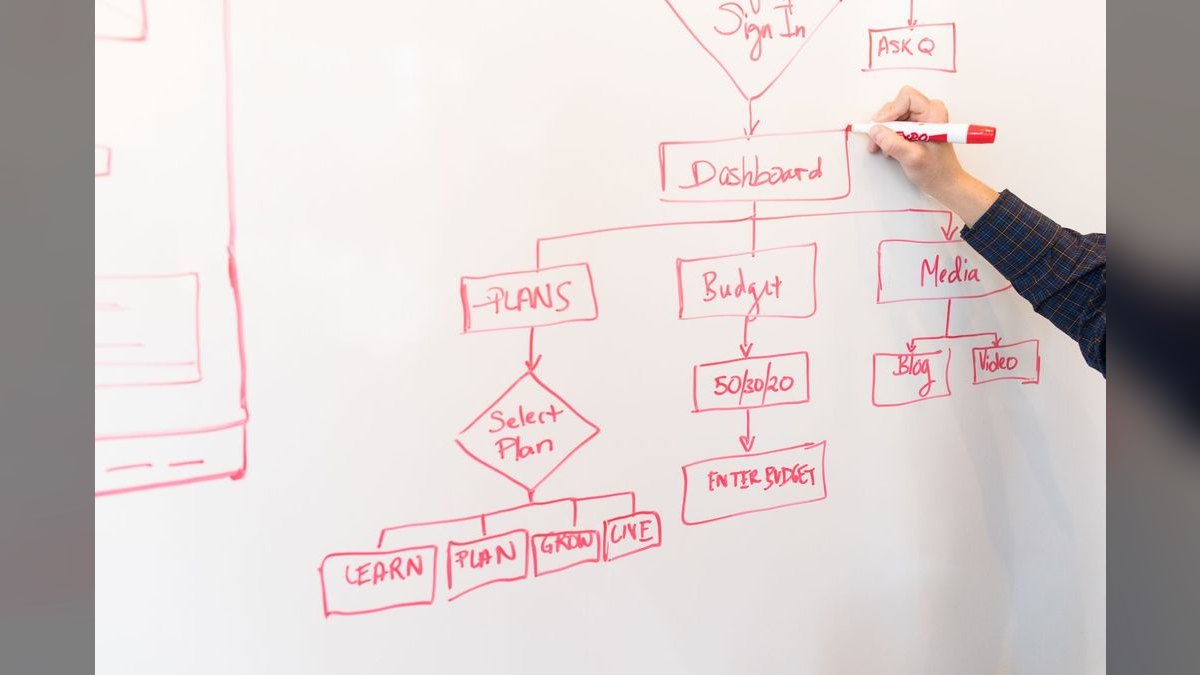
Audit CRM workflow rules by mapping every trigger-to-action dependency, adding recursion guards that stamp and check a "last modified by automation" field, and instrumenting API call volume per rule. Test each rule in sandbox against 10–20 records, flag anything exceeding 50 calls per record, and re-audit every 90 days.
The Tuesday morning that burned 400,000 API calls
A mid-market RevOps team ships what looks like a harmless change: when an Opportunity's Amount changes, roll the sum up to the Account's Open_Pipeline__c field. Separately, a six-month-old rule already exists that when Open_Pipeline__c changes on an Account, re-stamp a territory tier on every child Opportunity. Neither rule is wrong in isolation. Together they form a closed circuit: Opportunity update → Account update → Opportunity update → Account update.
The first symptom is not an error. It is a Slack message from a rep at 9:40 a.m. saying a deal "keeps changing owners." By 10:15, the org's daily API allocation dashboard shows 62% consumed before lunch on a day that normally ends around 18%. By 11:00, an integration user's outbound sync to the data warehouse starts returning REQUEST_LIMIT_EXCEEDED, which means the marketing platform's lead sync also fails, which means form fills stop creating records, which means the demand-gen team finds out from a customer instead of from monitoring.
The forensic trail matters because it shows where audit coverage failed. The two rules were built by different people, eleven weeks apart, on different objects, each tested in isolation against a handful of records. Both passed their individual tests. Neither test involved the other rule being active. The dependency existed only in the union of the two configurations, and nothing in the platform's UI displays that union.
This is the shape of nearly every real incident. Infinite loops in production CRM automation are almost never a single rule calling itself — platforms catch that case. They are two, three, or four rules forming a cycle across objects, often with a flow or an integration in the middle so the cycle isn't even visible inside one automation tool. An audit that only inspects rules one at a time will pass a broken system every time.

The cost is asymmetric, too. A loop that fires ten times a second on one record consumes shared, org-wide resources. It does not degrade only the feature that broke; it degrades every automated integration, every scheduled job, and every external app authenticating against the same limits. That is why the audit belongs to RevOps, not to whoever built the rule — the blast radius crosses every team's tooling.
How the loop actually forms and where the guard goes
Mechanically, a loop needs three ingredients: a rule whose *trigger* is a field change, an *action* that writes a field, and a *path* — direct or through other rules — from the written field back to the trigger field. Remove any one and the cycle breaks.
Most platforms enforce a per-transaction recursion depth. Salesforce, for example, limits chained workflow-style field updates and will surface an error rather than spin forever inside a single transaction. That protection is real but narrow: it applies within one save operation. It does not stop the pattern where Rule A writes a record, the save commits, an async process (a scheduled flow, a platform event handler, an integration webhook, a nightly sync) reads the change and writes back, and the cycle restarts as a *new* transaction. Each hop is legal. The aggregate is a loop that runs for hours and burns API calls the whole time.
The audit therefore needs two distinct checks. First, an intra-transaction check: does the rule's action write to a field that appears in its own or another same-object rule's entry criteria? Second, an inter-transaction check: does any async consumer of that field write back to a field that re-triggers the original rule?
The practical guard is a stamp-and-skip pattern. Add two fields to any object carrying heavy automation: a datetime like Last_Automation_Touch__c and an integer like Automation_Touch_Count__c. Every automated write sets the datetime to now and increments the counter. Every automated rule's entry criteria adds one clause: skip if Last_Automation_Touch__c is within the last N minutes. Five minutes is a reasonable starting value for rules that legitimately need to re-run intraday; sixty minutes is safer for rules that should only fire on genuine human edits.
The counter is the circuit breaker. When Automation_Touch_Count__c crosses a threshold — 3 within 24 hours is a defensible default for rules meant to fire once per record per day — the rule's criteria evaluate false and an alert fires to the admin queue. The record stops churning, the rest of the org keeps working, and a human decides whether the threshold was too tight or the rule is genuinely cyclic. Reset the counter on a nightly scheduled job so a legitimately busy record doesn't stay locked out forever.

The stamp field has a second benefit that makes the audit far cheaper: it turns "which of my 140 rules is causing this" into a filterable report. Sort any object by Automation_Touch_Count__c descending and the top twenty records are your loop candidates, regardless of which rule caused them.
One design caution — the guard field itself must be excluded from every rule's trigger criteria and from any "field change" filters, or the guard becomes the loop. Name it with a consistent prefix so this exclusion is auditable at a glance rather than a thing people remember.
Numbers, thresholds, and what the logs should tell you
Audits without thresholds turn into opinion. Fix concrete numbers before you open the first log.
Execution frequency per record. A well-behaved rule fires once, occasionally twice, on a given record in a day. Alert at more than 10 executions of the same rule against the same record within one hour. Escalate to a page at 50 within an hour — at that rate you are almost certainly looking at a cycle, not a busy day. These are order-of-magnitude gates, not precision instruments; the point is that they sit far enough above normal that they don't cry wolf and far enough below runaway that you catch it in minutes.
API consumption share. Pull your platform's API usage report and rank consumers. The common pattern is heavy concentration — a small handful of rules and integrations accounting for the large majority of calls. Rank them, take the top five, and make those the first optimization targets. Optimizing the long tail is wasted effort until the head is fixed.
Daily limit headroom. Whatever your entitlement is — it varies enormously by platform, edition, and license count, so read it from your own org's usage page rather than assuming — set graduated alarms as percentages, not absolute counts, so they survive plan changes. 50% by mid-day is informational. 70% is a warning that goes to the RevOps channel. 85% is an action threshold: pause non-critical scheduled jobs and batch syncs until the window resets. 95% means disable the top-consuming non-essential rule immediately. Know your reset boundary too — a rolling 24-hour window behaves very differently from a fixed midnight-UTC reset when you're trying to wait out a spike.
Per-record cost. In sandbox, run each rule against 10–20 representative records and measure calls consumed and wall-clock time. Flag any rule averaging more than 50 API calls per record, or taking more than 30 seconds per execution. Both are strong signals of an unbatched loop inside the rule — a per-record callout where a bulk operation would do.

Rule inventory age. Export every active rule with its last-modified date. Anything untouched in 6+ months gets an explicit keep-or-kill decision with a named owner. In most orgs a meaningful slice of "active" automation is orphaned — built for a process that no longer exists, still consuming calls on every qualifying save.
Audit cadence. Full inventory audit every 90 days. Spot-check of the top ten API consumers monthly. Pre-deployment dependency check on every new rule, no exceptions. The 90-day cadence exists because rule count grows steadily in any active org, and dependency risk grows with the square of rule count, not linearly — every new rule can potentially interact with every existing one.
Pilot scope. When you change or add a rule, gate it to one segment — a single territory, pod, or record-type — for 10 business days before org-wide activation. Ten days covers two weekly cycles and at least one month-end-adjacent process, which is when volume spikes expose loops that a quiet Tuesday hides.
Trade-offs: guard everything, guard selectively, or rebuild
There are three defensible postures, and picking the wrong one for your org size wastes months.
Guard every rule. Add stamp fields and skip criteria to all automation, uniformly. The upside is complete coverage and a single mental model — every admin learns one pattern. The downside is real: two extra fields per object, a criteria clause on every rule, and a class of confusing bugs where a rule legitimately *should* fire twice and the guard suppresses it. Reps report "the automation didn't run" and the admin spends an hour proving the guard did its job correctly. This posture fits orgs with heavy automation and a dedicated admin who can absorb the support load.
Guard selectively. Apply guards only to rules that touch objects appearing in a known dependency cycle, plus anything that writes to a field another rule reads. Cheaper and less intrusive, but it depends entirely on the dependency map being accurate. The map goes stale the moment someone ships an unmapped rule, which is the failure mode that caused the incident in the first place. This works when rule count is modest and change velocity is low enough that the map stays current.
Rebuild on an event-driven pattern. Instead of field-change triggers that cascade, route changes through a single orchestration layer — one flow or one integration service per object that owns all writes and sequences them deterministically. Loops become structurally impossible because there is one writer, not many. This is genuinely the right long-term architecture, and it is also a multi-month project that touches every downstream consumer. It is not an audit finding; it is a roadmap item. Recommending it as the response to an active incident is how audits get ignored.

A fourth option deserves mention only to be dismissed: raising the API limit by buying more capacity. It converts a correctness bug into a recurring line item and delays discovery until the loop is large enough to exhaust the new ceiling too. Buy capacity for genuine growth, never to mask a cycle.
Whichever posture you pick, freeze it for a full quarter before switching. Oscillating between guard strategies produces orgs where half the rules follow one pattern and half follow another, which is worse than either pattern applied consistently.
Pitfalls that make audits look clean while the org burns
Testing rules in isolation. The dominant failure. A rule tested alone in a sandbox where other automation is deactivated will pass and then loop in production. Sandbox tests must run with the full active rule set enabled, against records that already have realistic related data — child opportunities, open activities, existing integration stamps. A bare test record exercises none of the paths that form cycles.
Trusting the platform's loop detection. Built-in recursion limits catch the same-transaction case and produce a clean error. They do not catch async, cross-object, or integration-mediated cycles, which is where the expensive incidents live. Treat platform protection as a floor, never as the audit.
Ignoring the integration side of the ledger. The audit that only covers native rules misses the external systems writing back through the API — a marketing platform, a CPQ tool, a warehouse reverse-ETL job. Any of these can close a cycle that looks open from inside the CRM. Inventory every integration user and its write scope alongside the rule inventory, in the same spreadsheet.
Auditing during a quiet week. Loop and limit problems surface at volume. An audit run against a mid-month Tuesday's traffic will show comfortable headroom that evaporates during month-end close, a bulk import, or a data-migration backfill. Pull peak-day metrics, not average-day metrics, and note explicitly which day you sampled.
Disabling everything to find the culprit. Turning off all automation stops the bleeding and destroys the evidence simultaneously. It also breaks legitimate processes and generates a second incident. Disable the top-suspected consumer first, observe for one window, then work down the ranked list. If you must go broad, disable in ranked order and log each step with a timestamp so the sequence is reconstructable.
Bulk operations without a guard exception. Data loads, mass ownership changes, and migrations fire every qualifying rule on every row. A 50,000-record import against a rule making even a few calls per record will exhaust a modest daily allocation on its own. Establish a documented pre-load protocol: identify affected rules, disable or bypass them for the load window, run the load, re-enable, then run a reconciliation job that applies the intended field values in bulk rather than row-by-row.

Undocumented deactivations. The rule someone switched off during last quarter's incident and never turned back on is a silent process gap that surfaces months later as "why did none of these leads get routed." Every deactivation needs a ticket, an owner, and a re-enable date — even if the date is "never, pending redesign."
No named owner per rule. Rules without owners never get audited, because responsibility diffuses. Add an owner field to the rule inventory and require it on creation. The RevOps lead owning the audit process is not the same as an owner per rule; the first schedules the work, the second answers "is this still needed."
Confusing symptom volume with cause. The rule showing the most executions during an incident is often downstream of the actual cycle, firing because something upstream keeps touching records. Trace the dependency map backward from the noisy rule to its trigger source before deactivating — otherwise you disable the loud one, the loop continues quietly through another path, and you have lost your best signal.
Related questions
How often should we re-audit after a clean pass?
Full inventory every 90 days, with a monthly spot-check of the top ten API consumers and a mandatory dependency check on every new rule before activation. Tighten to 60 days if rule count grows more than 20% in a quarter or if you had a limit incident.
Can we detect loops without adding custom fields?
Partially. Platform execution logs will show repeated executions against the same record ID, which is enough to detect a loop after it starts. Custom stamp fields are what let you *prevent* one and make the detection query trivial rather than a log-parsing exercise.
Do declarative rules or code consume fewer API calls?
Neither is inherently cheaper. Cost tracks how operations are batched, not which tool built them. A well-batched declarative flow beats a poorly written per-record loop in code, and vice versa. Audit the call count per record, not the build medium.
What should happen when the circuit breaker trips?
The rule stops evaluating true, an alert goes to the admin queue with the record ID and touch count, and a human decides within one business day whether to raise the threshold or fix the cycle. Auto-re-enabling without a decision just restarts the loop.
Should the audit cover sandbox rules too?
Yes, for dependency mapping — sandbox rules that don't exist in production create false confidence during testing, and rules present in production but missing from sandbox mean your tests never exercised the real cycle. Reconcile the two inventories at every 90-day audit.
FAQ

What exactly is an infinite loop in CRM workflow automation?
A cycle in which one automated rule's action satisfies another rule's trigger condition, directly or through a chain, so records update repeatedly with no terminating condition. The classic form is cross-object: an Opportunity update rolls a value to the Account, and an Account rule stamps a value back down to Opportunities. Each rule is individually correct; the cycle exists only in their combination.
How do I test for an infinite loop before going live?
Run the new rule in a full-copy sandbox with all other automation active, against 10–20 records that carry realistic related data. Query the object's system-modified timestamp afterward and look for records touched more than twice by the same rule. Then pilot on one segment for 10 business days, watching execution counts daily, before org-wide activation.
What causes most API limit exhaustion?
Bulk operations — imports, migrations, mass owner changes — firing per-record automation across tens of thousands of rows, and integrations that poll or write more often than the business actually needs. A loop is the dramatic cause; an unbatched bulk load against active rules is the common one. Both show up in the same usage dashboard, ranked by consumer.
Should I disable all workflows while auditing?
No. Disabling everything breaks legitimate processes and destroys the evidence you need. Work from the ranked API-consumer list: disable the top suspect, observe one monitoring window, then move down. Log every deactivation with a timestamp and owner so the sequence can be reconstructed and reversed cleanly.
How do I prevent bulk data loads from burning the daily allocation?
Document a pre-load protocol: list which rules the load will trigger, disable or bypass them for the load window, run the import, re-enable, then apply the intended field values through a single bulk operation rather than letting per-record automation do it. Schedule loads at the start of your API reset window so a mistake has maximum recovery time.
What belongs in the audit record itself?
Rule name and platform ID, object, trigger condition, actions, named owner, last-modified date, measured API calls per record from sandbox, execution count over the last 30 days in production, and every rule it depends on or feeds. That last column is the one that catches cycles, and it is the one most inventories omit.
Sources
- https://help.salesforce.com/s/articleView?id=platform.api_rate_limiting.htm — Salesforce documentation on API request limits and rate limiting behavior.
- https://developer.salesforce.com/docs/atlas.en-us.salesforce_app_limits_cheatsheet.meta/salesforce_app_limits_cheatsheet/salesforce_app_limits_platform_api.htm — Salesforce platform API limits reference.
- https://developers.hubspot.com/docs/guides/apps/api-usage/usage-details — HubSpot API usage guidelines and rate limit documentation.
- https://knowledge.hubspot.com/workflows/create-workflows — HubSpot workflow creation and configuration reference.
- https://learn.microsoft.com/en-us/power-platform/admin/api-request-limits-allocations — Microsoft Power Platform and Dynamics 365 API request limits and allocations.
- https://learn.microsoft.com/en-us/power-automate/prevent-infinite-loops — Microsoft guidance on preventing infinite loops in Power Automate flows.
- https://help.zapier.com/hc/en-us/articles/8496181555341-Prevent-Zap-loops — Zapier documentation on detecting and preventing automation loops.
- https://docs.aws.amazon.com/general/latest/gr/api-retries.html — AWS reference on error retries and exponential backoff for API calls.
- https://developer.zendesk.com/api-reference/introduction/rate-limits/ — Zendesk API rate limit documentation and throttling behavior.
Related on PULSE
- What CRM data hygiene rules actually hold up under quarter-end pressure?
- How do you design free tier seat limits, feature gates, and API quotas that trigger expansion motions?
- Is HubSpot CRM free enough for a 5-person startup or will I hit limits immediately?
- How should a 2027 enablement team run sales-to-marketing content feedback loops?
- How do you sequence a CRM migration without losing pipeline history?
This page will be disappearing soon. Save it to your device for $1 — or read it free while it is here.
@Kory-White- · if Venmo asks, the last 4 of my number are 2012
This page is gone.
This one is off the shelf now. $1 keeps it on your phone for good — the whole page, pictures and diagrams included.
 revopsHow do you benchmark equity vs cash compensation for a first dedicated RevOps hire in 2027?
 revopsHow do you run cohort analysis to isolate B2B expansion revenue by acquisition channel in 2027?
 revopsHow do you track multi-currency exchange rates in historical closed-won reporting in 2027?
 revopsHow do you strip happy ears from the sales pipeline before board reporting in 2027?
 revopsHow do you structure CRM campaigns to measure revenue impact of dark social in 2027?
 revopsHow do you set up PLG billing infrastructure between payment gateways and CRMs in 2027?
 revopsHow do you track and attribute offline event interactions in a digital revenue waterfall in 2027?
 revopsHow do you reset baseline metrics when historical CRM data is fundamentally flawed in 2027?
 revopsHow do you re-engage ghosted renewals without automatic discounting in 2027?
 revopsHow do you design quota relief policies for reps facing prolonged non-sales technical delays in 2027?