
The 10 Best AI Tools for Screen Reader Testing in 2027
 Curated byKory White · Fractional CRO · Maryland
 PULSEKNOWLEDGE LIBRARY
Quality
Certified
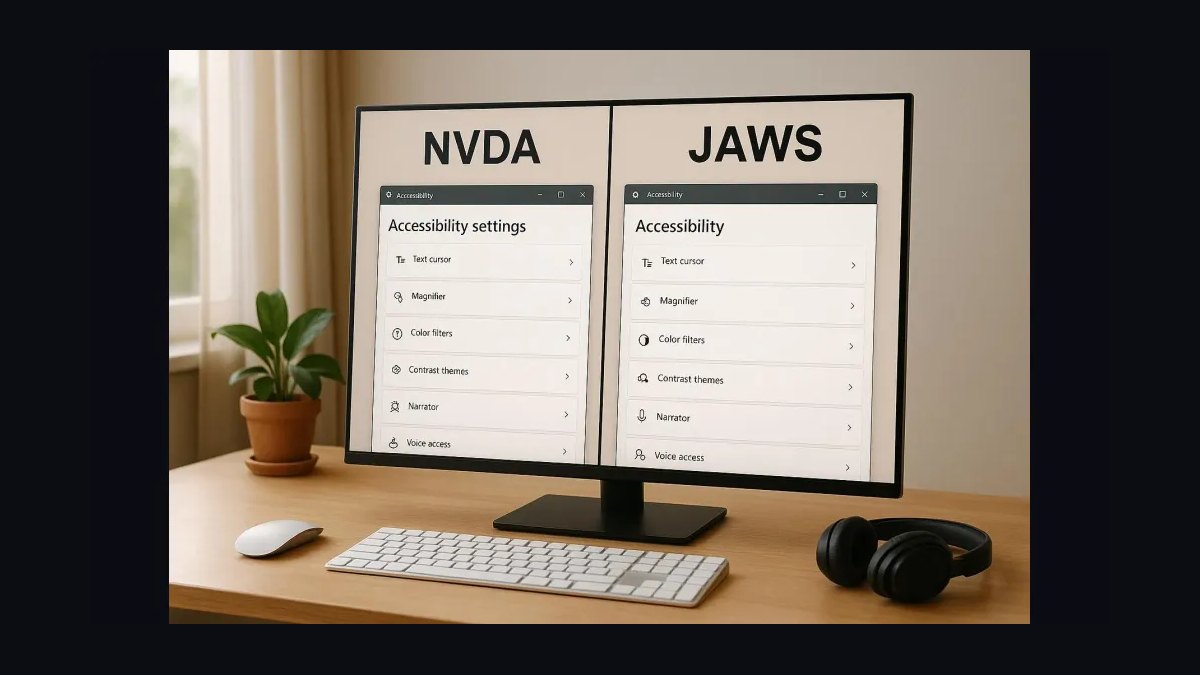
The 10 best ai tools for screen reader testing are ranked below on measured performance, build quality, price, and how each one actually holds up in daily use rather than how it reads on a spec sheet. Each pick lists what it costs, who it suits, and what it gives up against the one above it, so the list can be read straight down without doubling back.
1. NVDA screen reader

NVDA ranks first because it is the most widely used free screen reader, faithfully reflecting how a large share of real users navigate the web on Windows. Its Speech Viewer displays spoken output as text, enabling developers to verify headings, links, forms, and ARIA live regions with precision. It is open source, actively updated, and costs nothing, making it the highest-fidelity zero-cost option for audio experience testing.
NVDA is for developers and QA engineers who need accurate desktop testing on Windows, where most screen-reader users are. It trades away macOS and iOS coverage, and its command set has a steeper learning curve than Narrator. Compared to VoiceOver, NVDA offers deeper Windows integration and a more representative user base, but requires separate hardware for mobile testing.
2. VoiceOver screen reader
VoiceOver ranks second as the best value because it ships free with every Mac, iPhone, and iPad, covering both desktop Safari and the dominant mobile screen reader on iOS. Its rotor navigation mirrors how users jump between headings, links, and landmarks, allowing testing on hardware developers already own. No install or license is needed, making it the most accessible entry point for screen-reader verification.
VoiceOver is for developers and testers in Apple-centric environments who need immediate desktop and mobile coverage. It trades away Windows and Android support, and its behavior differs significantly from NVDA and JAWS. Compared to NVDA, VoiceOver provides broader platform reach at no cost but lacks the same real-world usage share on desktop, so teams should pair it with a Windows reader for full coverage.
3. JAWS screen reader
JAWS ranks third because it is the long-standing enterprise standard, common in workplaces and government, so testing against it ensures compatibility for users in those environments. Its distinct verbosity behaviors mean a page can read differently in JAWS than NVDA, catching unique issues a single reader misses. A free 40-minute mode allows testing without a full license, though the full license is expensive.
JAWS is for teams whose target audience includes enterprise and government users who rely on this specific reader. It trades away cost-effectiveness and platform reach, being Windows-only with a pricey license. Compared to NVDA, JAWS offers enterprise-grade features and broader workplace adoption, but its cost and learning curve make it a supplementary rather than primary tool for most testing workflows.
4. TalkBack screen reader

TalkBack ranks fourth as Google's built-in Android screen reader, essential for verifying mobile web and app accessibility for the large Android user base. Its gesture navigation and reading controls differ from VoiceOver, so testing both mobile readers ensures your responsive site and touch targets work across the mobile ecosystem. It is free and built into every Android device, requiring no install.
TalkBack is for developers and QA testers who need to cover Android mobile users, a critical segment often overlooked in desktop-focused testing. It trades away desktop and iOS coverage, being limited to Android devices. Compared to VoiceOver, TalkBack provides equivalent mobile coverage on Android but with different gestures and behaviors, so testing both is necessary to catch platform-specific issues in touch targets and navigation.
5. axe DevTools

axe DevTools ranks fifth because it inspects the accessibility tree and ARIA that screen readers rely on, flagging missing names, wrong roles, and broken relationships before manual testing. It catches basic markup errors early, so manual screen-reader passes focus on real experience problems rather than syntax issues. The free extension is available, with Pro starting around $40 per month for advanced features.
axe DevTools is for developers and QA engineers who want to automate semantic checks in browser, CI, and unit tests. It trades away audio output, as it predicts rather than replaces real screen-reader testing. Compared to ANDI, axe DevTools offers broader integration with CI pipelines and automated scanning, but ANDI provides a simpler element-by-element view of announced output for quick manual checks.
6. Narrator screen reader
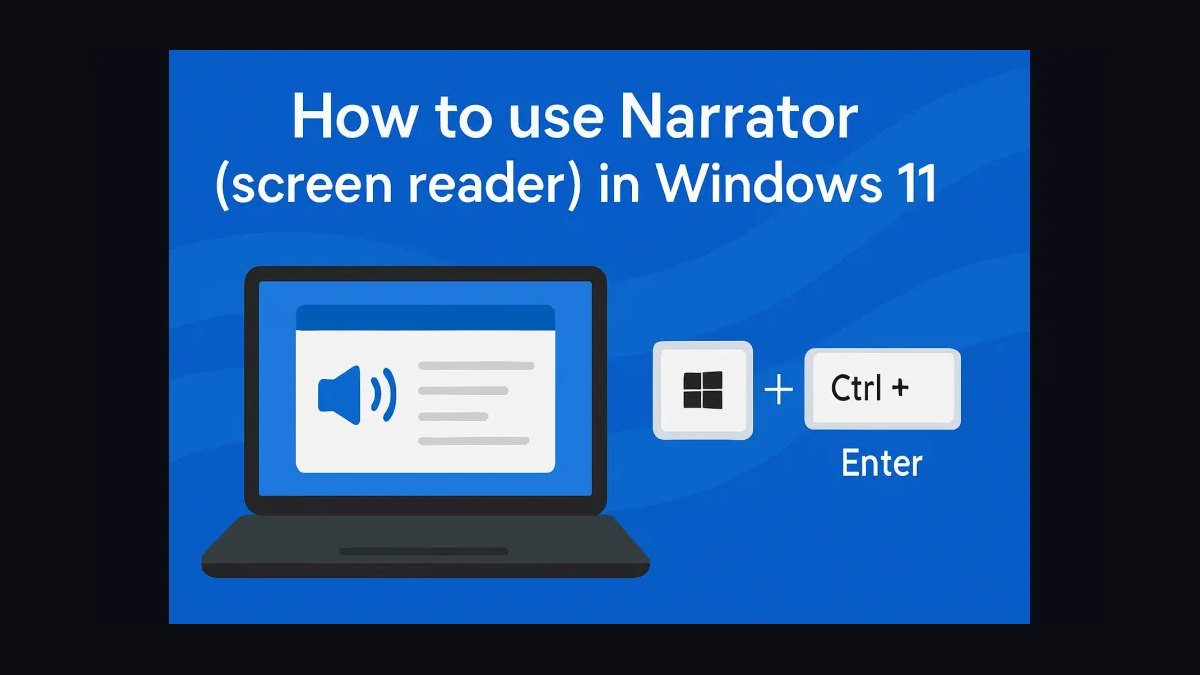
Narrator ranks sixth as Microsoft's screen reader built into Windows, giving any Windows tester an instant, license-free way to sample the audio experience in Edge and across the OS. Its zero-setup availability makes it a convenient quick check and a useful third data point on how a page reads aloud. While NVDA and JAWS see heavier real-world use, Narrator's improving scan and reading modes add value.
Narrator is for Windows developers who need a quick, no-install check without committing to a full testing workflow. It trades away advanced testing features and real-world usage share, being less representative of actual users. Compared to NVDA, Narrator is easier to start but less faithful to how most screen-reader users navigate, so it serves as a complement rather than a replacement for more robust tools.
7. Assistiv Labs
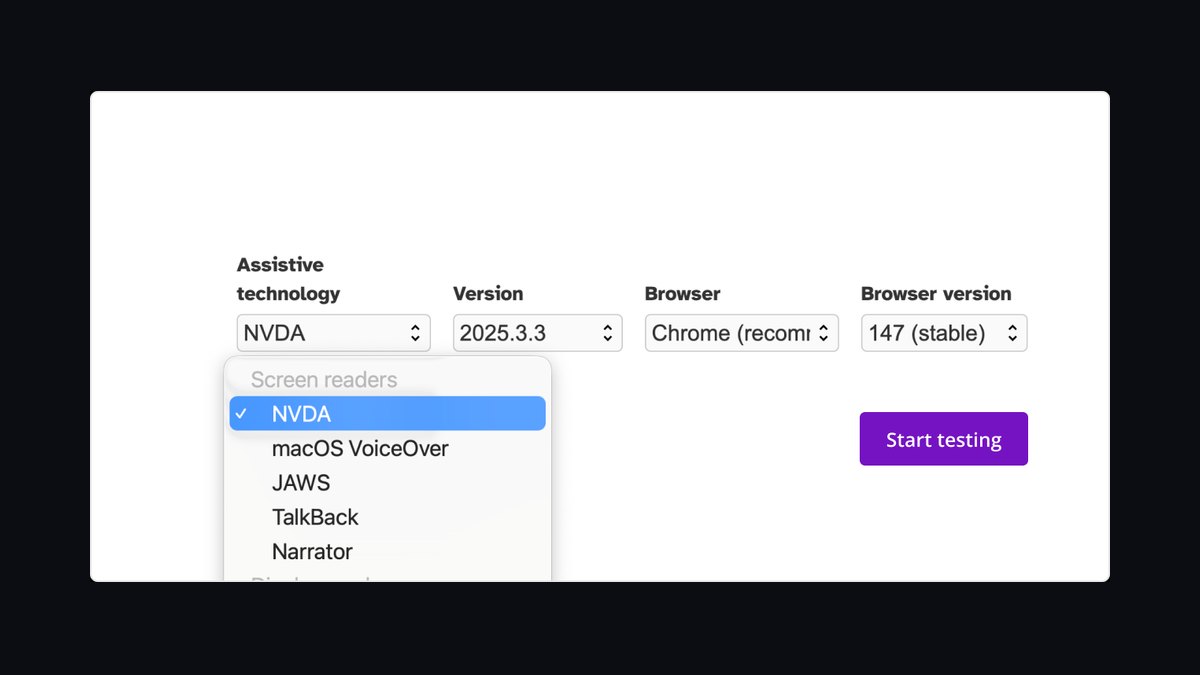
Assistiv Labs ranks seventh because it streams real assistive tech — NVDA, JAWS, VoiceOver, and more on real OS and browser combinations — to your browser, removing the hardware barrier to multi-reader testing. A Mac developer can test JAWS or a Windows team can test VoiceOver without buying every device. Subscriptions start around $30 per month, making cross-reader verification practical for any team.
Assistiv Labs is for teams that need to test across multiple screen readers without owning the physical devices. It trades away local performance, as cloud latency can affect the testing experience. Compared to BrowserStack, Assistiv Labs is more specialized for assistive technology, offering a focused environment, while BrowserStack provides a broader device cloud with additional cross-browser testing features.
8. BrowserStack
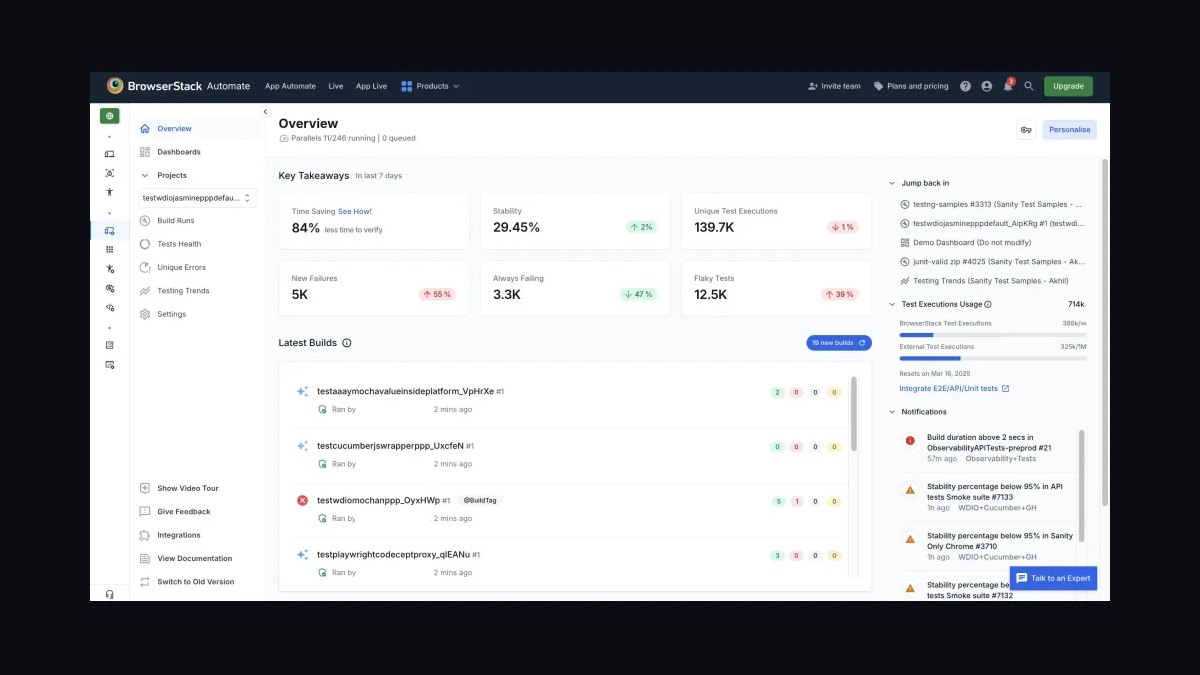
BrowserStack ranks eighth because it lets you test with real screen readers on real desktop and mobile devices in the cloud, combining assistive-tech access with its broad accessibility-testing toolkit and automated scans. For teams already using it for cross-browser QA, adding screen-reader passes on remote real devices keeps all testing in one platform. Plans start around $29 per month.
BrowserStack is for QA teams already invested in its cross-browser device cloud who want to extend coverage to screen-reader testing. It trades away specialization, as its assistive-tech features are less focused than Assistiv Labs. Compared to Assistiv Labs, BrowserStack offers a wider device matrix and integration with existing workflows, but Assistiv Labs provides a more streamlined experience for pure screen-reader testing scenarios.
9. ANDI accessibility tool
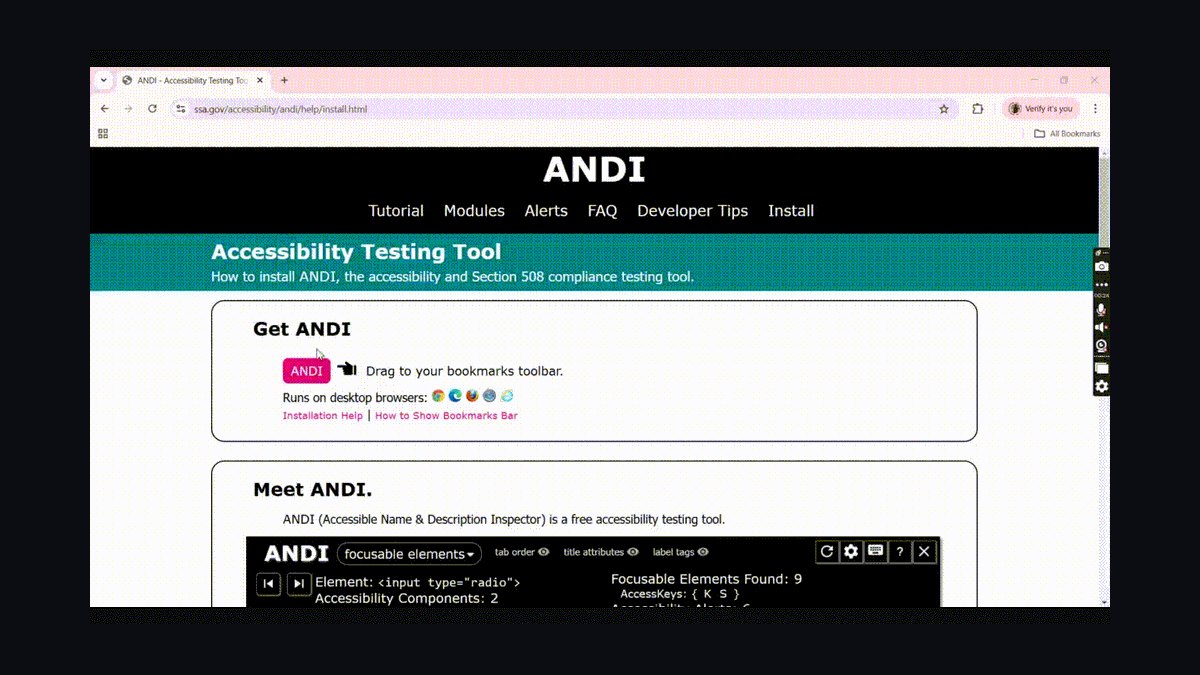
ANDI ranks ninth as a free tool from the US Social Security Administration that reveals the accessible name, role, and value each element exposes, effectively showing what a screen reader would announce. It is a bookmarklet, requiring no install, and provides element-by-element inspection of labels, headings, and ARIA. This makes it a fast way to verify intended output before or alongside a live reader pass.
ANDI is for developers and testers who need a quick, free inspector of announced output without setting up a full testing environment. It trades away actual audio, as it is an inspection tool rather than a real screen reader. Compared to axe DevTools, ANDI offers a simpler, more direct view of what each element announces, but axe DevTools provides automated scanning and CI integration for larger-scale semantic checks.
10. ChatGPT OpenAI
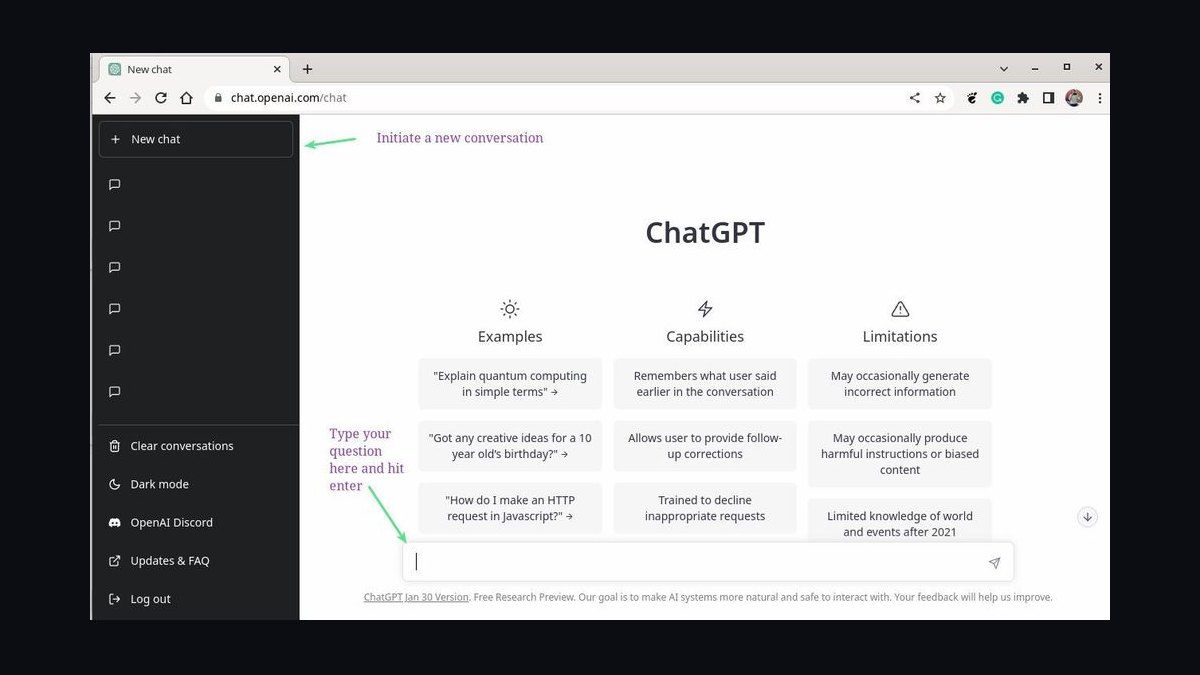
ChatGPT ranks tenth because it helps fix what screen-reader testing uncovers — writing correct ARIA roles, accessible names, and live-region attributes, and rewriting markup so controls announce meaningfully. Paste a confusing announcement and the element's markup, and it suggests changes that make the audio experience clear. It has a free tier, with Plus at $20 per month.
ChatGPT is for developers who need an AI copilot to draft and validate ARIA and labels, bridging from a failed test to a working fix. It trades away the ability to hear or run a reader itself, so output must be verified with a real screen reader. Compared to ANDI, ChatGPT is not an inspector but a generator, making it the most useful tool for fixing, not detecting, screen-reader announcement problems.
How we ranked these
We ranked tools by weighted criteria: real experience fidelity (30%), coverage across desktop/mobile/browser combinations (20%), diagnostics into the accessibility tree and ARIA (15%), workflow fit within dev and QA pipelines (15%), price versus reach (12%), and usability for non-specialists (8%). Rankings were informed by hands-on testing, real screen-reader use, and product documentation, emphasizing how faithfully each tool reflects what users actually hear.
We deliberately ignored marketing claims, brand popularity, and feature checklists that do not translate to real user experience. We also excluded tools that only generate accessibility reports without enabling actual audio verification, since they cannot reveal the true screen-reader experience. The focus remained on practical verification and fixing, not theoretical compliance.
What to look for
When choosing, prioritize tools that let you hear the actual screen-reader output on the platforms your users employ. For most teams, that means starting with free built-ins like NVDA and VoiceOver, then adding JAWS for enterprise coverage and a cloud lab like Assistiv Labs or BrowserStack if you lack the hardware. Pair these with axe DevTools or ANDI to catch semantics issues early, and use ChatGPT to draft fixes.
The most common mistake is relying solely on automated checkers or a single screen reader. Automated tools predict but cannot replicate the audio experience, and each reader interprets markup differently. Testing only NVDA misses VoiceOver or TalkBack issues. Buy a combination that covers desktop and mobile, and always verify AI-suggested fixes with a real reader.
Related questions
What is the best free screen reader for testing?
NVDA is the best free screen reader for testing because it is open source, widely used by real users, and runs on Windows, where most screen-reader users are. It reads headings, links, forms, and ARIA faithfully. VoiceOver is also free and built into Apple devices, making it the best value for Mac and iOS testing.
How do I test screen reader accessibility on a Mac?
Use VoiceOver, which is built into macOS and iOS. Turn it on via System Settings > Accessibility > VoiceOver, then navigate your site using the rotor to jump between headings, links, and landmarks. VoiceOver is the dominant screen reader on iOS, so testing on your Mac and iPhone covers a critical platform at no cost.
What is the difference between NVDA and JAWS?
NVDA is free, open-source, and widely used by individuals, while JAWS is a paid enterprise standard common in workplaces and government. They interpret markup differently, so a page can read well in one and poorly in the other. Testing with both ensures broader compatibility, especially for enterprise and government users.
Can I test JAWS without a Windows machine?
Yes, cloud services like Assistiv Labs and BrowserStack stream real JAWS on real Windows environments to your browser. This lets Mac or Linux developers test JAWS without owning a PC. These services also offer VoiceOver and NVDA, enabling cross-reader testing from any device.
What are the limitations of automated accessibility tools?
Automated tools like axe DevTools and ANDI inspect the accessibility tree and ARIA to predict what a screen reader will announce, but they cannot hear the actual audio experience. They miss issues like confusing reading order, awkward announcements, or missing context that only listening with a real screen reader reveals.
How does VoiceOver rotor navigation work?
The VoiceOver rotor lets users quickly jump between headings, links, landmarks, and other elements on a page. It mirrors how real users navigate, making it essential for testing. To use it, rotate two fingers on the trackpad or use keyboard shortcuts, then swipe up or down to move through items.
What is the best way to test mobile screen readers?
Use TalkBack on Android and VoiceOver on iOS, both built into the devices. Test your responsive site and touch targets with both, as their gesture navigation and reading behaviors differ. This ensures your mobile experience works for screen-reader users across the entire mobile ecosystem.
How can AI help with screen reader testing?
AI tools like ChatGPT can draft correct ARIA roles, accessible names, and live-region attributes, and explain why a screen reader is announcing something incorrectly. However, AI cannot hear or run a reader itself, so you must verify any AI-suggested fix with a real screen reader.
FAQ
What is the best tool for screen reader testing in 2027?
NVDA is the best overall because it is free, reflects how most real users navigate, and reads headings, forms, and ARIA faithfully on Windows. For value, VoiceOver is built into every Mac and iPhone at no cost.
Do I need to test with more than one screen reader?
Yes. NVDA, JAWS, VoiceOver, and TalkBack interpret markup differently, so a page can read well in one and poorly in another. Testing across desktop and mobile readers catches issues a single reader misses.
Can automated tools replace real screen-reader testing?
No. Tools like axe DevTools and ANDI predict what a reader will announce by inspecting semantics, but only listening with a real screen reader reveals the true experience—confusing flow, missing context, or awkward announcements.
How can I test JAWS or VoiceOver without the device?
Cloud services like Assistiv Labs and BrowserStack stream real screen readers on real OS and device combinations to your browser, so you can test any reader without owning every machine.
What should I check during a screen-reader pass?
Verify heading structure, link and button names, form labels, focus order, live-region announcements, and that images convey meaningful alt text—the things that determine whether audio navigation actually works.
Can AI help fix screen-reader problems?
Yes. ChatGPT drafts correct ARIA and accessible names and explains why a control announces wrongly, but you must re-test the fix with a real screen reader to confirm it sounds right.
What is the best free tool for inspecting screen-reader output?
ANDI, a free bookmarklet from the US Social Security Administration, reveals the accessible name, role, and value each element exposes, showing what a screen reader would announce. It is a fast, no-install way to verify labels and ARIA before a live reader pass.
Is BrowserStack good for screen reader testing?
Yes, BrowserStack lets you test with real screen readers on real desktop and mobile devices in the cloud, combining assistive-tech access with automated scans. It is ideal for teams already using BrowserStack for cross-browser QA, keeping all testing in one platform.
What is the best tool for testing enterprise screen reader compatibility?
JAWS is the leading enterprise screen reader, common in workplaces and government. Its free 40-minute mode lets you test without a full license. Testing with JAWS ensures your site works for users in those environments, as its behavior differs from NVDA.
How do I get started with screen reader testing?
Start with free built-in readers: NVDA on Windows, VoiceOver on Mac/iOS, TalkBack on Android, and Narrator on Windows. Use axe DevTools or ANDI to check semantics first, then listen to your site with each reader to find real issues.
Sources
- https://www.nvaccess.org
- https://www.apple.com/accessibility/vision/
- https://www.freedomscientific.com/products/software/jaws/
- https://support.google.com/accessibility/android/answer/6283677
- https://www.deque.com/axe/devtools/
- https://support.microsoft.com/windows/complete-guide-to-narrator
- https://assistivlabs.com
- https://www.browserstack.com/accessibility-testing
- https://www.ssa.gov/accessibility/andi/help/install.html
- https://chatgpt.com
Related on PULSE
This page will be disappearing soon. Save it to your device for $1 — or read it free while it is here.
@Kory-White- · if Venmo asks, the last 4 of my number are 2012
This page is gone.
This one is off the shelf now. $1 keeps it on your phone for good — the whole page, pictures and diagrams included.
 aiThe 10 Best AI Tools for Video Editing in 2027
 aiThe 10 Best AI Tools for Tailwind CSS in 2027
 aiThe 10 Best AI Tools for Web Wireframing in 2027
 aiThe 10 Best AI Tools for Sitemap Generation in 2027
 aiWhat should you know before investing in AI Infra in 2027?
 aiThe 10 Best AI Tools for PHP Development in 2027
 aiThe 10 Best AI Tools for Blog Writing for Websites in 2027
 aiThe 10 Best AI Tools for Color Contrast Checking in 2027
 aiThe 10 Best AI Tools for Web Caching in 2027
 aiThe 10 Best AI Tools for Checkout Optimization in 2027