


Are USB-C hubs actually necessary for a modern laptop in 2027?
Quality
Certified

For most people buying a modern laptop in 2027, a USB-C hub is not strictly necessary — but it is often the cheapest fix for a real problem. If your laptop has three or more usable ports, skip it. If it has two or fewer, a hub is usually worth it.
What a USB-C hub is and why the question keeps coming up
A USB-C hub is a small powered or unpowered dock that plugs into one USB-C port and fans that single connection out into several: typically HDMI or DisplayPort video, two to four USB-A ports, an SD or microSD card reader, an Ethernet jack, a 3.5mm audio jack, and often a pass-through USB-C port for charging. The distinction that matters is between a hub (bus-powered, small, cheap, designed for travel) and a dock (externally powered, larger, designed to stay on a desk and drive multiple displays plus peripherals). Most of the "do I need one" arguments conflate the two.
The reason this question has become sharp again is that laptop port counts have quietly collapsed. In the mid-2010s a typical 13-inch business laptop shipped with three USB-A ports, full-size HDMI, an SD slot, and a dedicated charging barrel. By 2027, a mainstream thin-and-light is far more likely to ship with two USB-C ports (both of which may be needed for charging and one peripheral), and nothing else. Apple's MacBook Air has been at two Thunderbolt ports since 2018. Dell's XPS 13 line moved to a two-port configuration years ago. HP, Lenovo, Asus, and Acer all followed the same direction on their consumer thin-and-light models. The ports did not disappear because manufacturers got lazy — they disappeared because the chassis got thinner, because USB-C can carry power, data, video, and audio over one connector, and because the average buyer plugs in fewer things than they did a decade ago.
That last point is the crux. The hub question is not really a technology question. It is a question about what you personally plug in. Someone who works entirely in a browser, charges over USB-C, and uses wireless peripherals may never touch a hub in the life of the machine. Someone who edits photos off an SD card, plugs into a wired Ethernet drop at the office, and uses a USB-A security key has a genuine problem the moment they unbox a two-port laptop.

There is also a regulatory and standards dimension that has changed the calculus. The EU's common charger directive pushed USB-C as the standard charging connector across most small electronics, which means the cable you already own for your phone will charge your laptop in many cases. USB Power Delivery has matured to the point where a single 100W or 140W charger can run a laptop and pass power through a hub to the machine simultaneously. USB4 and Thunderbolt 4/5 have converged enough that a single cable can carry 40Gbps of data, two 4K displays, and power at once. All of this makes a hub more capable than it was five years ago, and also makes it easier to buy a bad one, because the spec sheet language is genuinely confusing.
The practical framing: a hub is necessary when the number of things you need to connect simultaneously exceeds the number of ports you have, or when the shape of those things does not match the shape of your ports. It is not necessary when your usage is already satisfied by the ports on the machine. Almost every "you absolutely need a hub" article skips that conditional, and almost every "hubs are a scam" article skips the fact that a two-port laptop with an SD-card workflow is genuinely stuck.
The step-by-step process for deciding whether you need one

The right way to answer this for yourself is not to read reviews — it is to inventory your actual connections over a representative week, then match that inventory against your machine. Here is the process in order.
Step 1: Count your laptop's usable ports, not its total ports. A laptop with two USB-C ports where one is permanently occupied by the charger effectively has one usable port. A laptop with two USB-C and one USB-A has two usable ports if you charge over USB-C. Write the real number down. This is the single most common mistake — people count the ports on the spec sheet and then discover that charging eats one.
Step 2: List everything you plug in during a normal week. Not a hypothetical week — the actual week. Include the boring things: the monitor at your desk, the wired mouse you keep as a backup, the SD card from your camera, the Ethernet cable at the office, the USB-A headset for calls, the external SSD you back up to, the HDMI cable for the conference room projector. Most people find the list is shorter than they feared and longer than they assumed.
Step 3: Mark each item as simultaneous or sequential. This is the step almost everyone skips and it changes the answer completely. If you use the SD card reader at your desk and the Ethernet cable at the office, and never at the same time, you may not need a hub at all — you need one adapter that travels with you. If you need the monitor, the Ethernet, the external SSD, and the headset all at once every morning, you need a hub or a dock.

Step 4: Check what the laptop can actually drive. A single USB-C port on a modern laptop can usually drive one external display at 4K60, sometimes two at lower refresh rates, depending on whether the port supports DisplayPort Alt Mode and how many lanes it has. Thunderbolt and USB4 ports can drive more. If your plan requires two external monitors plus everything else through one port, you need to verify the port's display support before buying anything, because a cheap hub will not create bandwidth that is not there.
Step 5: Decide between a travel hub and a desk dock. If your connections are mostly at one desk, a powered dock is almost always the better buy — it holds more ports, runs cooler, and does not drain the laptop battery to power peripherals. If your connections move with you, a small bus-powered hub is the right shape, and you accept that it will get warm and that it cannot power a spinning external drive reliably.
Step 6: Buy for the ports you will still need in two years, not the ones you need today. The one place where overbuying is rational is port count. A hub with four USB-A ports costs marginally more than one with two, and the two-port version will annoy you within a year.
Here is the decision flow:

The step people most often get wrong is step 4. They buy a hub advertising "dual 4K display support," plug two monitors into it, and get one monitor at 4K30 and one at 1080p, or nothing at all on the second display. That is not a defective hub — it is a hub hitting the bandwidth ceiling of the host port. DisplayPort Alt Mode over a USB-C port that is not Thunderbolt typically has four high-speed lanes, and if two of those lanes are used for USB 3.x data, only two remain for video. Two lanes is enough for one 4K60 display or two 4K30 displays, not two 4K60. If you need two 4K60 monitors, you need a Thunderbolt or USB4 host and a Thunderbolt dock, and that combination costs meaningfully more.
Costs, timelines, and typical ranges
The price band for hubs is unusually wide because the category spans genuinely different products under one name. As of 2027, the rough ranges look like this.
A basic bus-powered travel hub with HDMI 4K30, two USB-A 3.0 ports, and an SD reader sits in the $20 to $45 range. These work, they get warm, and they will not charge your laptop at full speed while running peripherals. A mid-tier hub with 4K60 HDMI, USB-C pass-through charging at 85W to 100W, Gigabit Ethernet, and three or four USB-A ports runs roughly $50 to $90. This is the sweet spot for most people and the band where the quality difference between brands is most visible — cheaper units in this range often drop the Ethernet to 100Mbps or the HDMI to 4K30 without making it obvious on the box.
A powered desktop dock with dual display output, 100W+ charging, Ethernet, audio, and six or more downstream ports typically runs $120 to $250. Thunderbolt 4 or USB4 docks with dual 4K60 support and 96W or higher charging start around $180 and go past $350 for units with additional M.2 storage bays or 2.5GbE. The premium is not marketing — it reflects a more expensive controller chip and a more complex power delivery design.

Timelines matter less than people expect. A hub is not a device you wait for; it is a device you buy when the need appears. The useful timeline question is how long the hub will remain compatible with your next laptop. USB-C hubs bought in 2027 will almost certainly still work with a laptop bought in 2030, because the connector and the underlying USB and DisplayPort standards are backwards compatible. The risk is not obsolescence, it is under-specification: a hub bought today at 4K30 will still be a 4K30 hub in three years, and if your monitor situation upgrades, you will rebuy.
The other cost people forget is the charger. Many hubs pass through power rather than supplying it, which means you still need a USB-C charger of adequate wattage. If your laptop shipped with a 65W charger and your hub draws 15W for its own operation, your laptop may charge slowly or not at all under load. Budget for a 100W charger if you are running a dock with peripherals, and check that the hub's pass-through rating exceeds your laptop's draw.
Warranty and support are worth a line. The cheap end of the market is dominated by brands with 12-month warranties and limited support. The mid and upper tiers typically offer two years. For a device that sits between your laptop and everything else, a two-year warranty is worth the premium.
Where teams and individuals get it wrong

The most common error is buying a hub to solve a problem that a single cable would solve. If the only thing you need is to connect one monitor, a USB-C to HDMI cable costs a fraction of a hub and has fewer failure points. Hubs introduce a failure mode — the hub itself — into a chain that was previously direct. Every additional device between your laptop and your monitor is another thing that can overheat, drop a connection, or fail to negotiate the right resolution.
The second error is assuming all USB-C ports are equal. They are not. A USB-C port may support USB 2.0 only, USB 3.2 Gen 1, USB 3.2 Gen 2, DisplayPort Alt Mode, Thunderbolt 3, Thunderbolt 4, USB4, or some combination. A port that supports charging may not support video output. A port that supports video may not support it at the resolution you want. Before buying any hub, look up the exact port specification for your laptop model — not the marketing page, the technical spec sheet or the manufacturer's support documentation. This is the step that prevents most returns.
The third error is under-powering the setup. A bus-powered hub running an external SSD, a monitor, and Ethernet is drawing more current than the host port comfortably supplies. The symptoms are intermittent disconnects, drives that spin up and drop, and a hub that becomes too hot to touch. If you are running more than two peripherals, buy a powered dock. The heat is not a defect; it is the physics of pushing power through a small aluminum shell.

The fourth error is buying for the desk and traveling with it. A powered dock with a 100W power brick is a poor travel companion. People buy one device hoping it covers both use cases and end up with something too heavy for a bag and too limited for the desk. Two devices — a small travel hub and a desk dock — is often the correct answer, and the combined cost is usually less than one premium do-everything unit.
The fifth error, and the one that costs the most over time, is treating the hub as a permanent fixture rather than a bridge. If your laptop genuinely cannot do your job without a hub, that is a signal about the laptop, not about the hub. The hub is a workaround. It is a good workaround, and for many people it is the right one, but it is worth being honest that you are compensating for a port deficit rather than solving it.
Decision framework: when to choose what
The framework below maps the realistic situations onto the realistic purchases. The key variables are how many things you connect at once, whether those connections are stationary, and whether you need to drive more than one display.
The framework produces four realistic answers. If you connect one thing at a time, buy a cable. If you connect two or three things and you move around, buy a small travel hub and accept the 4K30 ceiling. If you connect four or more things at a fixed desk, buy a powered dock. If you need two 4K60 displays, verify your host port supports Thunderbolt or USB4 before spending anything, because no hub can exceed what the port provides.
The one case where the answer is genuinely "neither" is when the laptop itself is the wrong machine for the job. A two-port laptop driving a four-monitor trading desk is a mismatch. The hub will work, partially, and you will spend more time troubleshooting display negotiation than working. In that situation the correct purchase is a different laptop, and the hub is a stopgap.
For the majority of people — browser work, video calls, one external monitor, wireless peripherals — the honest answer is that a hub is optional. It is convenient, it is cheap, and it removes a recurring annoyance, but it is not necessary in the sense that the laptop cannot function without it. The word necessary deserves that precision. A hub becomes necessary when the alternative is not being able to do your work, and for a large share of modern laptop buyers in 2027, that threshold is not crossed.
Related questions
Do all modern laptops need a USB-C hub?
No. Laptops with three or more usable USB-C or USB-A ports generally do not need one for typical work. The need appears when usable port count drops to two or fewer and you connect multiple devices simultaneously.
Is a hub the same as a dock?
No. A hub is typically bus-powered, small, and travel-oriented. A dock is externally powered, larger, and designed to stay on a desk driving multiple displays and peripherals. Docks cost more and run cooler.
Can a hub charge my laptop?

Many can, via USB-C pass-through, but the hub does not supply the power — your existing charger does. Check that the hub's pass-through rating exceeds your laptop's draw, or charging will be slow or fail under load.
Will a hub work with my next laptop?
Almost certainly yes. USB-C, USB4, and Thunderbolt are backwards compatible. The risk is not incompatibility but under-specification: a 4K30 hub stays a 4K30 hub even on a newer machine.
Why does my hub get hot?
Pushing power and data through a small aluminum shell generates heat. A warm hub is normal. A hub too hot to touch, with intermittent disconnects, is a sign you need a powered dock instead.
FAQ
Is a USB-C hub actually necessary for a modern laptop in 2027?
For most buyers, no. If your laptop has three or more usable ports, a hub is a convenience rather than a requirement. It becomes necessary when usable ports drop to two or fewer and you need several devices connected at once — a monitor, Ethernet, an SD card, and a USB-A peripheral, for example.
How many USB-C ports does a laptop need before a hub is unnecessary?
Three usable ports is the practical threshold. Two ports where one is taken by the charger leaves only one free, which is rarely enough for a desk setup. Three or more free ports covers the vast majority of everyday workflows without a hub.

What is the difference between a hub and a dock?
A hub is small, usually bus-powered, and built for travel. A dock is externally powered, larger, and designed for a fixed desk with multiple displays and peripherals. Docks cost more, run cooler, and can charge the laptop while powering everything else.
Can a USB-C hub drive two 4K monitors at 60Hz?
Usually not. Most non-Thunderbolt USB-C ports have four high-speed lanes, and if two are used for USB data only two remain for video — enough for one 4K60 or two 4K30 displays. Dual 4K60 requires a Thunderbolt or USB4 host and a matching dock.
How much should I spend on a USB-C hub?
A basic travel hub runs $20 to $45. A mid-tier hub with 4K60, 100W pass-through, and Ethernet runs $50 to $90 and suits most people. A powered dock with dual display support runs $120 to $250, and Thunderbolt docks go higher.
What should I check before buying any hub?
Verify the exact specification of your laptop's USB-C port — charging, video output, and data speed are not guaranteed together. Then confirm the hub's HDMI resolution and refresh rate, its pass-through wattage, and whether its Ethernet is Gigabit or 100Mbps.
Sources
- https://www.usb.org/usb-charger-pd
- https://www.thunderbolttechnology.net/
- https://support.apple.com/en-us/HT201736
- https://www.dell.com/support/kbdoc/en-us/000132322
- https://www.intel.com/content/www/us/en/architecture-and-technology/thunderbolt/overview.html
- https://www.displayport.org/
- https://www.hdmi.org/
- https://www.pcmag.com/picks/the-best-usb-c-hubs
- https://www.nytimes.com/wirecutter/reviews/best-usb-c-hubs-and-docks/
Related on PULSE
This page will be disappearing soon. Save it to your device for $1 — or read it free while it is here.
@Kory-White- · if Venmo asks, the last 4 of my number are 2012
This page is gone.
This one is off the shelf now. $1 keeps it on your phone for good — the whole page, pictures and diagrams included.
 pulse-reviewsTop 10 Premium Travel Coffee Mugs for Sales Reps in 2027
 pulse-reviewsTop 10 Hair Dryers — Best Overall + Best Value in 2027
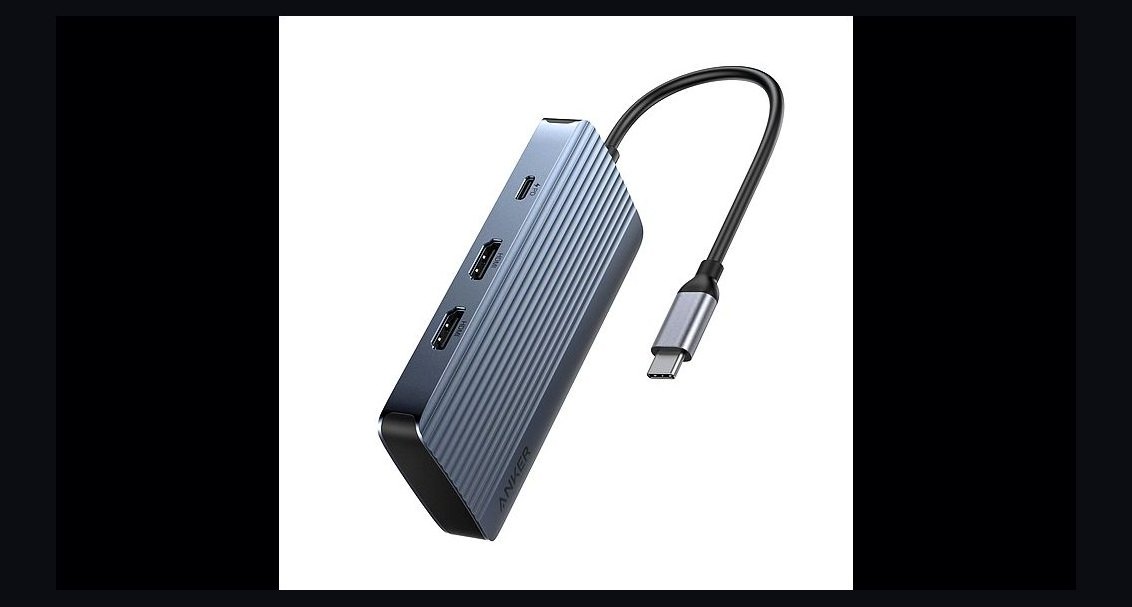 pulse-reviewsTop 10 USB-C Hubs for Sales Travel in 2027
 pulse-reviewsTop 10 Red Light Therapy Devices — Best Overall + Best Value in 2027
 pulse-reviewsTop 10 Electric Spice Grinders — Best Overall + Best Value in 2027
 pulse-reviewsTop 10 Drone Cases — Best Overall + Best Value in 2027
 pulse-reviewsTop 10 Shop Vacuums — Best Overall + Best Value in 2027
 pulse-reviewsTop 10 YouTube Lighting Kits — Best Overall + Best Value in 2027
 pulse-reviewsTop 10 LG TVs — Best Overall + Best Value in 2027
 pulse-reviewsTop 10 Noise-Cancelling Headphones — Best Overall + Best Value in 2027