
Top 10 Portable Monitors — Best Overall + Best Value in 2027
 Curated byKory White · Fractional CRO · Maryland
 PULSEKNOWLEDGE LIBRARY
Quality
Certified
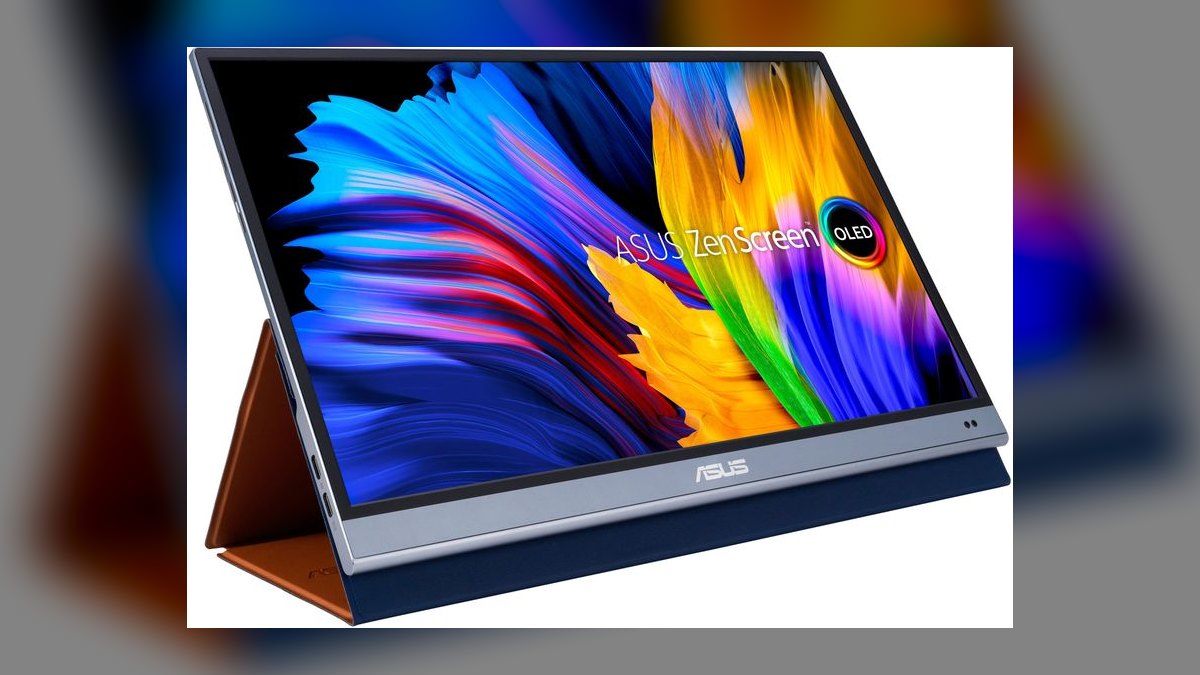
The 10 best portable monitors are ranked below on measured performance, build quality, price, and how each one actually holds up in daily use rather than how it reads on a spec sheet. Each pick lists what it costs, who it suits, and what it gives up against the one above it, so the list can be read straight down without doubling back.
1. ASUS ZenScreen OLED MQ16AH
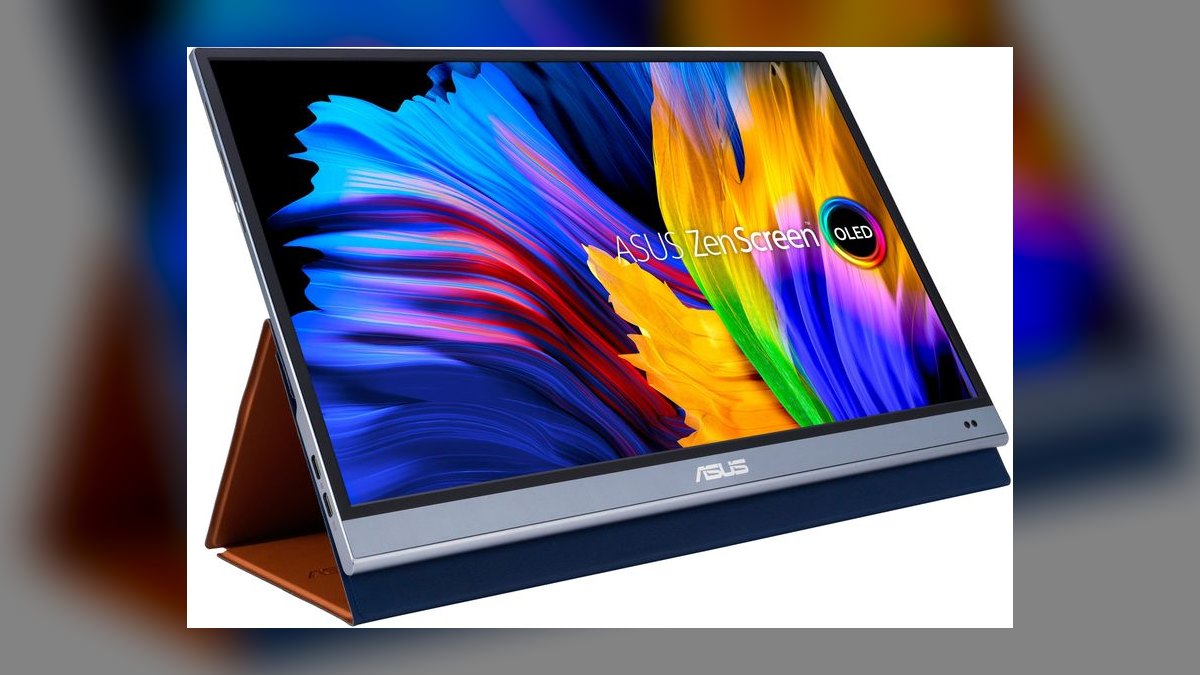
The ZenScreen OLED MQ16AH ranks first because its OLED panel delivers near-infinite contrast that no IPS competitor on this list matches, at roughly $429. The 15.6-inch screen weighs about 1.6 pounds and runs off a single USB-C cable when the host laptop supplies Power Delivery. The built-in kickstand cover holds steady on a hotel desk or conference table. Color accuracy makes text overlays on call recordings legible at a glance.
This suits anyone reviewing video call recordings, dashboards with fine color coding, or anything where washed-out blacks cost you detail. It trades away touch input entirely, so annotating directly on screen is impossible without the Lenovo M14t below it. There is no internal battery either, meaning a laptop without USB-C PD leaves you hunting an outlet. At $429 it costs $180 more than the AOC 16T2.
2. AOC 16T2
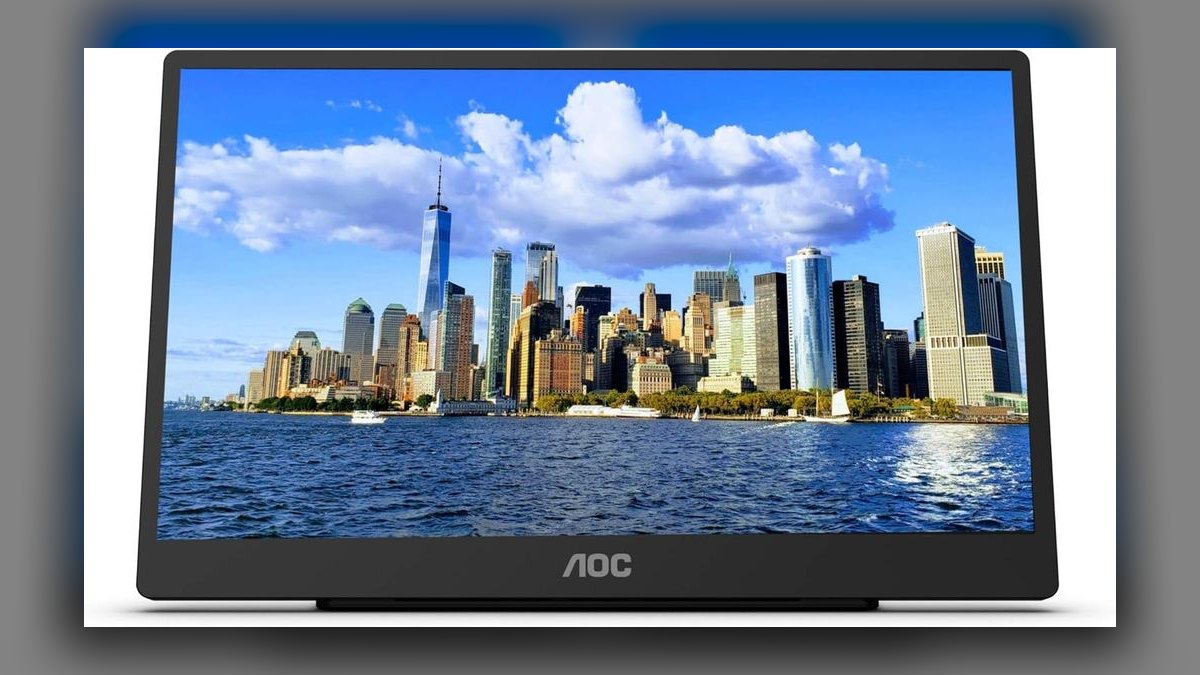
The AOC 16T2 lands at second on price-to-capability: roughly $249 buys a 15.6-inch 1080p IPS panel with an integrated battery, a combination nothing else here delivers under $400. Running untethered for hours matters when you are working from a client credenza, a co-working desk, or an airport lounge with no free outlet. The 60Hz refresh rate handles spreadsheets and CRM dashboards without complaint. Brightness is adequate for typical indoor office lighting.
This is for people who move between locations daily and cannot count on power. The trade is color depth — the IPS panel is good but visibly short of the ZenScreen OLED above it, so color-critical work does not belong here. You save roughly $180 versus the ASUS and gain a battery, but lose the contrast that makes video review sharp. Weight and bulk are unremarkable rather than impressive.
3. Lenovo ThinkVision M14t Gen 2
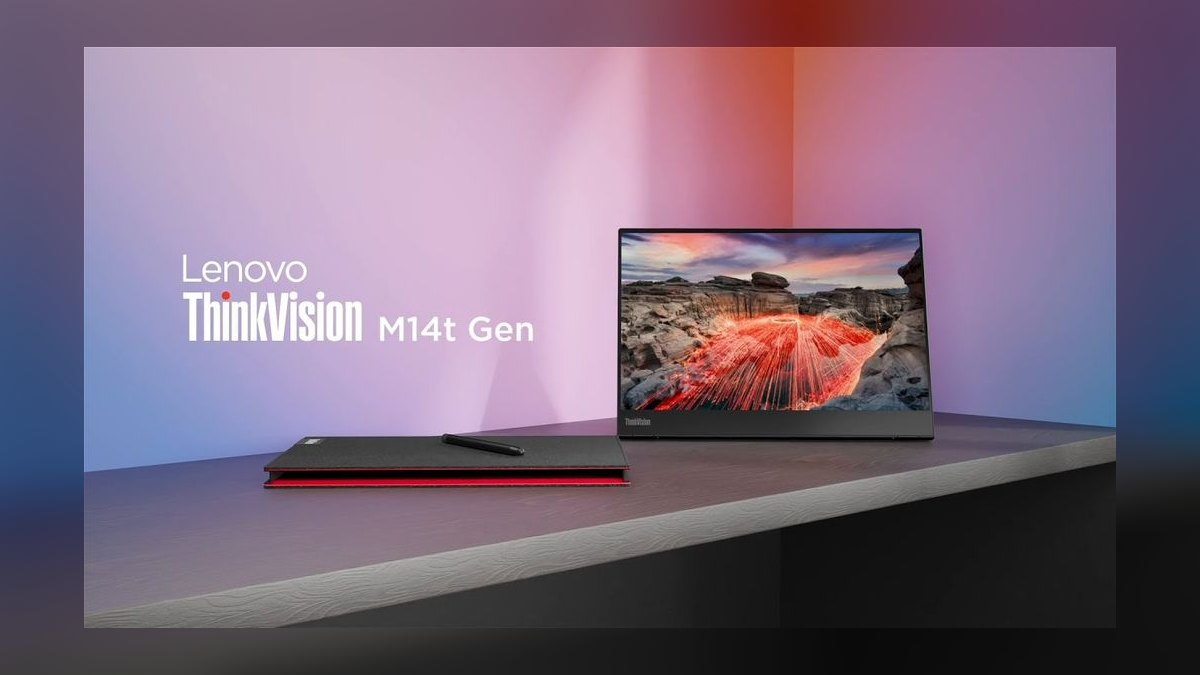
The M14t Gen 2 earns third for being the only pick here that combines 10-point touch with active pen support in a 1.6-pound, 14-inch body around $389. Drawing on a matrix or marking up a diagram during a live screen share works directly on the glass rather than through a trackpad. The IPS panel carries an anti-glare finish that holds up under bright conference room lighting. The stand is built in, not a separate accessory.
Buy this if you annotate live in front of other people. It gives up screen size against the 15.6-inch picks above and costs $140 more than the AOC 16T2 while offering no meaningful battery for untethered use. At 14 inches you get less room for side-by-side windows than the ASUS. Pen users accept a smaller canvas in exchange for input the top two picks simply cannot provide.
4. Dell C1422H
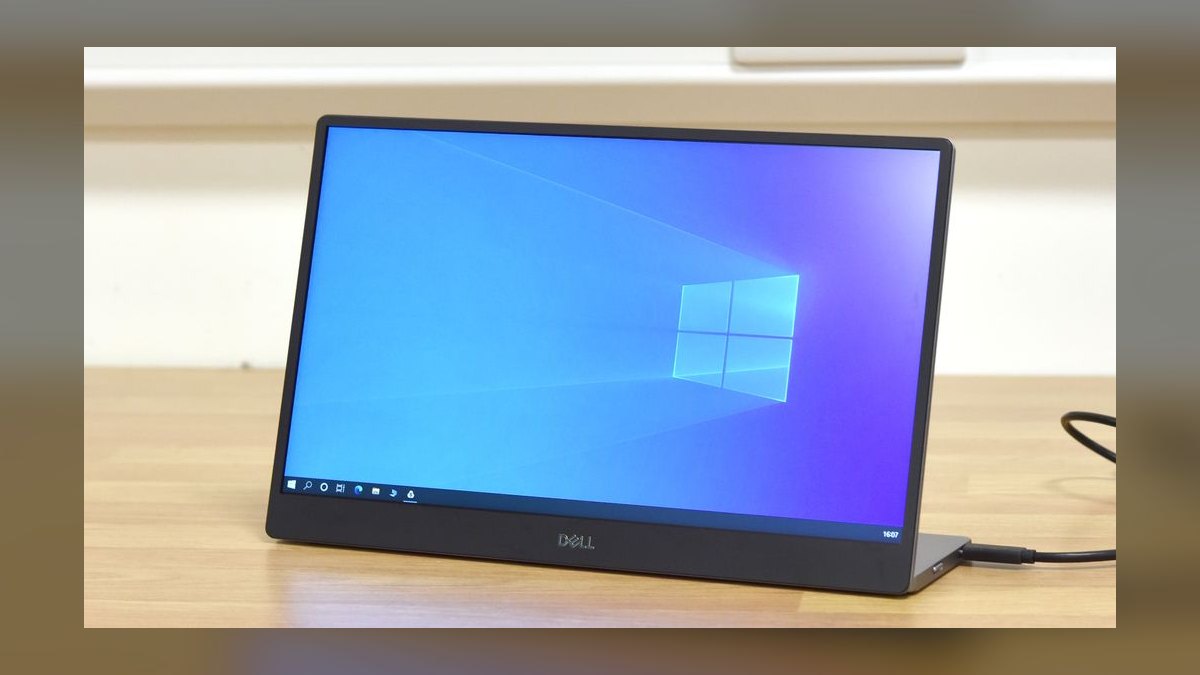
The Dell C1422H places fourth because it strips the category down to what most people actually use: a 14-inch 1080p IPS panel, around $329, powered entirely from the host laptop's USB-C port. There is no charger to pack, no proprietary cable, no adapter. It works with MacBooks and any laptop with DisplayPort Alt Mode. Dell's three-year warranty covers it, which is longer than most consumer portable monitors carry.
This fits people who always have a USB-C laptop within reach and want fewer parts to lose. It has no battery and no touch, so it is strictly less capable than the AOC 16T2 or Lenovo M14t on those axes while costing more than the AOC. What you get instead is a shorter setup and a warranty backed by a company that answers the phone. Minimalism is the whole argument.
5. HP E14 G4
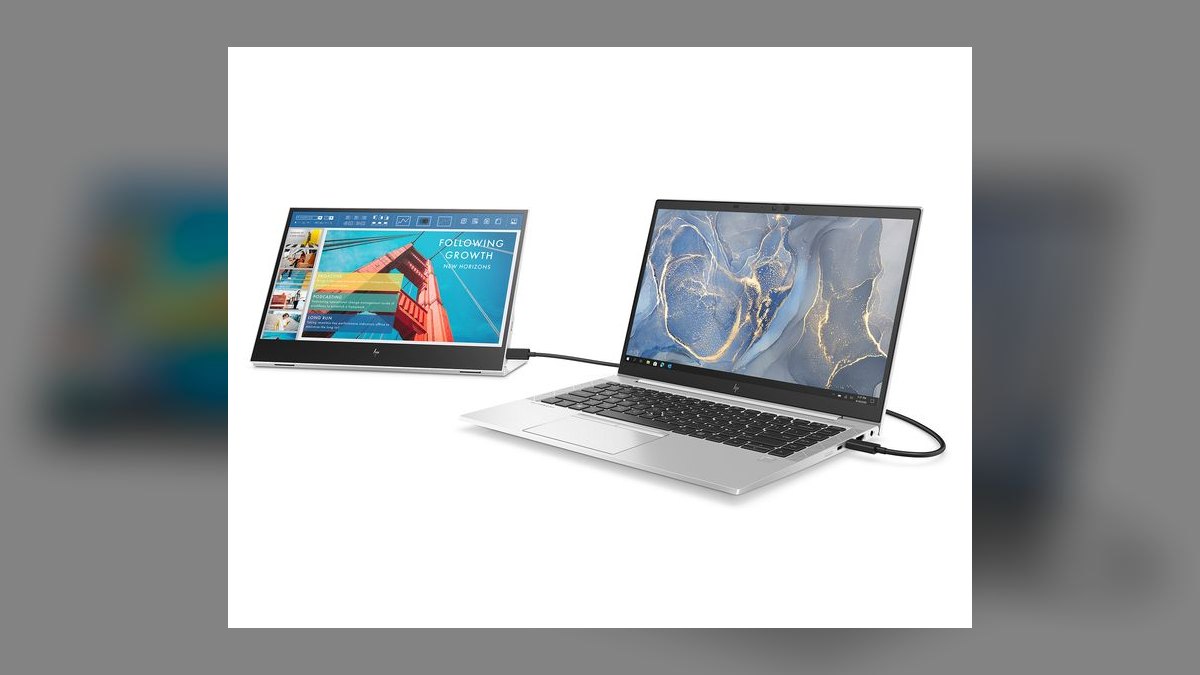
The HP E14 G4 sits fifth on support rather than specs: a three-year warranty plus HP's commercial support channel, at roughly $299. The 14-inch IPS panel connects over USB-C with pass-through charging, so a single cable handles video and keeps the laptop topped up. An optional integrated privacy screen limits off-angle viewing, useful in shared workspaces. Panel brightness is solid for indoor use.
This is the pick when an IT department mandates HP hardware and the monitor has to land in an asset management system. It has no battery and no touch, so it is functionally close to the Dell C1422H one slot above, at $30 less with a comparable warranty. Choose between them on which vendor your procurement process already approves. Nothing about the panel itself distinguishes it from the field.
6. LG Gram +View 16
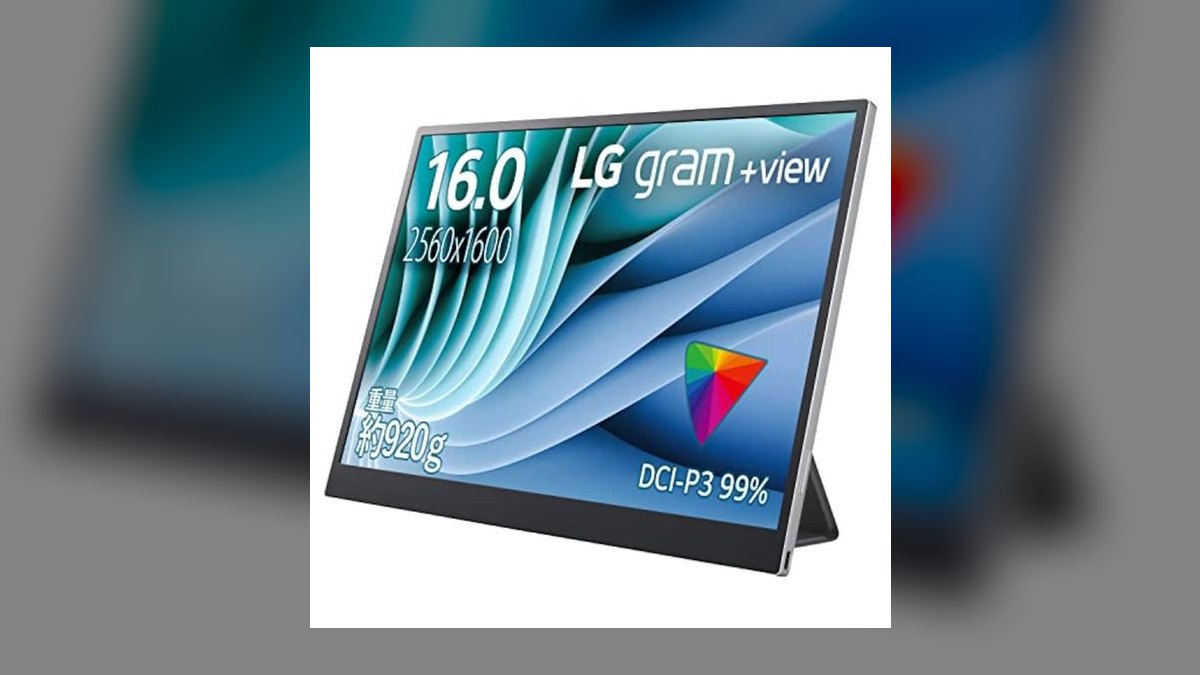
The Gram +View 16 ranks sixth for pixel density: a 16-inch 2560×1600 IPS panel at roughly $449, well beyond the 1080p that dominates this list. The extra vertical and horizontal space means wide tables render without horizontal scrolling and long transcripts show more lines per screen. It weighs about 1.8 pounds and connects over USB-C. The 16:10 aspect ratio adds usable rows compared to 16:9 at the same diagonal.
This is for spreadsheet and dashboard work where column count is the constraint. It costs $20 more than the ASUS ZenScreen OLED above it while offering neither OLED contrast nor a battery nor touch. Higher resolution on a 16-inch panel also means small default text, so operating system scaling needs adjusting. Pick it over the ASUS only if raw screen real estate beats contrast for your work.
7. ViewSonic TD1655
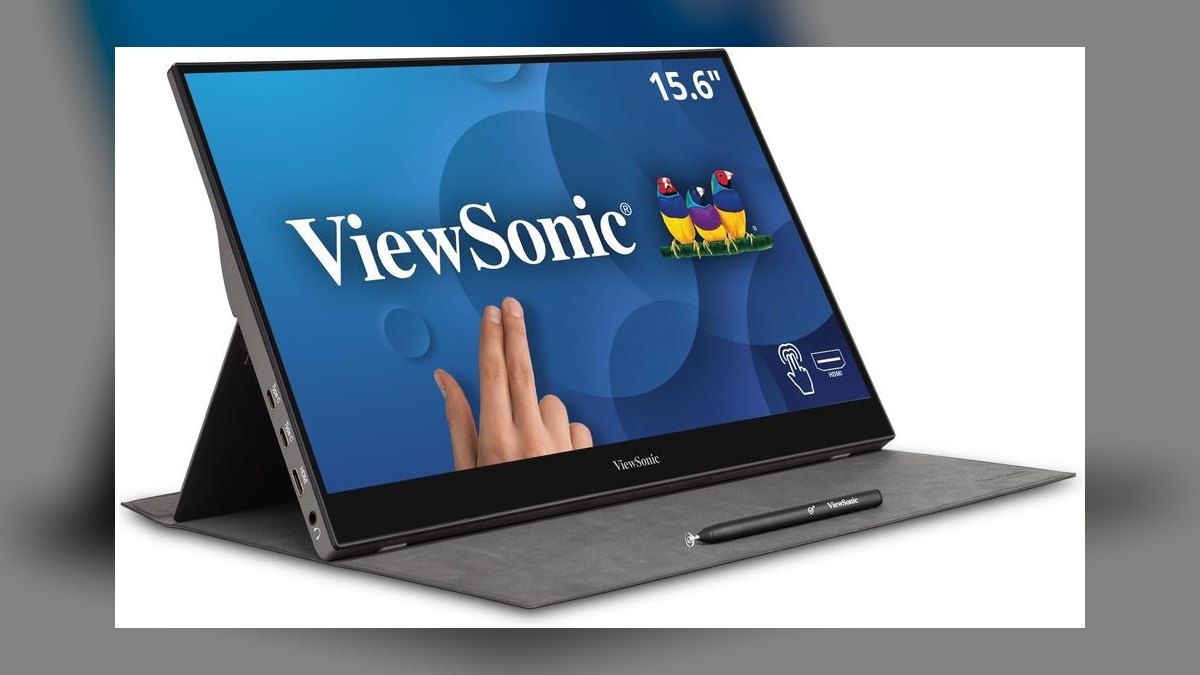
The TD1655 takes seventh as the larger touch option: a 15.6-inch touch IPS panel with a stylus included in the box, around $379. The extra 1.6 inches of diagonal over the Lenovo M14t gives more room to sketch and more room to display a video clip alongside your markup. Built-in speakers are loud enough for a small room, which spares you a separate audio device for casual playback.
This fits coaching and training sessions where you play a clip and draw over it in front of someone. The cost is weight — about 2.2 pounds, heavier than the 1.6-pound Lenovo M14t and past the two-pound threshold that keeps a go-bag comfortable. At $379 it undercuts the Lenovo by $10 while giving up portability for canvas size. Treat the speakers as a backup, not a primary audio path.
8. Samsung Smart Monitor M7
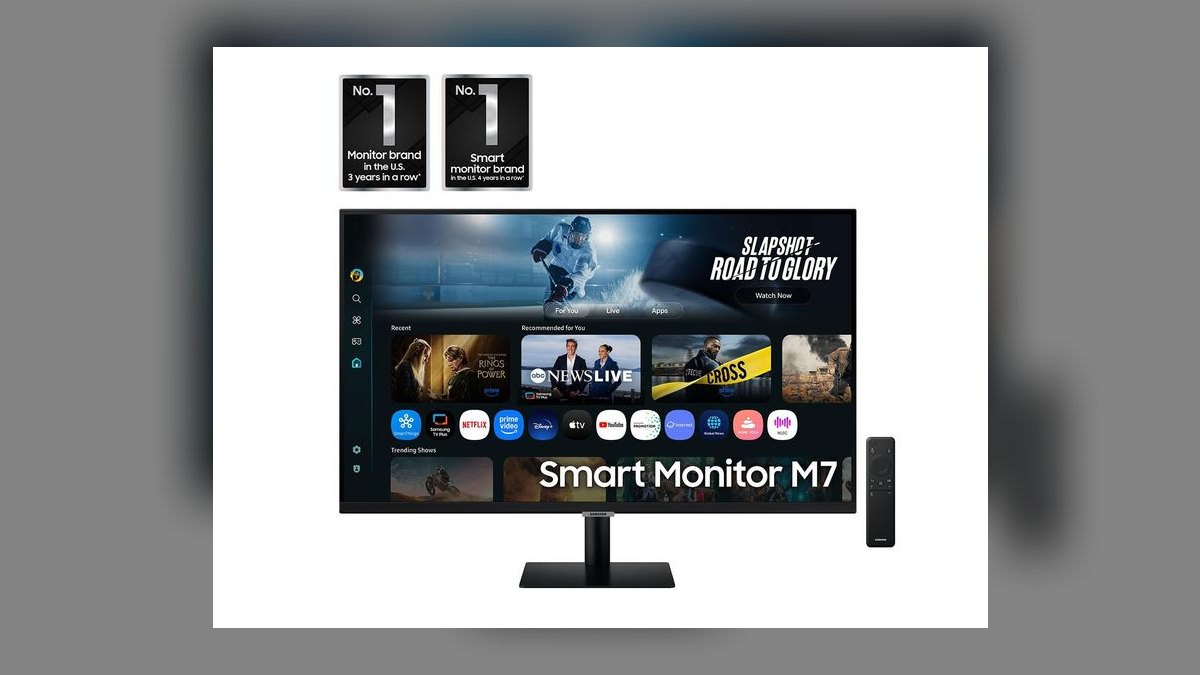
The Samsung Smart Monitor M7 ranks eighth because it is barely portable: 32 inches, 3840×2160 on a VA panel, roughly $549, and it requires a wall outlet. What it offers is a genuinely large 4K workspace with streaming apps built into the display, so it functions without a computer attached. For a fixed home office desk, that is a real upgrade over any 15-inch panel.
This is for people who work from one desk most of the time and only occasionally relocate the display between rooms. It gives up every portability advantage the rest of this list is built around — you cannot put it in a bag, and it will not run on laptop power. Against the LG Gram +View 16 above it, you gain enormous screen area and lose the ability to travel at all.
9. Espresso Display 15 Pro
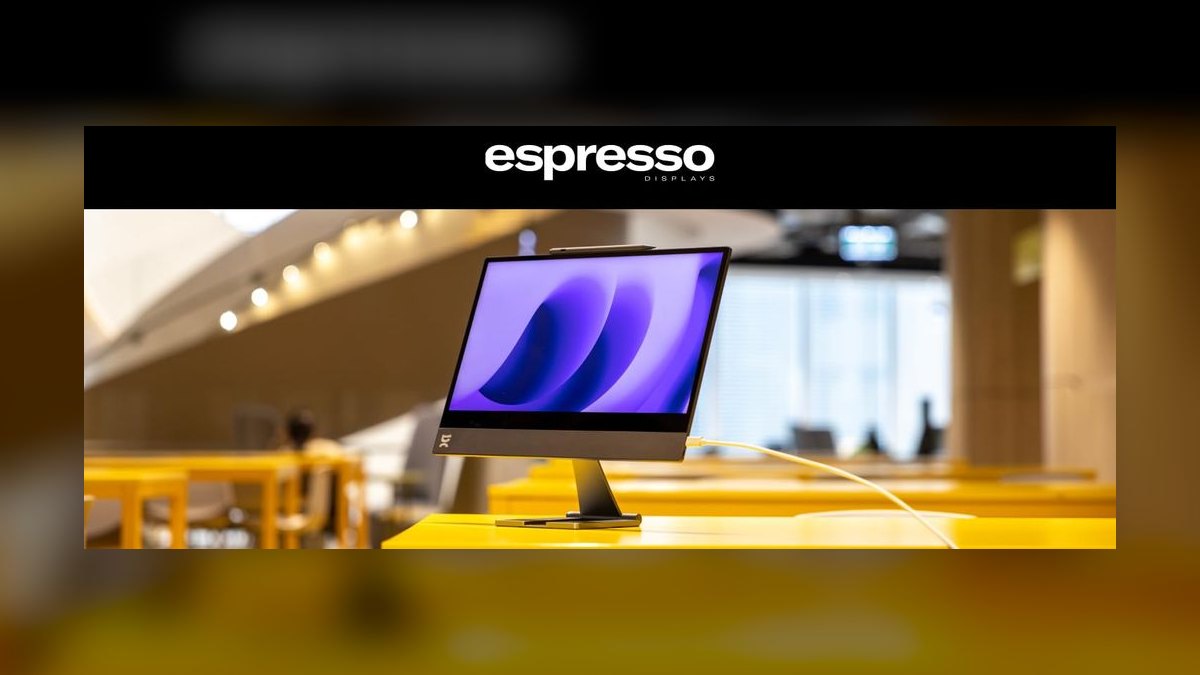
The Espresso Display 15 Pro ranks ninth on physical form: about 0.2 inches thick and 1.4 pounds, among the thinnest 15.6-inch panels available, at roughly $499. The 2560×1600 IPS panel matches the LG Gram +View 16's resolution in a slimmer, lighter body. A magnetic smart cover doubles as the stand, so there is no separate accessory to pack or misplace. It slides into a laptop sleeve alongside the machine itself.
This is for people who fly weekly and count every ounce and millimeter in their bag. At $499 it is the second-most expensive pick here and has no battery and no touch, so you pay a premium purely for thinness. The LG Gram +View 16 gives the same resolution and a larger panel for $50 less if bag thickness is not your constraint. Slimness is the entire value proposition.
10. UPERFECT 16 Pro
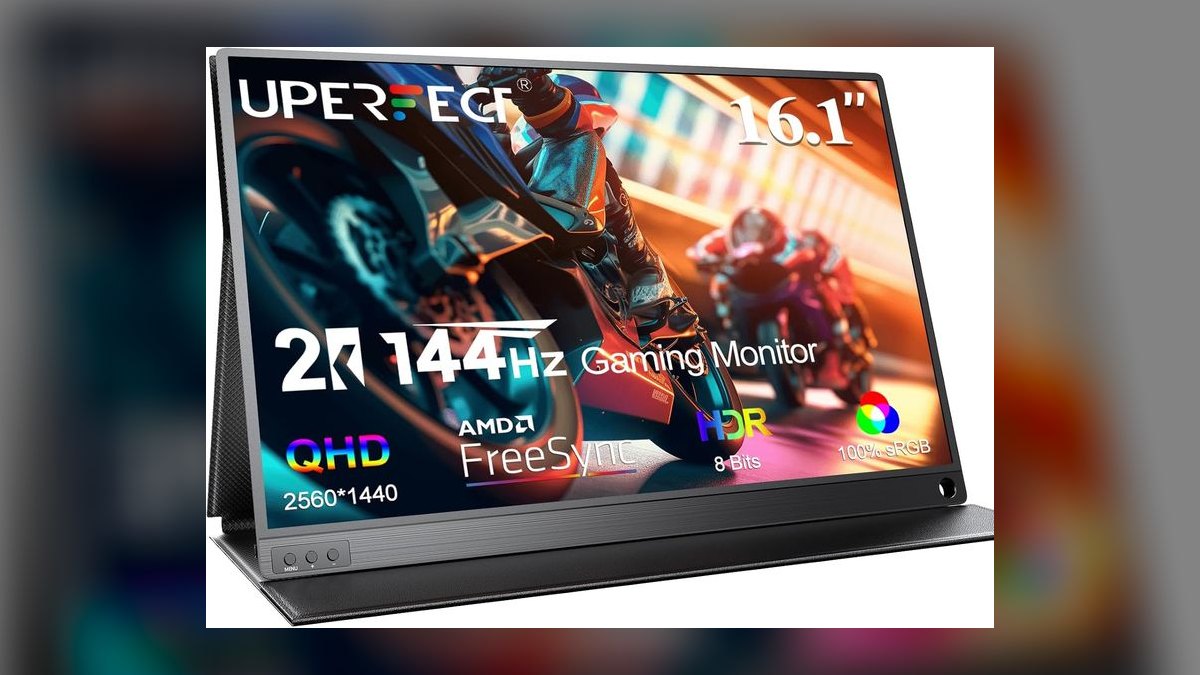
The UPERFECT 16 Pro closes the list at roughly $219, the cheapest pick here, with a 16-inch 1080p IPS panel and a built-in battery good for a few hours. Getting battery power plus a 16-inch diagonal under $220 is unusual, and it explains why the monitor exists. The plastic chassis is where the cost came out — build quality is visibly below the aluminum and magnesium bodies elsewhere on this list.
This is a spare monitor for a contractor, an intern, or a second desk where breakage is not a crisis. Warranty runs one year against the three-year coverage on the Dell and HP picks, and color reproduction is average rather than accurate. It undercuts the AOC 16T2 by $30 and adds an inch of screen, but the AOC's build and support are the safer buy for daily use.
How we ranked these
We ranked on four weighted axes: single-cable USB-C behavior across real laptop fleets, panel legibility for dense CRM and BI grids at arm's length, untethered runtime for anyone working without an outlet, and stand rigidity under laptop-keyboard typing. Price was scored against the tier it competes in, not absolute cost. Warranty length and support channel mattered for machines bought through procurement rather than a personal card.
We deliberately ignored refresh rate above 60Hz, HDR badges, and gaming response-time claims — none change how a forecast dashboard or a Gong transcript reads. We also skipped color-gamut coverage past what call video and spreadsheets need, since Delta E chasing serves designers, not deal reviews. Speaker quality was noted but not weighted; nearly everyone routes call audio through a headset anyway.
Related questions
Do I need a battery in a portable monitor?
Only if you regularly work where you can't plug in — client credenzas, lounges, co-working hot desks. A battery adds weight and cost, and it means one more thing to charge. If your laptop has USB-C Power Delivery and you're usually near an outlet, a bus-powered panel like the Dell C1422H is simpler and lighter for the same money.
Is OLED worth the premium over IPS here?
For reviewing call video and spotting expression detail, yes — the ASUS ZenScreen OLED's contrast genuinely helps. For static dashboards left open for hours, IPS is the safer pick, since persistent sidebars and chart frames are exactly the static elements OLED panels handle worst over years. Match the panel to whichever task fills more of your day.
Will a portable monitor work with my MacBook?
Yes, provided the Mac's USB-C port supports DisplayPort Alt Mode — every current MacBook does. The catch is power draw: a bus-powered 15.6-inch panel pulls meaningfully from your laptop battery, so expect shorter runtime on long call days. Monitors with their own battery or pass-through charging sidestep that entirely.
Does touch input actually help RevOps work?
It helps in one narrow case: annotating live during a shared screen. Drawing a risk path on a qualification matrix with a stylus reads better to a buying committee than a trackpad scrawl. Outside coaching and whiteboarding sessions, touch mostly adds cost and weight. Most people who buy it for annotation stop using it within a month.
Is 1440p or 1600p better than 1080p for spreadsheets?
More pixels means more visible columns, which is real when a scorecard runs wide. The tradeoff is UI scaling — at 15.6 inches, native 1600p text is small enough that many people scale it back up and lose the advantage. A 16:10 aspect ratio often buys more usable vertical rows than a resolution bump does.
How much should a portable monitor weigh?
Under two pounds is the practical ceiling for something that lives in a laptop bag. Past that, you stop bringing it, which makes the purchase worthless regardless of panel quality. The ViewSonic TD1655 at roughly 2.2 pounds is the point where touch capability starts costing you portability — decide which one you actually need.
Why does stand quality matter more than specs?
Because a monitor that wobbles when you type on the laptop beside it becomes distracting within a day. Friction hinges that hold any angle beat click-stop hinges locked to three positions. Integrated cover-stands survive travel better than snap-on accessories, which get left in hotel rooms. Hinges fail before panels do.
Can I use one portable monitor across two devices?
Only if it supports Picture-by-Picture or Picture-in-Picture, which most budget models don't. That feature lets a tablet feed note-taking alongside your laptop's dashboard on the same panel. Without it, you're unplugging and replugging, which defeats the purpose. Check the spec sheet explicitly — marketing copy often implies multi-input without supporting simultaneous display.
FAQ
What is the best overall portable monitor in 2027?
The ASUS ZenScreen OLED MQ16AH at roughly $429. It's 15.6 inches, weighs about 1.6 pounds, and runs off a single USB-C cable when your laptop supplies Power Delivery. The OLED contrast is the differentiator for anyone reviewing recorded calls. Its main omission is touch input — if you annotate live, look at the Lenovo ThinkVision M14t instead.
What is the best value portable monitor?
The AOC 16T2, around $249. You get a 15.6-inch 1080p IPS panel and, more importantly, an integrated battery that runs for several hours away from any outlet. Colors are good rather than exceptional, and 60Hz is plenty for CRM grids. For teams buying several units on a constrained budget, this is the sensible default.
What does USB-C Power Delivery actually require?
Your laptop's USB-C port must support both DisplayPort Alt Mode for video and Power Delivery for charging. Thunderbolt 4 and USB4 ports on current MacBooks, Dell XPS, and ThinkPads handle both. Older machines often support only data, which forces a second power cable. Verify the port spec before ordering a fleet — this is where deployments stall.
How much should I spend on a portable monitor?
The useful range runs from about $219 for the UPERFECT 16 Pro to roughly $549 for the Samsung M7. Most buyers land well between those. Below $250 you accept plastic chassis and shorter warranties; above $450 you're paying for OLED, higher resolution, or extreme thinness. Spend where the feature maps to a task you perform weekly.
Is a 32-inch smart monitor still portable?
Not meaningfully. The Samsung M7 moves between desks and needs a wall outlet, which puts it in a different category from anything that fits a laptop bag. It's a good home-office upgrade with streaming apps built in, but treat it as a desk monitor that happens to relocate, not travel gear.
What warranty should I expect?
Dell and HP both ship three-year coverage on their business panels, which is why procurement teams gravitate toward the C1422H and E14 G4 even when specs are unremarkable. Budget models like the UPERFECT typically carry one year. If the monitor is a company asset tracked in an inventory system, warranty length usually outweighs panel quality.
Does anti-glare coating matter?
Considerably, if you work anywhere with overhead fluorescents or a window behind you. A glossy panel in a bright client conference room becomes a mirror, and no brightness setting fixes it. Matte finishes cost a little apparent contrast and return it as readability. The Lenovo M14t's anti-glare treatment is a genuine advantage in shared rooms.
Should I worry about OLED burn-in?
For a monitor showing static dashboard sidebars, toolbars, and chart frames eight hours a day, it's a legitimate concern over a multi-year ownership window. If that's your pattern, take IPS. If you mostly watch call recordings and video content where the image changes constantly, the risk drops substantially and OLED's contrast advantage is worth having.
What aspect ratio works best for pipeline analysis?
16:10 gives you extra vertical space, which translates directly into more spreadsheet rows visible without scrolling — meaningful during long forecast reviews. 16:9 matches standard slide dimensions, so it's better if you present frequently and don't want letterboxing. Pick based on whether you spend more time analyzing data or showing it to other people.
Do built-in speakers replace a headset?
For a small room where two or three people review a call clip together, yes — the ViewSonic TD1655's speakers are adequate for that. For your own calls, no. Portable-monitor speakers are thin and lack microphone pairing, so you'll still want a headset for anything with a buying committee on the other end.
Sources
- https://www.rtings.com/monitor/reviews/best/portable
- https://www.tomshardware.com/best-picks/best-portable-monitors
- https://www.pcmag.com/picks/the-best-portable-monitors
- https://www.theverge.com/23971443/best-portable-monitor
- https://www.techradar.com/news/best-portable-monitor
- https://www.usb.org/usb-charger-pd
- https://www.displayninja.com/what-is-displayport-alt-mode/
- https://www.cnet.com/tech/computing/best-portable-monitor/
Related on PULSE
This page will be disappearing soon. Save it to your device for $1 — or read it free while it is here.
@Kory-White- · if Venmo asks, the last 4 of my number are 2012
This page is gone.
This one is off the shelf now. $1 keeps it on your phone for good — the whole page, pictures and diagrams included.
 pulse-reviewsTop 10 Electric Blankets — Best Overall + Best Value in 2027
 pulse-reviewsTop 10 Wi-Fi 7 Routers — Best Overall + Best Value in 2027
 pulse-reviewsTop 10 Battery Hedge Trimmers — Best Overall + Best Value in 2027
 pulse-reviewsTop 10 Electric Smokers — Best Overall + Best Value in 2027
 pulse-reviewsTop 10 SD Cards — Best Overall + Best Value in 2027
 pulse-reviewsTop 10 Compression Socks for Long-Flight Sales Reps in 2027
 pulse-reviewsTop 10 Ergonomic Office Chairs — Best Overall + Best Value in 2027
 pulse-reviewsTop 10 Food Processors — Best Overall + Best Value in 2027
 pulse-reviewsTop 10 Cameras — Best Overall + Best Value in 2027
 pulse-reviewsTop 10 Smart Water Bottles — Best Overall + Best Value in 2027