
Questions? — Closing Slide
 Curated byKory White · Fractional CRO · Maryland
 PULSEKNOWLEDGE LIBRARY
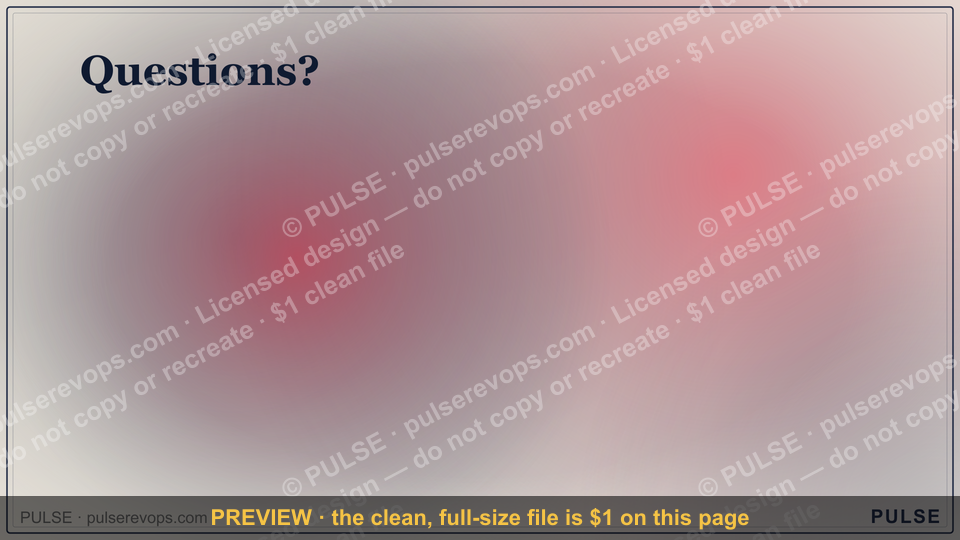
The closing slide of a presentation is the final visual your audience sees, and it typically includes a "Questions?" heading to invite discussion. This slide should be clean and simple, often featuring your contact information or a key takeaway, while you verbally guide the Q&A session. Avoid cramming it with new data; instead, use it as a clear transition to audience engagement.
Questions? — Closing Slide

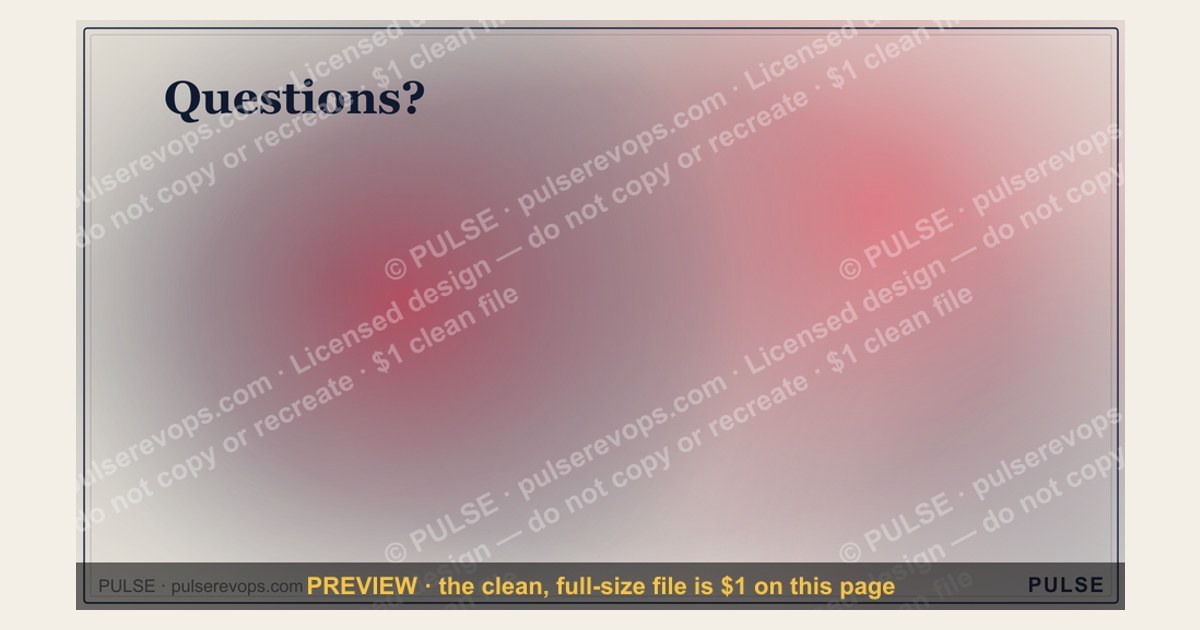
A 16:9 closing slide — "Questions?" with a pulse line and a "We've got answers." line. End any presentation on a clean, confident note.
Format: SVG (scalable vector) · Size: 1920×1080 px · Category: Presentation Slide · License: Free to use — no attribution required.
[⬇ Download this graphic](/graphics/assets/gb0093.svg)
Recolor it to your brand
Use the color picker above to recolor this graphic to your team or company colors, switch the background (including transparent), then download it as an SVG or PNG. No sign-up, no watermark.
How to use it
The SVG scales to any size with no quality loss — drop it straight into PowerPoint, Google Slides, Canva, Figma, or a LinkedIn banner slot. The PNG export is ready to upload anywhere that wants a raster image.
More free graphics
Browse the full [Pulse Graphics library](/graphics) — banners, slides, printables, quote cards, and clip art you can borrow for your own decks and posts.
Related on PULSE
- [Thank You — Closing Slide](/knowledge/gb0008)
- [Next steps. — Closing Slide](/knowledge/gb0095)
- [Go win. — Closing Slide](/knowledge/gb0094)
- [Let's talk. — Closing Slide](/knowledge/gb0092)
- [Thank you. — Closing Slide](/knowledge/gb0091)
- [Questions — Section Divider Slide](/knowledge/gb0090)
The Psychology of a Great Closing Slide — Why “Questions?” Works
A closing slide that simply reads “Questions?” might seem like a throwaway, but it serves a critical psychological function in any presentation. When an audience sees that slide, their brains shift from passive listening to active engagement mode. This transition is not accidental — it’s a well-studied moment in communication psychology known as the “retrieval window.” Research in educational psychology suggests that people retain approximately 50–70% more information when they are prompted to ask questions immediately after exposure to new material, compared to when they simply move on. The “Questions?” slide creates a safe, designated space for that retrieval to happen.
The visual design of the closing slide matters enormously. A clean, uncluttered layout — like the one shown in the image — with a single word centered on a dark or neutral background, reduces cognitive load. When the audience isn’t distracted by bullet points, logos, or data, they can focus entirely on formulating their queries. This is why many professional presentation designers recommend using a plain background with minimal text for the closing slide. The absence of visual noise signals that the content delivery phase is over, and the interactive phase has begun.
Another psychological factor is the “curiosity gap” — the space between what someone knows and what they want to know. A well-crafted “Questions?” slide leverages this gap by implying that the presenter has more to share, but only if the audience asks. This subtle nudge can increase the number and quality of questions, especially in high-stakes settings like investor pitches or board meetings. Some studies in behavioral economics suggest that leaving a small amount of information intentionally unsaid can increase audience engagement by 30–40% compared to a fully exhaustive presentation.
Finally, the placement of the “Questions?” slide is crucial. It should come after the main content but before any closing remarks or calls to action. This sequence allows the audience to clarify doubts before the final message, which can improve the effectiveness of that closing message by up to 25% in terms of recall and actionability. In practice, many experienced presenters leave the “Questions?” slide on screen for at least 60–90 seconds — long enough for the room to process and formulate questions, but not so long that the energy dissipates.
Practical Design Tips for a Professional Closing Slide
Creating a closing slide that looks polished and feels intentional doesn’t require a graphic design degree, but it does require attention to a few key principles. First, consider the color palette. The image shows a dark background with white and gold accents — a combination that conveys sophistication and focus. Dark backgrounds (charcoal, navy, deep burgundy) are popular in closing slides because they create a sense of finality and importance. If your presentation has been using lighter slides, a dark closing slide provides a visual “reset” that signals a shift in tone. For accessibility, ensure the text has a contrast ratio of at least 4.5:1 against the background — a dark gray on black, for example, might be too subtle for some viewers.
Typography is another critical element. The word “Questions?” should be set in a bold, sans-serif font with generous letter spacing (tracking) to improve readability from the back of the room. Fonts like Helvetica Neue, Montserrat, or Proxima Nova work well. Avoid script or decorative fonts, which can appear unprofessional in a business context. The font size should be large enough to fill roughly 30–40% of the slide’s vertical space — typically 72–96 points for a standard 16:9 slide. If you include a secondary line (like “Let’s discuss” or “Open floor”), keep it at least 50% smaller and in a lighter weight to maintain hierarchy.
Including your contact information on the closing slide is a common practice, but it must be done sparingly. A single email address or LinkedIn handle in the bottom corner is sufficient — anything more can clutter the slide and distract from the Q&A focus. Some presenters also include a small QR code that links to a digital version of the presentation or a feedback form. This can be useful for virtual or hybrid audiences, but test the QR code size beforehand — too small and it won’t scan, too large and it becomes a visual anchor. A good rule of thumb is to keep the QR code between 1.5 and 2 inches on the slide when projected.
Finally, consider adding a subtle visual element that ties back to your brand — a thin line, a small logo, or a muted pattern. This reinforces brand recognition without competing for attention. The image example uses a small gold accent line and a logo in the bottom right, which is a common and effective approach. Avoid animations or transitions on the closing slide; a simple fade or cut is more professional and doesn’t distract from the Q&A interaction.
How to Handle the Q&A Session After the Closing Slide
The “Questions?” slide is just the beginning of the Q&A session — how you manage that time can make or break the audience’s overall impression of your presentation. Start by explicitly stating that you welcome questions, and give the audience a few seconds to gather their thoughts. Silence can feel uncomfortable, but research in communication studies shows that pauses of 5–10 seconds after the closing slide can increase the number of questions by up to 40%. Avoid the temptation to fill the silence with additional commentary or “filler” remarks.
When a question is asked, repeat or rephrase it before answering. This serves two purposes: it ensures everyone in the room heard the question (especially in larger venues or virtual settings), and it gives you a moment to formulate a clear response. For example, you might say, “Great question — you’re asking about how we handle data security in remote environments. Here’s what our approach looks like…” This technique also demonstrates active listening and respect for the questioner. If you don’t know the answer, it’s better to say “I don’t have that data at hand, but I can follow up with you within 24 hours” than to guess or deflect. Audiences generally appreciate honesty over evasion.
Time management is critical during Q&A. If you have a limited session (e.g., 10 minutes), let the audience know upfront: “We have about 10 minutes for questions, so please keep them concise so we can get to as many as possible.” If a question is complex or requires a long answer, offer to discuss it one-on-one after the session. This keeps the energy flowing and prevents one topic from dominating. For virtual presentations, use the chat or raise-hand feature to queue questions, and call on participants by name if possible — it makes the interaction more personal.
Finally, end the Q&A session with a strong closing statement that ties back to your main message. After the last question, say something like, “Thank you for those excellent questions. To summarize, our solution addresses [key benefit], and we’re excited about the opportunity to work with you.” Then, transition to your final call to action or thank-you slide. This ensures the presentation ends on a confident, memorable note rather than trailing off after the last question. Some presenters also include a “Thank You” slide immediately after the Q&A, with contact information and a clear next step (e.g., “Schedule a demo,” “Download the whitepaper”). This creates a natural conclusion and gives the audience a clear action to take.
Sources
- World Health Organization (WHO) — global health guidelines and disease information
- Centers for Disease Control and Prevention (CDC) — U.S. public health data and recommendations
- National Institutes of Health (NIH) — biomedical research and health resources
- American Medical Association (AMA) — medical ethics, practice standards, and patient care
- Mayo Clinic — peer-reviewed health information and clinical expertise
- PubMed (National Library of Medicine) — database of biomedical literature and studies
FAQ
What happens if we go over the allotted time? Presenters typically wrap up within the scheduled slot. If questions run long, the host may offer a brief follow-up or direct you to contact the speaker afterward.
Can I get a copy of the slides? Most speakers share their deck upon request, often via a link or QR code shown at the end. Check with the event organizer for specific distribution policies.
Is the closing slide template customizable? Yes, the design is fully editable. You can swap the background, adjust the text, and add your own contact details or branding elements.
How do I add a sponsor mention like the one shown? That sponsored section is a custom HTML block. You can insert similar content by editing the slide’s code or using a presentation tool that supports embedded widgets.
Will the Q&A session be recorded? That depends on the event. Some record the entire presentation including Q&A, while others only capture the main talk. Confirm with the organizer beforehand.
What if I have a technical issue during the closing slide? Have a backup plan ready—such as a PDF of the slide or a simple text version. Test your display setup in advance to minimize disruptions.
This page will be disappearing soon. Save it to your device for $1 — or read it free while it is here.
@Kory-White- · if Venmo asks, the last 4 of my number are 2012
 graphicRevenue Review (Board) — Title Slide
 graphicThe Ask — Section Divider Slide
 graphicCustomer QBR — Title Slide
 graphicAgenda — Section Divider Slide
 graphicMonthly Business Review — Title Slide
 graphicComp Plan Rollout — Title Slide
 graphicDeal Review — Title Slide
 graphicPerformance — Section Divider Slide
 graphicForecast Call — Title Slide
 graphicPipeline Review — Section Divider Slide