


How do you fix a movie streaming buffering issue on a slow internet connection in 2027?
Quality
Certified
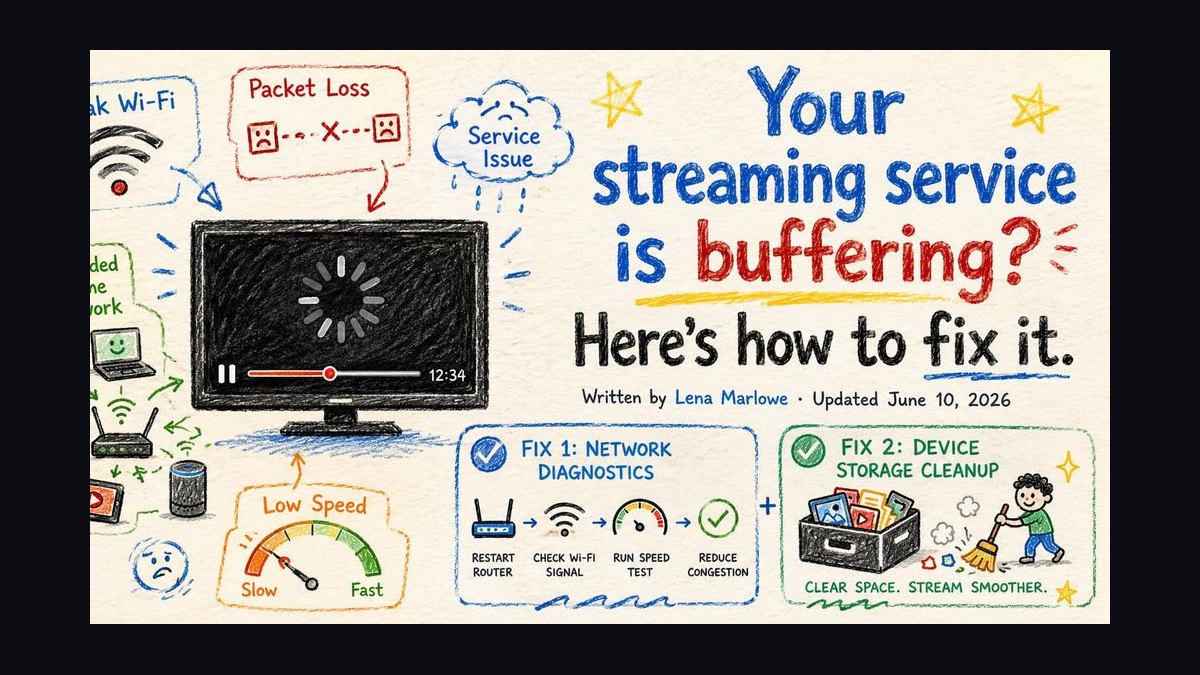
Wire the streaming device to Ethernet or a 5 GHz connection, drop playback to 720p, and cap other devices' bandwidth via router QoS. If buffering persists, restart the modem, clear the app cache, switch DNS to 1.1.1.1, and download the movie offline instead — that fixes most slow-internet buffering in under fifteen minutes.
What buffering actually is on a constrained line
Buffering is not a mysterious failure — it is a bookkeeping problem. A streaming app maintains a playback buffer, a rolling reserve of video it has already downloaded but not yet shown you. On a healthy connection that reserve sits somewhere between 10 and 60 seconds of content, and the app quietly refills it faster than you consume it. When the spinner appears, the reserve hit zero: the decoder needed the next frame and the network had not delivered it yet.
That framing matters because it tells you where to look. Three variables control whether the buffer drains: the bitrate the app has chosen, the throughput your connection actually sustains, and the jitter or latency spikes that interrupt delivery even when average throughput looks fine. Most people only fix the first variable — they lower the quality — and are baffled when buffering returns. A line that averages 25 Mbps but collapses to 2 Mbps for four seconds every minute will stutter at almost any bitrate, because the buffer cannot absorb a four-second hole unless it was already deep.
Typical 2027 bitrate demands are worth memorizing because they set your floor. Standard definition streams land around 1–3 Mbps. 720p sits near 3–5 Mbps. 1080p generally wants 5–8 Mbps. 4K HDR, depending on codec, runs 15–25 Mbps with modern AV1 or HEVC encoding, and older H.264 catalogs can push higher. Add roughly 20–30% headroom on top of the nominal figure, because adaptive bitrate ladders overshoot when they sense spare capacity and then have to climb back down when they misjudge.
The adjacent reality most households miss: your "slow internet" is often not slow at the pipe, it is slow at the last ten meters. A 100 Mbps fiber line delivering 6 Mbps to a smart TV two floors from the router is not a carrier problem. Wi-Fi signal degradation, channel congestion from neighboring networks, and cheap TV-integrated radios account for a large share of buffering complaints that get escalated to an ISP and closed as "no fault found."
There is a second, quieter cause worth naming: congestion on the path rather than in your home. During peak evening hours — roughly 7 to 11 p.m. local time — residential segments carry their heaviest load, and a shared coax or fixed-wireless segment can lose meaningful throughput even when your modem reports a healthy link. This is why the same movie plays flawlessly at 2 p.m. and stutters at 9 p.m. on identical hardware. Diagnosing at the wrong hour produces the wrong conclusion.
Working the fix in order, cheapest first
The single biggest mistake is randomizing. People reboot the router, then change DNS, then buy a mesh system, then call the ISP, and never learn which step mattered. Work the ladder in order, change one variable at a time, and test with the same movie at the same scene so your comparison is honest.
Step one — establish a baseline. Run a speed test on the device that is buffering, not on your phone in a different room. That distinction is the whole point. Note download throughput, latency, and if the tool reports it, jitter and packet loss. Anything above roughly 30 ms of jitter or any sustained packet loss above about 1% will cause stutter independent of raw speed.
Step two — eliminate Wi-Fi as a variable. Run an Ethernet cable to the streaming device, even temporarily, even trailing across the floor. If buffering disappears on Ethernet, the problem is your wireless environment and you can stop investigating the ISP entirely. If it persists on Ethernet, the problem is upstream and no router purchase will help.
Step three — force the band and the channel. If Ethernet is not practical, get the device onto 5 GHz rather than 2.4 GHz. The 2.4 GHz band is crowded with microwaves, Bluetooth devices, baby monitors, and every neighbor's legacy gear; it offers better range but far worse throughput and far more interference. Where 6 GHz is available and both router and device support it, that band is typically the cleanest of all because so little legacy equipment occupies it. Give the 5 GHz network its own SSID so the device cannot silently drift back to 2.4 GHz.
Step four — reclaim contention. Pause background traffic: cloud photo sync, game console updates, security cameras uploading continuously, another household member's video call. Cameras are the sneaky one, because they upload constantly and quietly and nobody thinks of them as bandwidth consumers.

Step five — cap the bitrate deliberately. Most streaming apps expose a data-usage or video-quality setting. Setting it to "medium" or an explicit 720p ceiling stops the adaptive algorithm from repeatedly climbing to a bitrate your line cannot hold and then crashing back down. A stable 720p stream looks dramatically better than a 1080p stream that rebuffers every ninety seconds.
Step six — clear state. Clear the app cache, sign out and back in, or reinstall the app. Corrupted local caches and stale session tokens produce buffering that looks exactly like a network fault. On smart TVs, a full power-cycle — unplugged at the wall for 30 seconds, not just the standby button — clears memory that a soft restart leaves intact.
Step seven — restart the path. Power-cycle the modem and router: unplug both, wait 30 seconds, bring the modem up first and let it fully sync before powering the router. This re-establishes the connection and can move you to a less congested channel or a healthier upstream path.
Step eight — change DNS. Switching to 1.1.1.1 or 8.8.8.8 will not increase your throughput, but it can change which CDN edge node the streaming service resolves you to. If your ISP's resolver was steering you to a distant or overloaded node, this genuinely helps. It is a two-minute change with a real, if occasional, payoff.
Step nine — download instead of stream. This is the most underrated fix on a genuinely slow line. Nearly every major streaming app supports offline downloads on mobile and tablet. Queue the movie hours ahead, let it trickle down at whatever speed the line permits, and watch with zero buffering risk. A 6 Mbps connection that cannot hold a 1080p live stream will happily download that same 1080p file over three hours.
What each fix costs and how long it takes
Money spent out of order is the most common waste in this whole exercise. The ordering below reflects cost per unit of likely improvement, not enthusiasm.
Free, under five minutes: lowering stream quality, pausing background devices, restarting the app, clearing cache, switching DNS. Collectively these resolve a large share of household buffering. Do all of them before spending a cent.
Free, ten to twenty minutes: modem and router power-cycle with proper sequencing; relocating the router to a central, elevated, unobstructed spot. Router placement is remarkably undervalued — moving a router out of a media cabinet, off the floor, and away from a metal appliance can meaningfully improve throughput at the far end of a house. Enclosed cabinets and floor-level placement are two of the most common self-inflicted wounds.
Roughly $10–30, one day of shipping: a Cat 6 Ethernet cable long enough to reach the streaming device. If a wired run is possible at all, this is the highest-return purchase in the entire list, full stop. No wireless upgrade beats a cable.
Roughly $30–80: powerline adapters or MoCA adapters, which carry network traffic over existing electrical or coaxial wiring. MoCA in particular is excellent in homes already wired for cable TV and routinely delivers hundreds of Mbps to a room a router cannot reach. Powerline results vary sharply with the age and layout of the electrical circuits — devices on the same circuit perform far better than devices split across a breaker panel.
Roughly $80–200: a Wi-Fi 6 or Wi-Fi 6E router, or a two-node mesh system. Worth it when you have confirmed the wireless leg is the bottleneck and a cable is genuinely impossible. Not worth it when Ethernet testing showed the problem is upstream — you would be buying a faster path to the same traffic jam.
Ongoing monthly: a plan upgrade. Reasonable when multiple people stream simultaneously and your line genuinely cannot carry the aggregate. A household running two 4K streams plus a video call needs roughly 40–55 Mbps of real, sustained throughput. But do not upgrade before Ethernet testing, because an upgraded plan cannot fix a Wi-Fi problem, and this is the single most common way people spend money on the wrong layer.
Timeline expectations: most households resolve buffering within 30 minutes using the free steps. Hardware fixes add a day or two for delivery and setup. ISP-side issues — line faults, node congestion, degraded coax — take days to weeks, require documented evidence, and usually need a technician visit. Log your speed tests with timestamps before you call; a support agent who sees a pattern of 9 p.m. throughput collapse will escalate far faster than one hearing "it's slow sometimes."
Where households and even IT teams get this wrong
Testing on the wrong device. Your phone gets 200 Mbps standing next to the router; the TV gets 8 Mbps behind a plaster wall. Any diagnosis built on the phone's number is diagnosing a different network.
Confusing peak speed with sustained speed. Speed tests measure a burst over a few seconds. Streaming needs consistency over two hours. A line that bursts to 50 Mbps but sags to 3 Mbps intermittently will buffer despite a flattering test result. Run several tests at the hour you actually watch, not the hour you happen to be troubleshooting.
Ignoring upload. Buffering is a download problem, but a saturated upload link starves the acknowledgment packets that keep downloads flowing. A security camera or cloud backup pinning your upstream can absolutely degrade downstream video. Asymmetric plans — common on cable — make this worse than people expect.
Blaming the streaming service reflexively. Occasionally the service genuinely has an incident. Check a status page or an outage tracker before spending an hour on your own equipment. If one service buffers and three others do not, the problem is that service or its CDN, not your connection.
Overbuying hardware. A mesh system does not fix a congested ISP node, and a faster plan does not fix a router in a cabinet. Test with a cable first. This one rule prevents most misdirected spending.
Forgetting VPNs and privacy tooling. A VPN adds encryption overhead and routes traffic through a distant endpoint, often cutting effective throughput substantially and pushing you to a CDN edge far from home. If you run one always-on, disable it as a test. Some services also throttle or block traffic from known VPN ranges, which produces buffering that looks like a network fault but is a policy decision.
Neglecting the device itself. An eight-year-old smart TV with 1 GB of RAM and an aging Wi-Fi radio will buffer on a connection that a $40 modern streaming stick handles comfortably. The TV's built-in app is frequently the weakest link in the chain. Replacing the streaming device is often cheaper and more effective than replacing the router.

Skipping firmware. Router and streaming-device firmware updates fix real bugs in radio drivers, buffer management, and codec handling. Check for updates before concluding hardware is inadequate.
Enabling QoS carelessly. Router quality-of-service features can genuinely prioritize video traffic, but a misconfigured QoS rule with a bandwidth cap set too low throttles the very stream you were protecting. Set the cap near your actual measured throughput, not your advertised plan speed, or the feature works against you.
Choosing the right fix for your situation
The framework above encodes a simple priority: physical media beats wireless, existing wiring beats new wiring, and configuration beats purchase. Read it top to bottom and stop at the first branch that applies.
A few situational notes the diagram compresses. If you are in an apartment building, channel congestion dominates — a Wi-Fi analyzer app showing thirty networks on the same 2.4 GHz channel tells you immediately that band is unusable, and the fix is 5 GHz or 6 GHz, not more transmit power. If you are rural on fixed wireless or satellite, latency and peak-hour contention dominate, and offline downloading is not a workaround but the primary strategy. If you are on a shared connection in student housing or a co-living arrangement, you control almost nothing upstream, and your leverage is entirely in bitrate caps and off-peak downloading.

The adjacent case worth mentioning: the same reasoning applies to video calls, cloud gaming, and live sports, but with a critical difference. Those workloads cannot buffer ahead — they are real-time, so latency and jitter matter more than raw throughput. A connection that streams movies acceptably can be unusable for cloud gaming. If your household mixes these workloads, QoS rules that prioritize latency-sensitive traffic over bulk video are worth configuring properly, because a movie stream can absorb a two-second hiccup that a game session cannot.
One more upstream consideration: household scheduling beats technology in constrained homes. If two people stream 4K nightly on a line that supports one, no router fixes that. Staggering viewing times, downloading one stream ahead of time, or accepting 1080p for one viewer resolves it without spending anything. The behavioral fix is unglamorous and frequently the correct one.
Related questions
Does a faster internet plan always stop buffering?
No. If the bottleneck is Wi-Fi coverage, an old streaming device, or a congested ISP node, a faster plan changes nothing. Confirm with an Ethernet test first — if buffering persists on a cable, more bandwidth will not help.
Why does buffering only happen in the evening?
Peak hours concentrate load on shared neighborhood segments and on the streaming service's CDN. Your line can measure fine at midday and degrade sharply from 7 to 11 p.m. Log timestamped speed tests to show your ISP the pattern.
Is 5 GHz always better than 2.4 GHz for streaming?

Usually, but not universally. 5 GHz offers far more throughput and less interference; 2.4 GHz travels further and penetrates walls better. If the device is distant and 5 GHz keeps dropping, a stable 2.4 GHz link can outperform a flaky 5 GHz one.
Do VPNs cause streaming buffering?
Frequently. Encryption overhead plus a distant exit node can cut effective throughput substantially and route you to a far-away CDN edge. Disable the VPN as a diagnostic step. Some services also degrade or block known VPN address ranges.
Will clearing the app cache actually help?
Sometimes, and it costs nothing. Corrupted caches and stale session data cause playback stalls that mimic network faults. Combine it with a full device power-cycle — unplugged, not standby — before concluding the network is at fault.
FAQ
How much internet speed do I actually need to stream a movie without buffering?
Plan for roughly 3–5 Mbps of sustained throughput for 720p, 5–8 Mbps for 1080p, and 15–25 Mbps for 4K HDR with modern codecs. Add 20–30% headroom, and multiply by the number of simultaneous streams. Sustained matters far more than peak — a line that bursts high but sags intermittently buffers regardless of its test score.
Why does the movie buffer when my speed test looks fine?
Speed tests measure a short burst; streaming needs two hours of consistency. Jitter, packet loss, peak-hour congestion, and Wi-Fi dropouts all produce buffering while leaving average throughput looking healthy. Test on the affected device at the hour you actually watch, and pay attention to jitter and loss, not just the download number.

Should I use Ethernet or upgrade my Wi-Fi?
Try Ethernet first, even as a temporary trailing cable. It is the cheapest definitive test available: if buffering vanishes on a wire, the problem is wireless and you know exactly what to fix. If it persists, no wireless upgrade will help and you have saved yourself a purchase.
Does changing DNS servers reduce buffering?
It does not increase bandwidth, but it can change which CDN edge server your device resolves to. If your ISP's resolver was pointing you at a distant or overloaded node, switching to 1.1.1.1 or 8.8.8.8 can produce a real improvement. It takes two minutes and is worth trying before spending money.
Is downloading better than streaming on a slow connection?
Almost always. A download tolerates interruption and variable speed because nothing needs to arrive by a deadline; a live stream does not. On a genuinely constrained line, queueing the movie hours ahead and watching it offline eliminates buffering entirely rather than merely reducing it.
Can my old smart TV be the cause of buffering?
Yes, and it frequently is. Older televisions pair weak processors with dated wireless radios and poorly maintained apps. A modern streaming stick for well under $50 often resolves buffering that no router upgrade touched, because the bottleneck was the decoder and radio, not the connection.
Sources
- https://help.netflix.com/en/node/306
- https://support.google.com/youtube/answer/78358
- https://www.fcc.gov/consumers/guides/broadband-speed-guide
- https://www.wi-fi.org/discover-wi-fi/wi-fi-certified-6
- https://developers.cloudflare.com/1.1.1.1/
- https://developers.google.com/speed/public-dns
- https://www.speedtest.net/insights
- https://www.cablelabs.com/technologies/moca
Related on PULSE
- How do you pick between a mesh Wi-Fi system and a single high-end router?
- What internet speed does a household actually need for multiple 4K streams?
- How do you diagnose whether a slow connection is your Wi-Fi or your ISP?
- What is the difference between MoCA, powerline, and Ethernet for home networking?
- How do you configure router QoS without throttling the traffic you meant to protect?
This page will be disappearing soon. Save it to your device for $1 — or read it free while it is here.
@Kory-White- · if Venmo asks, the last 4 of my number are 2012
This page is gone.
This one is off the shelf now. $1 keeps it on your phone for good — the whole page, pictures and diagrams included.
 pulse-recentHow much does it cost to hire a professional film editor to cut an indie feature film in 2027?
 pulse-recentHow much does it cost to license a popular song for a movie soundtrack in 2027?
 pulse-recentTop 10 Movies With the Highest Production Budgets in 2027
 pulse-recentTop 10 Dramas 2026 — Best Overall + Best Value
 pulse-recentTop 10 David Lynch Movies in 2027
 pulse-moviesTop 10 Movies of the 1980s in 2027
 pulse-recentHow much does it cost to get a film rated by the MPA for theatrical release in 2027?
 pulse-moviesHow much do Movies cost in 2027?
 pulse-recentTop 10 Rom-Coms of the 2000s in 2027
 pulse-recentHow do film festivals handle premiere exclusivity rules when a movie is simultaneously released on a streaming platform in 2027?