 Pulse Reviews and Analysis
How do I set up automated Slack notifications from Monday.com when a task status changes?

Direct Answer
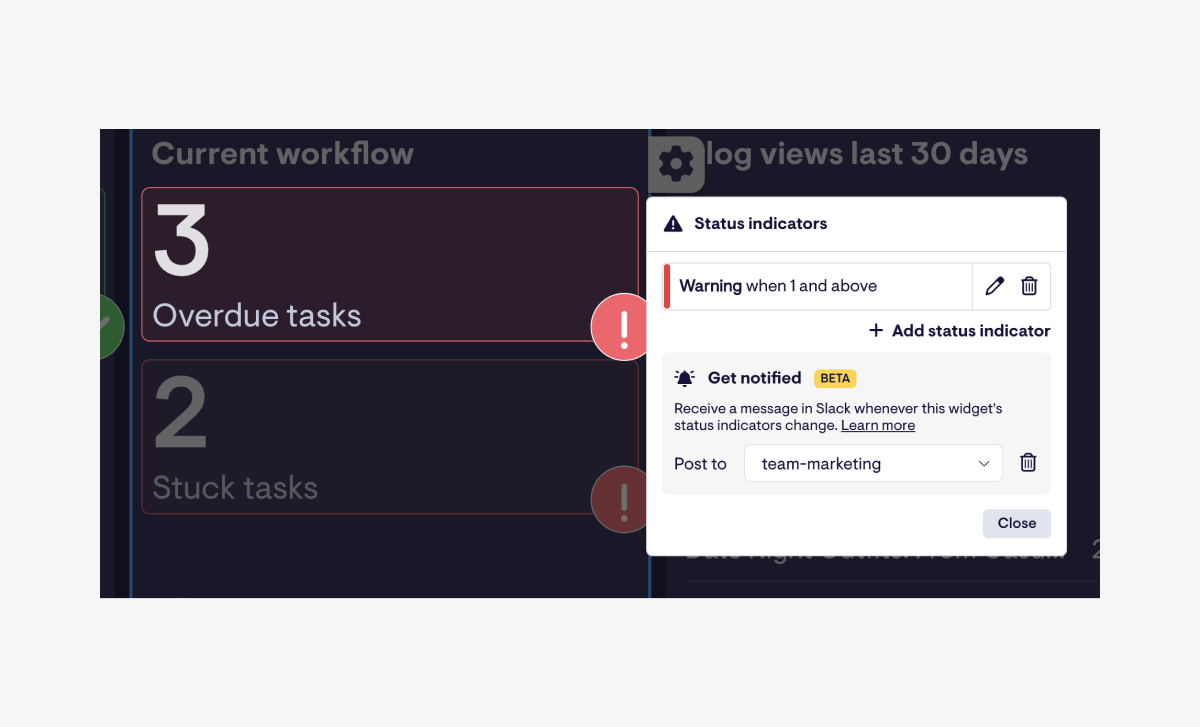
To set up automated Slack notifications from Monday.com when a task status changes, use Monday.com's native Automations feature combined with a Slack integration via Zapier or Monday.com's built-in Slack app. In 2027, with longer sales cycles and larger buying committees, these alerts must be context-rich—including deal stage, next action, and buyer sentiment—to keep RevOps teams aligned without noise.
The core workflow is: trigger on a status change → filter by board/group/column → send a formatted Slack message to a specific channel or user. For advanced use cases, pair this with Gong or Clari data to notify only when high-propensity deals shift.
Why This Matters in 2027 RevOps
The 2027 RevOps reality demands precision over volume. With AI agents now handling 40% of routine deal updates (per Gartner), human attention must focus on exceptions—like a deal slipping from "Negotiation" to "Stalled" or a buying committee member adding a new requirement.
Monday.com serves as the system of record for task execution, while Slack is the real-time communication layer. Automated status-change notifications prevent the "alert fatigue" that plagued earlier setups by using conditional logic (e.g., only notify if the task is in a "High Priority" group or if the status change exceeds a 48-hour delay).
This aligns with vendor consolidation trends: fewer tools, tighter workflows.
Step-by-Step Setup (Monday.com Native + Slack App)
Prerequisites: A Monday.com account with "Admin" or "Editor" permissions, and a Slack workspace where you can install apps.
- Connect Monday.com to Slack
- In Monday.com, go to Integrations Center (top-right gear icon) → "Slack".
- Click "Connect" and authorize the Slack workspace. Choose a default channel (e.g.,
#revops-alerts) or leave it per-board.
- Create an Automation
- Open the board (e.g., "Deal Execution Tasks").
- Click Automations (top bar) → "Add New Automation".
- Select "When status changes" as the trigger.
- Choose the specific column (e.g., "Status" from a dropdown) and the new value (e.g., "Completed" or "Blocked").
- Define the Action
- Under "Then do this", pick "Send a Slack notification".
- Configure the message: use
{{Item Name}},{{Status}},{{Person}}, and{{Board Name}}as dynamic fields. - Example: *"Task '{{Item Name}}' moved to {{Status}} by {{Person}}. Board: {{Board Name}}. Next step: {{Next Step Column}}."*
- Choose the target: a specific channel (e.g.,
#deal-desk) or a user via@username.
- Test and Iterate
- Change a task status manually to trigger the alert.
- Check Slack for the formatted message. Adjust the template if fields are missing.
Pro Tip: For buying committee scenarios, add a "Committee Member" column (text or dropdown) and include it in the alert. This helps RevOps track who was notified without manual pings.
Advanced Setup with Zapier (Multi-Step Workflows)
When you need conditional routing (e.g., notify different channels based on deal size or region), Zapier is the bridge. In 2027, Zapier's AI-powered filters can parse Monday.com status changes and enrich them with external data (e.g., Salesforce opportunity stage).
- Create a Zap
- Trigger: Monday.com → "New Status Change" (select board and column).
- Filter: Add a "Filter by Zapier" step. Conditions:
Statusequals "Stalled" ANDDeal Sizegreater than $50,000. - Action: Slack → "Send Channel Message". Use dynamic fields from Monday.com (e.g.,
{{deal_name}},{{owner}}). - Optional: Add a Clari step to pull the latest forecast confidence score and append it to the Slack message.
- Handle Multiple Channels
- Use Zapier's Paths (paid plan) to route:
- Path 1: Status = "Won" →
#closed-won - Path 2: Status = "Lost" →
#lost-deals(with a "Why lost?" column) - Path 3: Status = "Stalled" →
#escalations(with a "Days stalled" column)
- Error Handling
- Zapier retries failed notifications 3 times. Set up a "Failure Notification" to a private Slack channel (
#zapier-errors) to catch broken automations.
Avoiding Alert Fatigue with AI Filters
In 2027, AI-powered noise reduction is critical. Monday.com's AI (available in Enterprise plans) can learn which status changes matter. For example:
- Ignore automated status changes from bots (e.g., "Updated via API").
- Burst notifications: If 5 tasks change status within 60 seconds, send one digest instead of 5 individual messages.
- Sentiment scoring: Use Gong data to flag status changes on deals where buyer sentiment dropped below 60% (via a webhook from Gong to Monday.com).
Real example: A RevOps team at a SaaS company reduced Slack alerts by 70% by setting a filter: only notify when a task's status changes to "Blocked" AND the "Days in Current Status" column exceeds 3. This prevented pings for trivial updates like "In Review" to "Approved".
Using Monday.com's Slack "Send to Channel" Action with Conditional Logic
Monday.com's native Slack integration supports conditional logic directly within the automation builder (2024+ feature). Here's how to leverage it:
- Add a "Condition" Step
- In the automation, after selecting "When status changes", click "Add condition".
- Example:
If "Priority" column equals "High"→ send to#urgent. Otherwise, send to#general.
- Use "Multiple Actions"
- For complex rules, chain actions: send a notification to the task owner's DM AND to a channel.
- Dynamic Channel Selection
- Use a "Channel" column (text or dropdown) on the Monday.com board. The automation reads that column and sends the notification to the specified Slack channel. This is ideal for regional teams (e.g., "Channel" =
#emea-deals).
Best Practices for 2027 RevOps Teams
- Audit your alerts monthly: Remove any notification that hasn't been clicked in 30 days (use Slack's analytics).
- Use "Mentions" sparingly: Only
@channelfor status changes on deals >$100K or with a "Critical" flag. Over-mentioning trains teams to ignore alerts. - Integrate with MEDDPICC: Add columns for "Metric", "Economic Buyer", "Decision Criteria", etc. When a status changes, include the relevant MEDDPICC field in the Slack message. For example: *"Task 'Contract Review' moved to 'Completed'. Economic Buyer: {{EB Name}}. Decision Criteria: {{DC Value}}."*
- Time-box notifications: Use Monday.com's "Time" column to set a window (e.g., only send alerts between 8 AM and 6 PM local time). This respects buying committee members across time zones.
FAQ
Can I send Slack notifications from Monday.com without using Zapier? Yes, Monday.com has a native Slack integration that supports direct automations. Go to Integrations Center → Slack → "Add Automation". This works for simple status changes. For complex routing (e.g., multiple channels based on deal size), use Zapier or Make.
How do I prevent duplicate Slack messages when a task status changes multiple times in one hour? Use Monday.com's "Throttle" feature (Enterprise) or add a Zapier filter: "Only proceed if last notification was >60 minutes ago". Alternatively, set a "Last Notified" date column and trigger only if that column is empty or older than 1 hour.
What if I want to notify a specific Slack user instead of a channel? In the automation action, choose "Send a Direct Message" (available in Monday.com's Slack integration). Use @{{Person}} to dynamically mention the task owner. For Zapier, use the "Send Direct Message" action with the user's Slack ID (map from a "Slack ID" column in Monday.com).
Can I include data from other tools (like Salesforce or Gong) in the Slack notification? Yes, via Zapier or Make. Create a multi-step Zap: Trigger (Monday.com status change) → Lookup (Salesforce opportunity by ID) → Format (merge fields) → Send (Slack). This enriches alerts with forecast confidence (Clari) or buyer sentiment (Gong).
How do I handle status changes from AI agents or bots? Add a "Source" column (text) on the Monday.com board. Set it to "AI Agent" for automated updates. Then, in your automation, add a condition: Only proceed if "Source" is not equal to "AI Agent". This prevents noise from AI-driven task updates.
Is there a limit to how many Slack notifications I can send from Monday.com per day? Monday.com's native integration doesn't have a hard limit, but Slack's API rate limits apply (approx. 1 message per second per workspace). For high-volume boards (100+ status changes/hour), use Zapier's throttling or batch messages into a single digest via Monday.com's "Summary" automation.
Sources
- Monday.com Slack Integration Documentation
- Zapier Monday.com + Slack Workflows
- Gartner: 2027 RevOps Technology Trends
- Gong Labs: Buyer Sentiment and Deal Velocity
- Clari: Forecasting with AI in 2027
- SaaStr: How to Avoid Alert Fatigue in RevOps
- Forrester: The Future of Revenue Operations
- HBR: Managing Buying Committees in Complex Sales
Bottom Line
Automated Slack notifications from Monday.com are a must-have for 2027 RevOps, but only when paired with conditional logic and AI filters to cut noise. Use native integrations for simple flows and Zapier for multi-channel routing with external data enrichment. Always test with your buying committee's actual response patterns, and audit monthly to keep alerts valuable.
*How to set up automated Slack notifications from Monday.com when a task status changes in 2027 RevOps.*