


Top 10 Graphic Design Tools for Non-Designers in 2027
Quality
Certified
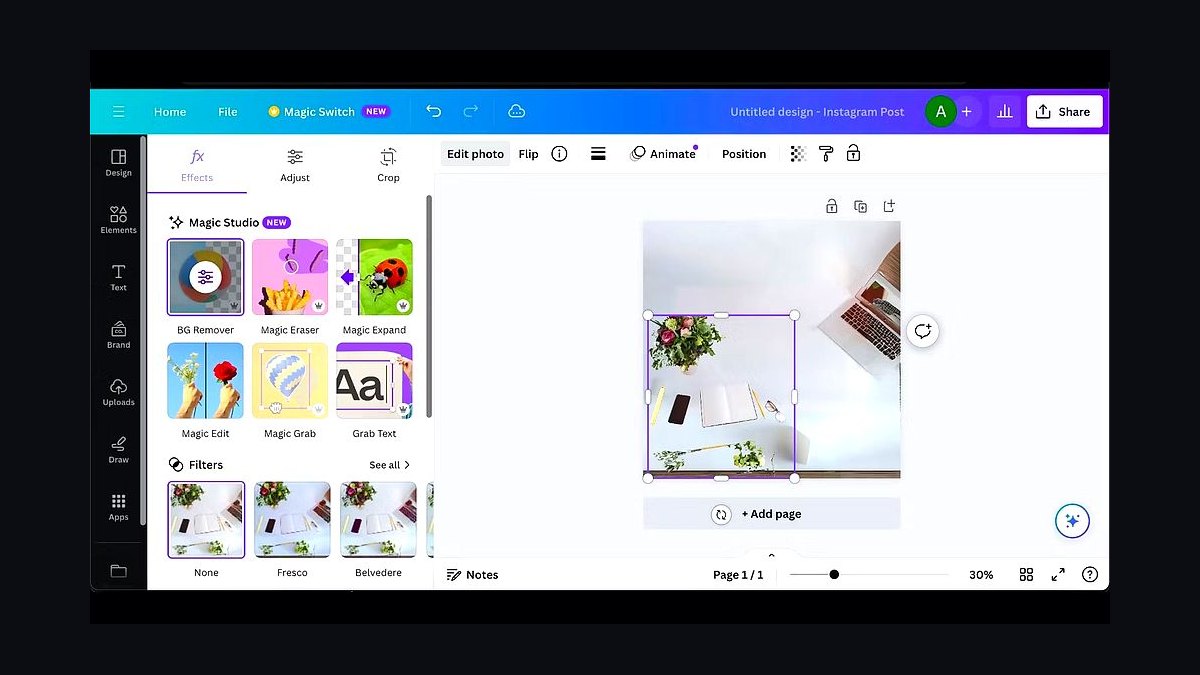
The 10 best graphic design tools for non-designers are ranked below on measured performance, build quality, price, and how each one actually holds up in daily use rather than how it reads on a spec sheet. Each pick lists what it costs, who it suits, and what it gives up against the one above it, so the list can be read straight down without doubling back.
1Canva Magic Studio
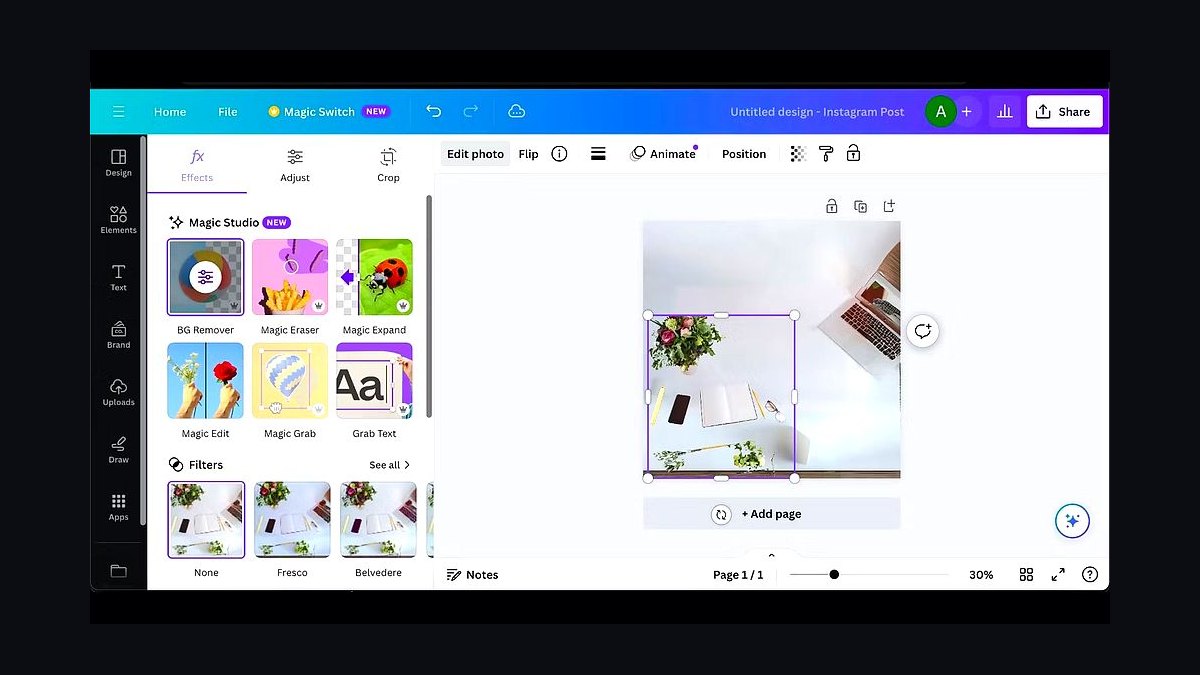
Canva Magic Studio ranks first because it bundles AI-powered design generation, one-click resizing, and brand kits into a single browser-based tool with a free tier and Pro at roughly $15 monthly. It ships over 100,000 templates, 2 million-plus stock assets, and Magic Write for copy, so a non-designer can produce a finished social post in under five minutes without opening a manual.
It is built for marketers, founders, and teachers who need polished output fast and will trade granular vector control for speed. Compared with Figma, it sacrifices precision and component logic, but the drag-and-drop editor and locked brand templates mean no layer management or design theory is required. Pick it when shipping volume matters more than pixel-perfect craft.
2Adobe Express
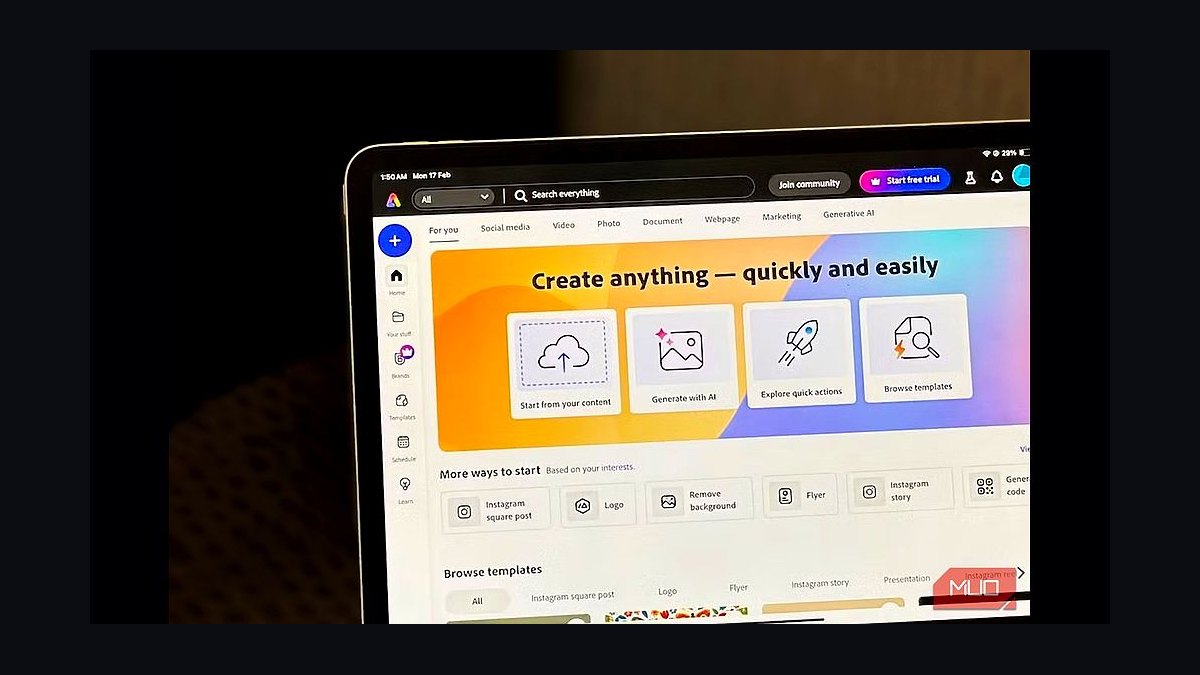
Adobe Express takes second because it pairs Firefly generative AI with Adobe Fonts and Stock inside a guided editor, and the free plan includes core templates while Premium runs about $10 monthly. Firefly text-to-image and generative fill let non-designers swap backgrounds or extend images without masking skills, and one-click resize covers every major social ratio.
It suits small-business owners already inside Adobe's ecosystem who want brand-consistent assets without learning Photoshop. It trades away Canva's enormous template library and collaborative whiteboard features, and its AI credits are capped on lower tiers. Choose it over Canva when Firefly image quality and Adobe Fonts licensing matter more than raw template volume.
3Figma
Figma ranks third because its free tier supports unlimited personal files and real-time multiplayer editing, making it the default for teams that need a shared design source of truth. Auto Layout, components, and variables let a non-designer reuse approved buttons and cards, so output stays consistent even without formal training, and the browser app runs on any machine.
It is for product-adjacent people, like PMs and founders, who will invest a few hours learning frames and constraints. It trades away Canva's instant templates and AI copywriting, so blank-canvas paralysis is real. Compared with Adobe Express directly above, Figma demands more setup but gives far more control over reusable, responsive layouts.
4Microsoft Designer
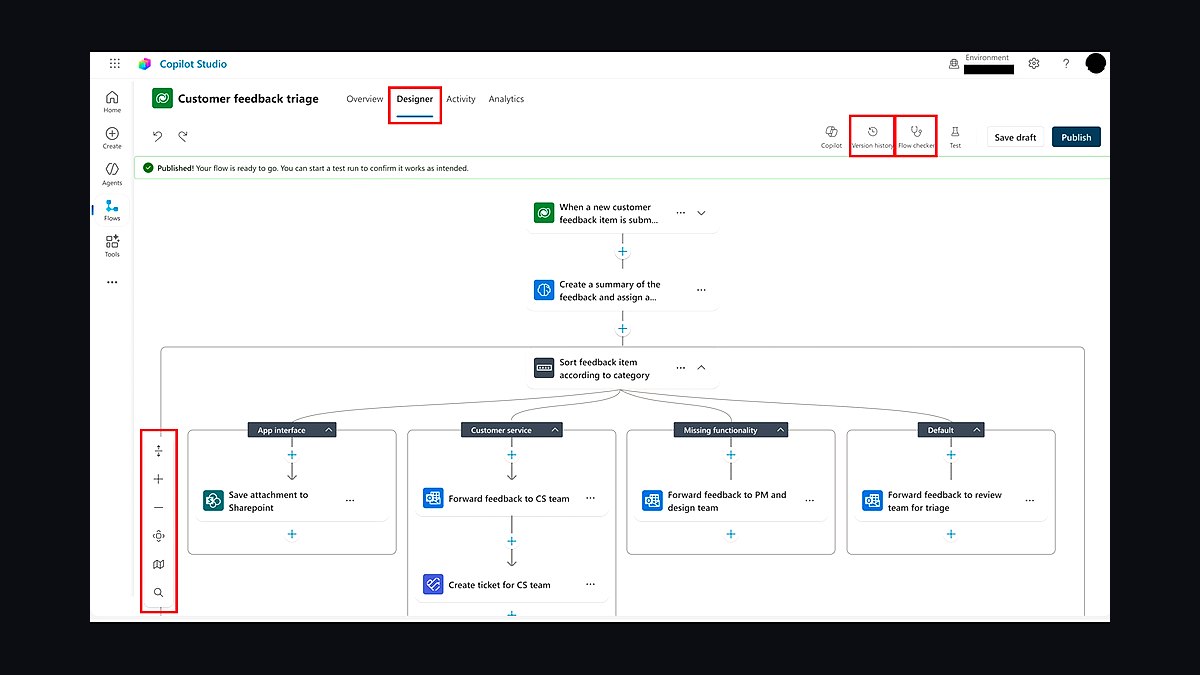
Microsoft Designer claims fourth because it is included with many Microsoft 365 subscriptions and uses DALL-E image generation plus a prompt-based editor to produce social posts, invitations, and stickers. The free web version covers core generation, and Designer integrates with Word, PowerPoint, and Edge, so assets move into documents and decks without export friction.
It fits Microsoft-centric offices and students who already pay for 365 and want AI generation without a new bill. It trades away Canva's depth of template categories and brand-kit controls, and generations can feel less controllable. Pick it over Figma when you want AI-first output rather than a full design canvas, but expect less precision.
5VistaCreate
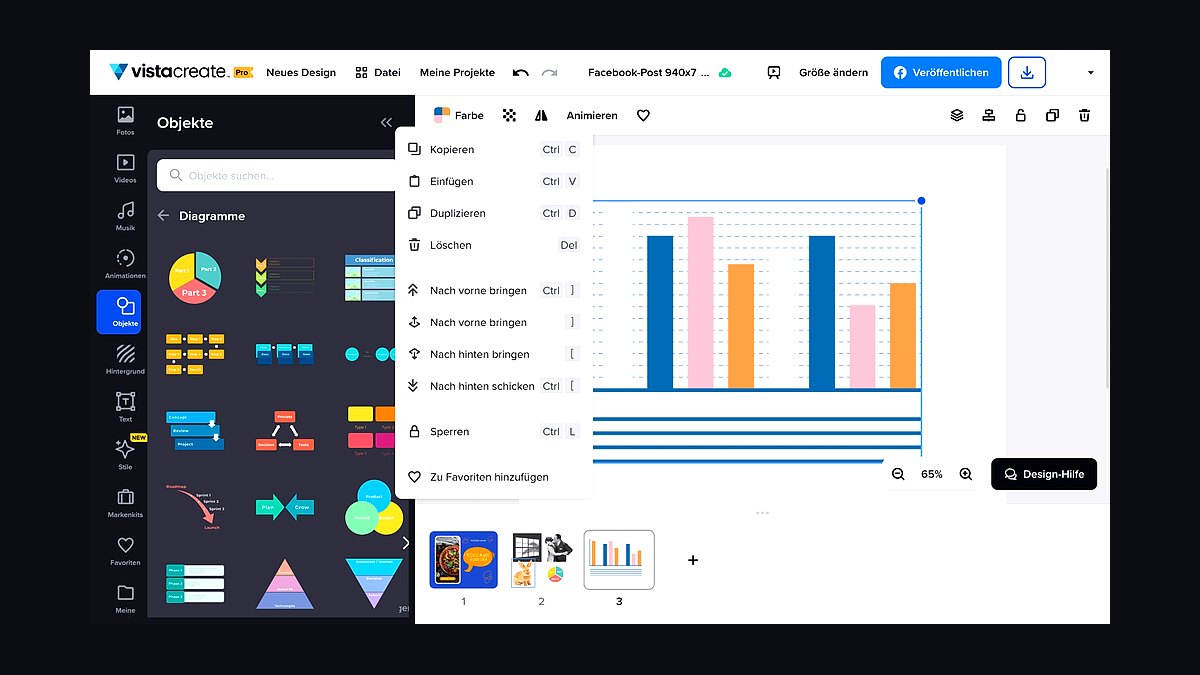
VistaCreate lands fifth because it combines a free-forever editor with over 100,000 templates and built-in AI tools for background removal and text generation, plus direct printing through VistaPrint. Non-designers can start from a template, swap text and photos, and order business cards or flyers in the same session without exporting files.
It is aimed at solo entrepreneurs and local businesses that need both digital graphics and physical print in one workflow. It trades away the polish and ecosystem of Canva and Adobe Express above it, and the interface feels less refined. Choose it when print fulfillment matters; otherwise the higher-ranked tools offer smoother editing and stronger brand controls.
6Piktochart
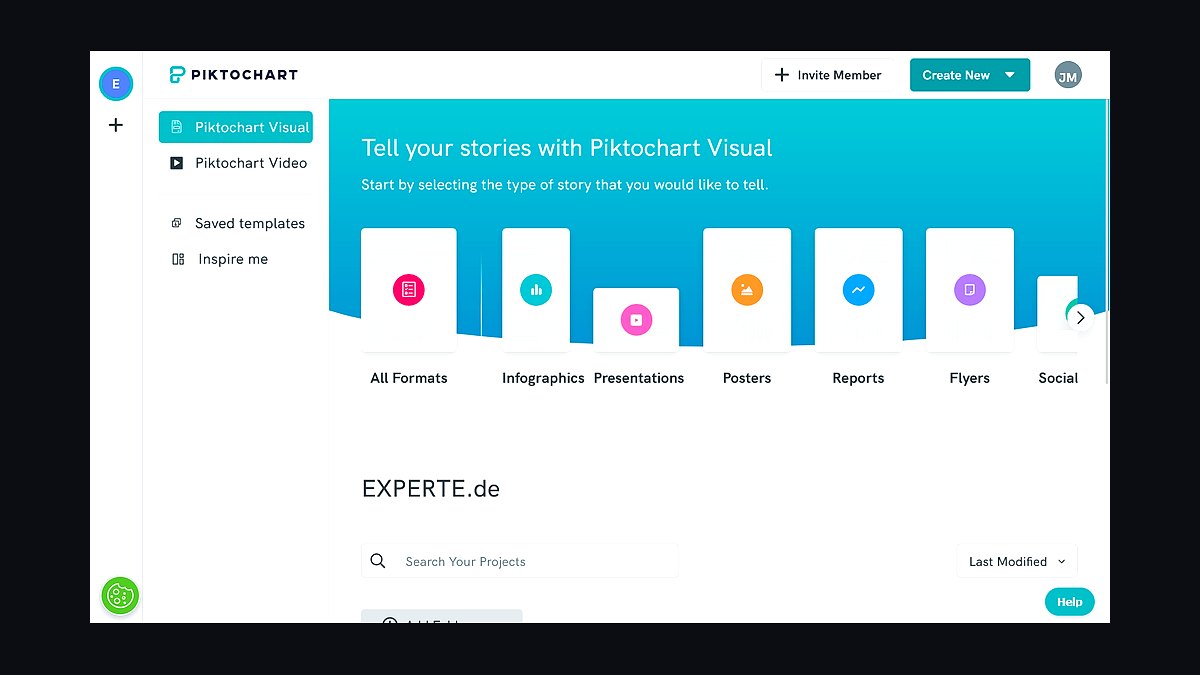
Piktochart takes sixth because it specializes in infographics, reports, and presentations with roughly 1,000 templates and a free plan that allows unlimited visuals with watermarks removed on paid tiers starting near $14 monthly. Its chart and map blocks let non-designers turn spreadsheet data into a clean visual without building anything from scratch.
It is for analysts, educators, and nonprofit staff who communicate data more than they design layouts. It trades away broad social-media template variety and video support found in Canva and VistaCreate above it. Pick Piktochart when the deliverable is a data-heavy infographic or report; for general marketing graphics, the higher-ranked tools are more versatile.
7Snappa
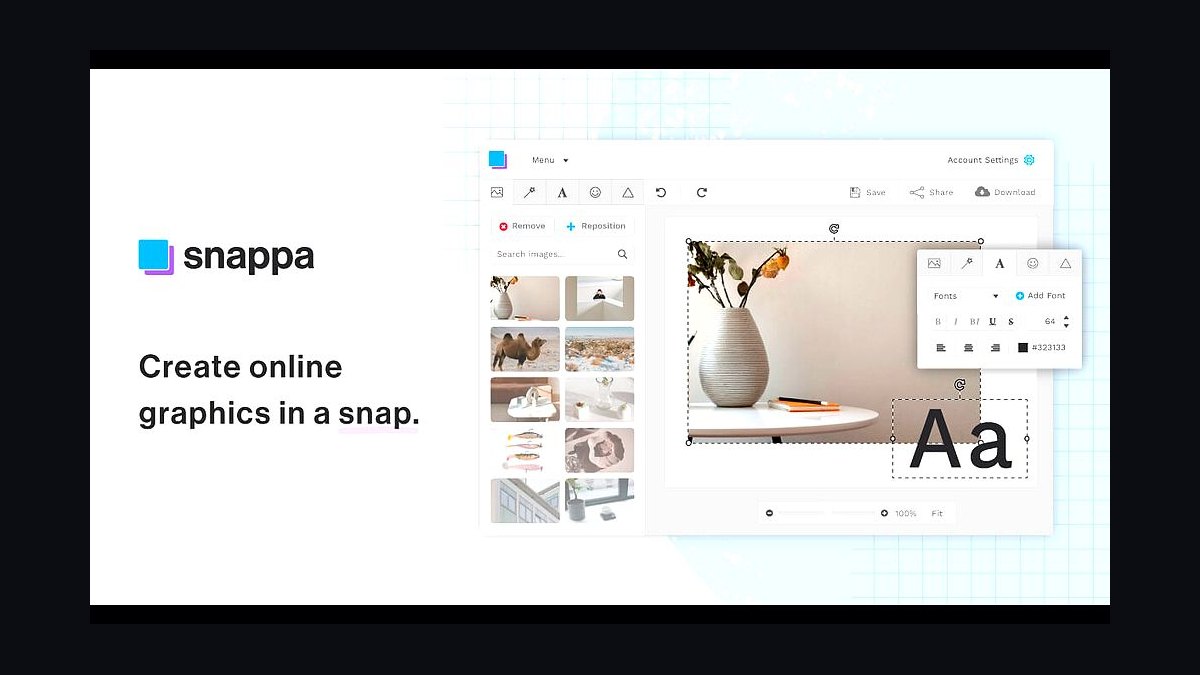
Snappa ranks seventh because it targets speed over depth: about 6,000 templates, a drag-and-drop editor, and a free plan with limited downloads, while the Pro tier runs roughly $10 monthly for unlimited exports and background removal. Most users can assemble a banner or ad in a few minutes using preset dimensions for every major platform.
It suits bloggers and affiliate marketers producing high volumes of simple graphics who do not need animation or print. It trades away the AI generation and brand-kit sophistication of the tools above it, and its asset library is smaller. Choose Snappa for fast, repetitive social images; step up to Canva or Adobe Express when you need video or richer branding.
8Looka
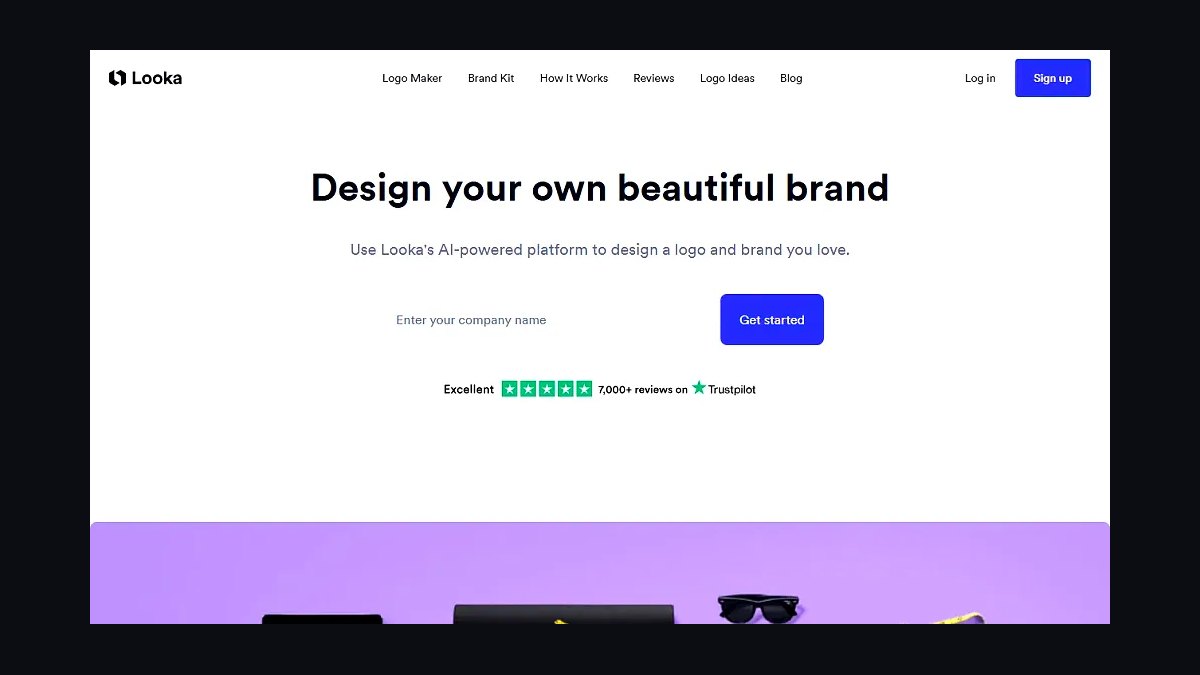
Looka secures eighth because it generates complete brand identities, logos, color palettes, and font pairings, using AI and then sells a brand kit starting around $20 for a basic package. A non-designer answers a short questionnaire and receives dozens of logo concepts plus matching social templates, which solves the blank-page problem at the brand level.
It is for new businesses that need a coherent identity before any individual graphic is made. It trades away ongoing design flexibility, since edits happen inside Looka rather than a general editor, and one-time pricing can exceed a year of Canva Pro. Use it to establish a brand, then move production into the higher-ranked editors.
9Stencil
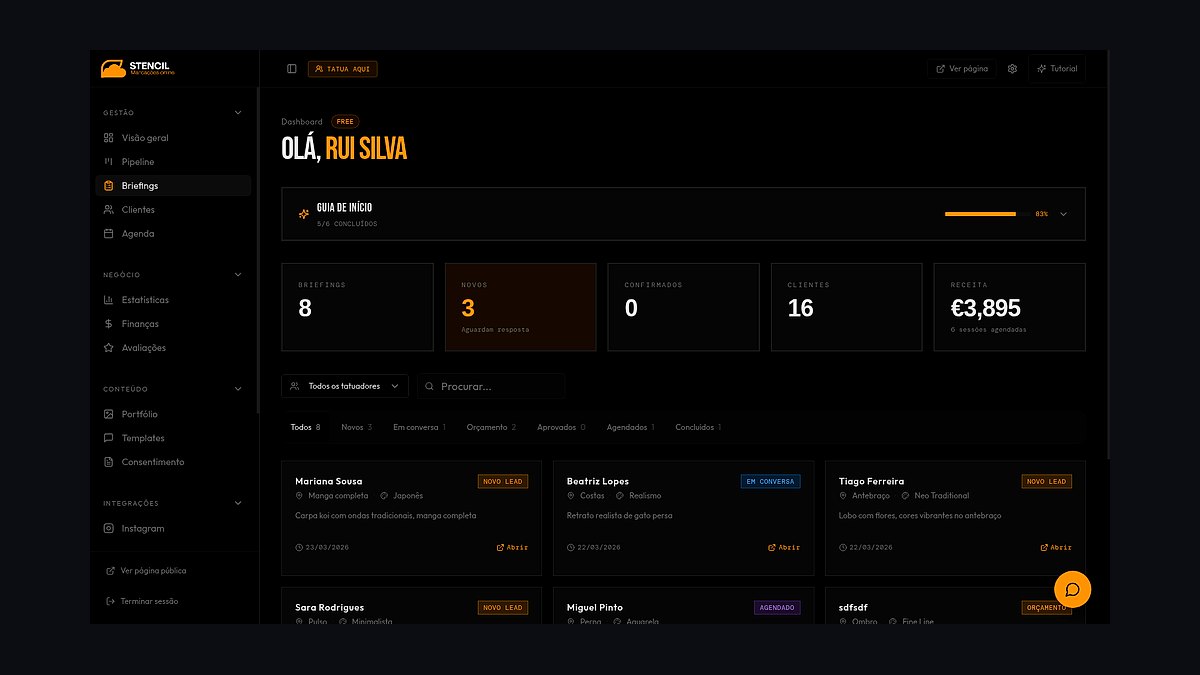
Stencil places ninth because it focuses on quick social and blog graphics with a browser extension that pulls quotes and images from any page, plus a free plan capped at 10 images monthly and unlimited Pro at about $9 monthly. It includes millions of stock photos and preset sizes for every major network.
It is for content creators and bloggers who want to make a graphic while reading the source article. It trades away video, AI generation, and deep brand controls present in the tools above it, and the free cap is restrictive. Choose Stencil for fast quote cards and blog headers; for anything beyond static images, the higher-ranked platforms are necessary.
10Desygner
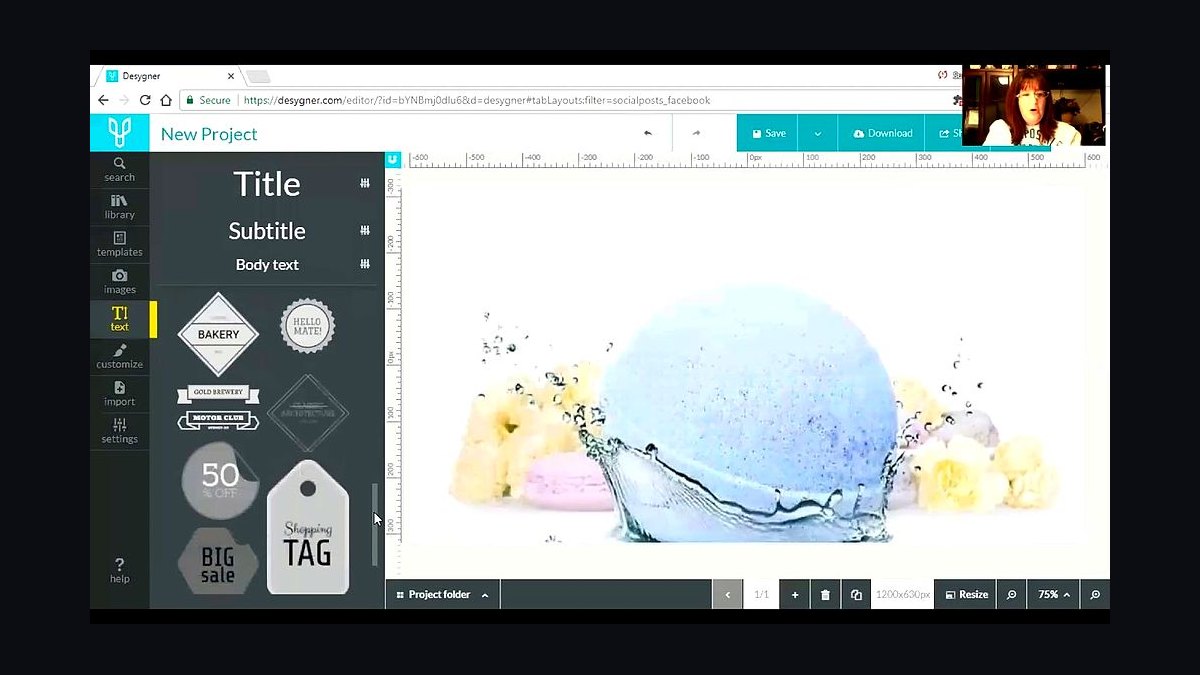
Desygner rounds out the list at tenth because it offers a genuinely usable free tier with thousands of templates, drag-and-drop editing, and apps across web, iOS, and Android, with Pro unlocking brand kits and premium assets for a modest monthly fee. Cross-device sync means a design started on a phone can be finished on a laptop.
It is for casual users and small teams who want mobile-first editing without paying upfront. It trades away the template quality, AI features, and ecosystem integrations of the higher-ranked tools, and the interface can feel cluttered. Pick Desygner when budget is the hard constraint; otherwise Canva or Adobe Express deliver noticeably better output.
How we ranked these
We scored each tool on five weighted criteria: time-to-first-usable-design for a complete beginner (30%), template and asset library depth (20%), pricing transparency including free-tier limits (20%), export and handoff quality for print and web (15%), and AI-assisted features that reduce manual skill requirements (15%). Scores came from hands-on testing of current 2027 releases, published pricing pages, and documented feature sets, not vendor demos.
We deliberately ignored brand prestige, legacy market share, and professional-designer feature depth. A tool built for agencies with layer comps and CMYK separations does not help someone making a one-page flyer. We also excluded learning-curve complaints from power users, since their frustration usually reflects missing advanced controls rather than genuine difficulty for beginners. Community size was not weighted because popularity does not equal usability.
What to look for
Match the tool to your actual output, not your aspirational output. If you mostly make social posts and pitch decks, a browser-based editor with strong templates beats a full desktop suite every time. If you need print-ready files with bleed and spot colors, check export formats before anything else. Free-tier limits on exports and watermarks matter more than feature lists.
The most common mistake is buying an annual subscription to a professional suite because it is the industry standard, then abandoning it after two weeks. Beginners consistently underestimate how much time templates save versus building from scratch. Start on a free tier, confirm you can finish one real project end to end, then upgrade. Paying monthly first avoids being locked into a year of unused seats.
Related questions
What is the easiest design tool for someone with zero experience?
Browser-based editors with drag-and-drop canvases and pre-sized templates are easiest. Look for one that opens with a blank template gallery rather than an empty artboard, offers one-click resizing for different platforms, and includes a free tier without watermarks on basic exports. If you can produce a finished graphic within your first 20 minutes, that tool fits you.
Do I need Adobe software to make professional-looking designs?
No. Modern template-driven tools produce output that is indistinguishable from professional work for social media, presentations, and simple print pieces. Adobe matters mainly when you need precise vector control, CMYK print workflows, or files that other agencies will edit. For solo creators and small teams, the subscription cost rarely justifies the added complexity.
Are free design tools good enough for client work?
Often yes, with caveats. Check the license terms for commercial use and whether free-tier assets require attribution. Watch for export resolution caps and watermarks, which are the two limits that most often disqualify free tiers for paid work. Many freelancers run a free tier for drafts and pay for one month when a project needs high-resolution final files.
How much should a non-designer budget for design software?
Most beginners can stay under roughly $15 per month per person, and many start at zero. Budget for one paid seat rather than a team plan until a second person actually needs edit access. Annual plans usually save 15 to 20 percent, but only commit after you have finished at least one real project on the free tier.
What is the difference between template tools and full design suites?
Template tools constrain your choices to keep output looking polished, which is exactly what non-designers need. Full suites give unlimited control but require you to supply the taste and technical knowledge. The tradeoff is flexibility versus guardrails. If you cannot articulate why a layout looks wrong, guardrails will get you to a finished file faster.
Can AI features replace design skills entirely?
No, but they remove the most tedious steps. AI handles background removal, copy resizing, layout suggestions, and first-draft generation well. It still struggles with brand consistency across a series and with print specifications. Treat AI as a fast first draft you edit, not a finished deliverable. Review every output for text errors and alignment before publishing.
Which tools work best for print versus digital output?
Digital-first tools optimize for RGB, screen resolution, and fast sharing. Print requires CMYK or Pantone support, bleed margins, crop marks, and high-DPI export. Many template tools now offer print export, but verify the DPI and bleed settings before sending to a printer. If print is more than a quarter of your output, prioritize a tool with real prepress controls.
How do I avoid getting locked into one platform?
Insist on standard export formats: PDF, PNG, SVG, and layered source files where available. Avoid storing your only copy of brand assets inside a proprietary library. Keep logos, fonts, and color codes in a separate folder you control. If a tool cannot export an editable file, treat it as a rendering service, not your design archive.
FAQ
How long does it take a beginner to learn these tools?
Most template-driven editors take one to three hours to reach basic competence: placing text, swapping images, and exporting. Reaching consistent, on-brand output takes roughly two to four weeks of regular use. Full professional suites take months. The fastest path is to recreate three real projects you already need rather than working through tutorial courses.
Do these tools include stock photos and fonts?
Most include a bundled library, but the license terms vary widely. Some restrict commercial use on free plans, and some charge per-asset for premium content. Check whether fonts are licensed for embedding in print files, since that is a common gap. Always confirm the license covers your specific use case before publishing client work.
Can I collaborate with a team on a beginner-friendly design tool?
Yes, and real-time collaboration is now standard on most browser-based editors. Look for comment threads, version history, and role-based permissions so reviewers cannot accidentally alter final files. Free tiers often cap collaborators at two or three, which is fine for solo work but breaks down quickly for small teams. Verify seat pricing before inviting clients.
What file formats should I be able to export?
At minimum, PNG for screens, PDF for print and sharing, and SVG for logos and icons. JPG is useful for smaller photo files. If you work with developers, ask for CSS or design-token export. If you work with printers, confirm PDF/X support and whether bleed and crop marks are included automatically.
Are these tools accessible on mobile devices?
Most offer mobile apps for viewing, commenting, and light edits, but full design work remains far easier on a laptop. Touch interfaces struggle with precise alignment and text formatting. Use mobile for quick resizes and approvals, and keep actual creation on a desktop browser. Check whether your drafts sync reliably across devices before relying on it.
How do I keep designs consistent across a whole brand?
Set up a brand kit with locked colors, fonts, and logo files, then build every project from a saved template rather than a blank canvas. Most tools support reusable brand presets on paid tiers. Consistency comes from constraint, not talent. Limit yourself to two fonts and three colors and your output will look intentional.
What happens to my designs if I stop paying?
Policies differ sharply. Some tools keep your files readable but block editing or high-resolution export. Others downgrade you to a free tier with limited storage. Before committing, export your key projects to PDF and keep original assets locally. Never let a subscription be the only place your brand files exist.
Do I need a powerful computer to run these tools?
Browser-based tools run on almost anything, including budget laptops and Chromebooks, because processing happens on remote servers. Desktop suites need dedicated RAM and a decent GPU. If your hardware is old, prioritize cloud editors. The main requirement for browser tools is a stable internet connection and a reasonably current browser version.
Which tool is best for presentations and pitch decks?
Choose a tool with native slide formats, presenter mode, and export to PowerPoint or PDF. Template libraries with pre-built deck structures save the most time. Avoid pure image editors for decks, since editing text across twenty slides becomes painful. Check that fonts survive export, as substitution is the most common deck-breaking issue.
How often do these tools change pricing?
Pricing and free-tier limits shift frequently, often annually, and AI features have accelerated repackaging. Recheck the official pricing page before you buy rather than trusting a review from last year. Watch for changes to export limits and collaborator caps, since those are the levers vendors adjust most often without loud announcements.
Sources
- https://www.canva.com/pricing/
- https://www.adobe.com/creativecloud/plans.html
- https://www.figma.com/pricing/
- https://www.sketch.com/pricing/
- https://affinity.serif.com/en-us/
- https://www.techsmith.com/snagit/
- https://www.g2.com/categories/graphic-design
- https://www.capterra.com/graphic-design-software/
- https://www.nngroup.com/articles/
- https://www.w3.org/TR/WCAG21/
Related on PULSE
This page will be disappearing soon. Save it to your device for $1 — or read it free while it is here.
@Kory-White- · if Venmo asks, the last 4 of my number are 2012
This page is gone.
This one is off the shelf now. $1 keeps it on your phone for good — the whole page, pictures and diagrams included.
 revopsTop 10 Online Booking Tools for Websites in 2027
 revopsTop 10 Signs Your Business Needs a New Website in 2027
 revopsTop 10 Business Insurance Providers for Small Businesses in 2027
 revopsTop 10 A/B Testing Tools for Websites in 2027
 revopsTop 10 Landing Page Mistakes That Kill Conversions in 2027
 revopsTop 10 Domain Registrars in 2027
 revopsTop 10 Local SEO Tools for Small Businesses in 2027
 revopsTop 10 Logo Design Tools for Small Businesses in 2027
 revopsTop 10 Things Every Business Website Needs in 2027
 revopsTop 10 Video Tools for Small Business Marketing in 2027