
How do I transfer my contacts to a new phone in 2027?
 PULSEKNOWLEDGE LIBRARY
Back up your old phone first, then use the built-in migration tool: Quick Start for iPhone-to-iPhone, Google's restore flow or a cable for Android-to-Android, and Apple's Move to iOS or Google's Switch to Android app for cross-platform moves. Verify contact counts afterward, then merge duplicates before deleting anything from the old device.
What a contact transfer actually is, and why it still breaks in 2027
A contact is not a file sitting on your handset. On any modern phone it is a row in a synced database — usually iCloud, a Google account, a Microsoft Exchange or Microsoft 365 mailbox, or a carrier-provided address book — and the phone is just one of several clients reading that database. Once you internalize that, the whole job changes shape. You are almost never *moving* contacts. You are pointing a new device at the same account and waiting for it to pull down what already exists in the cloud.
That distinction explains nearly every horror story. People who "lose their contacts" during a switch usually never lost anything; their entries were stored in an account the new phone was never signed into, or stored locally on the device itself with no account behind them at all. Local-only contacts are the silent killer. They get created when you tap the plus button while the phone is briefly offline, when you import a vCard without choosing a destination account, or when a device was set up years ago and never had sync toggled on. They look identical in the contacts app. They behave completely differently when you upgrade.
The second reason transfers break is fragmentation. A typical person's address book in 2027 is spread across four or five stores at once: an iCloud or Google account, a work Exchange account, a SIM card holding a handful of entries from a decade ago, WhatsApp and Signal's own caches, and whatever a messaging app or social platform has synced in. Each of those stores has its own rules about what fields survive. Photos, custom ringtones, notes attached to a contact, relationship labels, and custom field names are the first casualties. Phone numbers and names almost always survive. Everything decorative is negotiable.

There is a third factor that has gotten worse rather than better: the contact record has become a hub. It carries linked accounts, chat handles, payment identifiers on some platforms, and per-contact settings like blocked status or emergency-bypass ringtones. Those attributes are usually stored *outside* the contact card in a separate app database, so they do not travel with a vCard export. If you rely on custom vibration patterns for your dispatcher or an emergency-bypass setting for a family member, plan on re-creating those by hand after the move. That is not a failure of the transfer; those settings were never part of the contact in the first place.
Why does this matter beyond convenience? Because the address book is increasingly the authentication surface for the rest of your digital life. Recovery contacts, two-factor prompts, shared-album invites, and payment requests all key off phone numbers and email addresses stored in that database. A botched transfer that quietly drops half your entries does not just cost you a phone number; it costs you the ability to recognize an inbound call from your bank versus a spoofed one, because the caller ID lookup fails and everything shows up as an unknown number. In practice, the security cost of a sloppy contact migration exceeds the inconvenience cost.
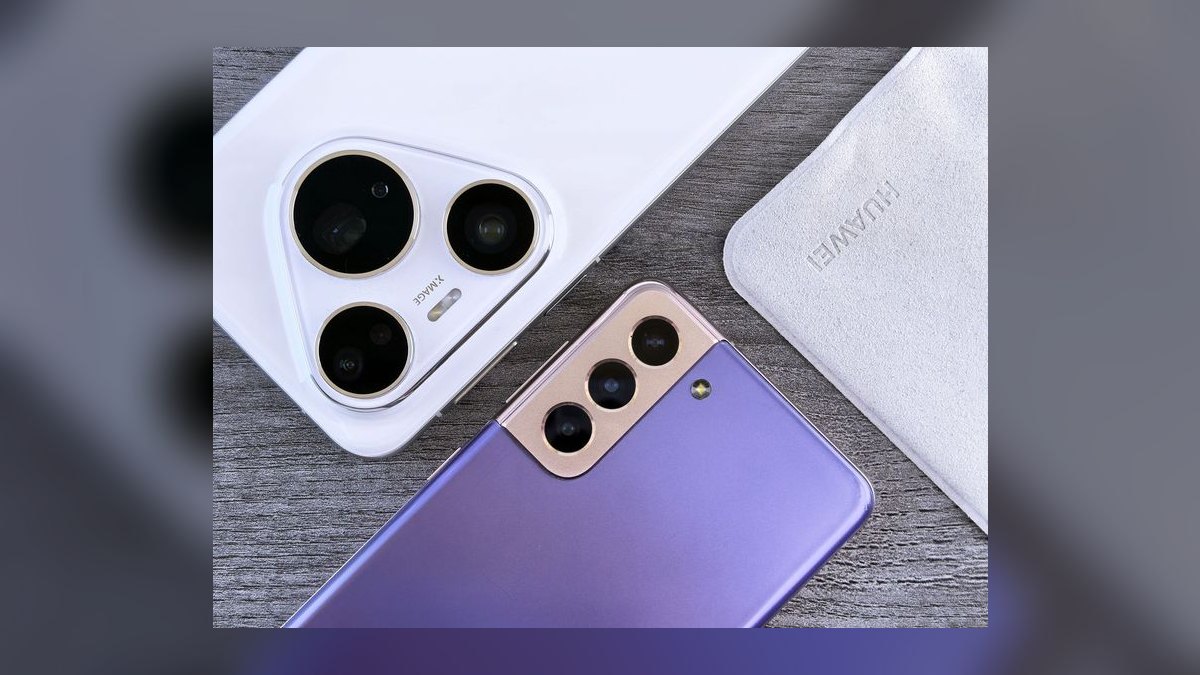
The upstream lesson is worth stating plainly: the best time to fix a contact transfer is six months before you buy the phone. If your entries live in a single, well-chosen account and sync is verifiably on, the actual migration takes eight minutes and involves signing in. If they live in five places with no account behind two of them, no migration tool on earth will make that clean — you will be doing archaeology on setup day.
The step-by-step process, from backup to verification
Work in four phases and do not skip the first one. The order matters more than the specific tool you pick.
Phase one — inventory and consolidate, on the old phone. Open the contacts app and find the account or group filter. On iPhone that is the Lists or Groups control at the top of the Contacts tab; on most Android builds it is the settings menu inside the Contacts app, where you can filter by account. Count what sits in each store. If you see a "Device," "Phone," "On My iPhone," or "SIM" bucket with entries in it, those are the ones at risk. Move them into your cloud account now, before you touch the new phone. On Android, the Contacts app has an explicit move-or-copy function per contact or in bulk; on iPhone, the cleanest route is exporting the local ones and re-importing them into iCloud, or simply confirming that iCloud Contacts sync is on so that everything migrates into iCloud automatically.
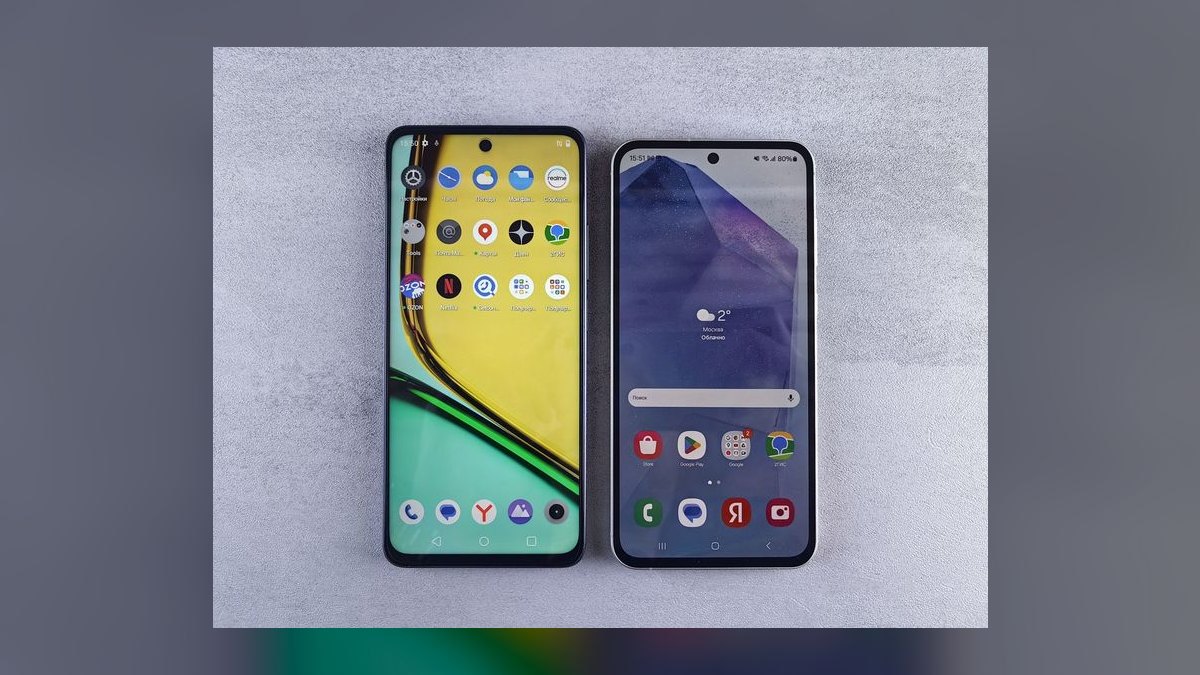
Phase two — back up, twice, in two different formats. Take a full device backup (iCloud or a computer for iPhone; Google One backup or the manufacturer's own backup tool for Android). Then, separately, export a vCard file — a .vcf — of your entire address book and put it somewhere that is not either phone. Email it to yourself, drop it in cloud storage, save it to a laptop. That file is your parachute. It costs about ninety seconds to create and it turns a catastrophic failure into a ten-minute annoyance. From iCloud on the web you can select all contacts and export a vCard; from Google Contacts on the web you can export as vCard or CSV. Do this even if you are confident. Especially if you are confident.
Phase three — run the migration. Keep both devices charged above 50 percent, on the same Wi-Fi network, and physically next to each other. For iPhone to iPhone, power on the new device near the old one and use Quick Start; it can transfer directly device-to-device over Wi-Fi or via a Lightning-to-USB-C or USB-C-to-USB-C cable, which is meaningfully faster and far more reliable than wireless for large libraries. For Android to Android, the setup wizard offers a cable-based copy using the USB-C cable and adapter in the box, or a wireless restore from your Google account backup. For Android to iPhone, install Move to iOS on the Android device and follow the pairing code shown on the iPhone. For iPhone to Android, use the Switch to Android app or simply sign into your Google account, since Google Contacts syncs natively to iOS as well.
Phase four — verify before you wipe. This is the phase everyone skips and everyone regrets. Compare counts. Both platforms will show you a total number of contacts if you scroll to the bottom of the list. If the old phone said 1,847 and the new one says 1,203, you have a problem to solve while the old phone still exists. Spot-check five specific contacts you care about — a family member with a photo, a work contact with multiple numbers, someone with a note attached. Confirm the photo, the secondary number, and the note all made it. Then send a test message and place a test call to confirm the number formatting survived (international entries missing a country code are a common casualty).

Timelines, costs, and what to actually expect
Nothing about a contact transfer should cost money, and that is worth saying because carrier stores and third-party utilities have built a small industry on the anxiety around it. Every path described above is free and built into the operating system.
On timing: contacts alone are trivially small. An address book of 2,000 entries with photos is typically a few tens of megabytes — it moves in seconds. What takes time is everything riding alongside it. A full device-to-device transfer of a heavily used phone with a large photo library, dozens of apps, and years of messages commonly runs 30 to 90 minutes over cable and can stretch to several hours over Wi-Fi or on a slow cloud restore. Budget an evening, not a coffee break, and start when you do not urgently need either device. A useful rule: whatever the on-screen estimate says at the two-minute mark, assume it is optimistic by a meaningful margin, because those estimates recalibrate as the transfer moves from small files to large ones.
If you only want contacts and nothing else — a common case when moving to a work phone or a secondary device — you can bypass the full migration entirely. Sign into the account, enable Contacts sync, and you are done in under two minutes. That is the fastest path in existence and it is also the most robust, because it involves no intermediate file and no pairing handshake.
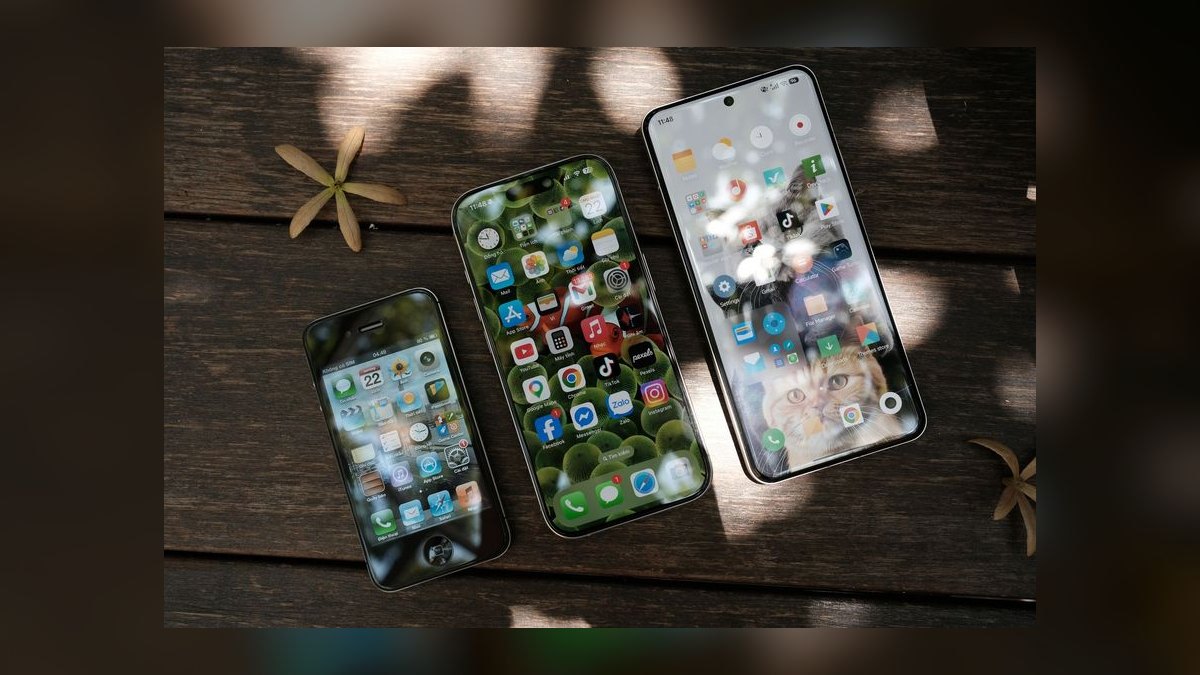
Storage is the one place a real cost can appear. Cloud backups on both platforms include a free tier that is modest by modern standards, and a phone with a large photo library will exceed it. If you hit that ceiling on backup night, you have three options: pay for a month of expanded storage and cancel afterward, back up to a computer instead (free, and faster), or use the direct device-to-device cable transfer which does not touch cloud storage at all. The cable route is genuinely the best answer for most people and it is the one carriers mention least.
Expect a few predictable annoyances regardless of path. Two-factor authentication codes will arrive during the process, so keep both devices reachable. Some banking and authenticator apps deliberately do not migrate and require re-enrollment — inventory those *before* you wipe the old device, because re-enrolling an authenticator without access to the original is a genuinely painful recovery process. eSIM transfer is usually a separate step from data transfer, typically handled in the network settings or by the carrier, and it can take anywhere from instant to a business day depending on the carrier's provisioning speed.
One planning note on the adjacent case: if you are moving a small business's phones, or handing a device from one employee to another, the calculus changes. Personal accounts should not be the store of record for work contacts. A managed account — Microsoft 365, Google Workspace, or a CRM-backed directory — means the transfer is a sign-in and nothing more, and it means the contacts stay with the company when the person leaves. Teams that skip this discovery it the hard way when a departing rep's phone takes 400 customer numbers with it.
Where people get this wrong
Wiping the old phone too early. The single most expensive mistake. Trade-in programs create time pressure, and people factory-reset the day of the switch. Keep the old device intact and charged for at least two weeks. Most trade-in windows allow it. If yours does not, at minimum keep the .vcf export and the full backup.
Assuming a duplicate cleanup is safe to run immediately. When you sign a new phone into multiple accounts, contacts often appear twice — once from iCloud, once from Google, once from Exchange. This is usually *linking*, not true duplication, and the OS handles it gracefully. Running an aggressive merge tool at this moment, before sync has fully settled, can permanently collapse two genuinely different people into one record or delete a copy that was the only one carrying a photo. Wait 24 hours for sync to complete, then use the platform's own built-in merge suggestions rather than a third-party cleaner.
Trusting SIM contacts. A SIM card stores a limited number of entries with severely truncated fields — usually one number and a short name, no email, no photo, no company. Copying to SIM as a "backup" quietly destroys most of your data. It was a reasonable strategy in 2008. It is a data-loss event in 2027.
Ignoring the account-filter setting after the move. Contacts frequently transfer perfectly and then appear to be missing because the new phone's contacts app is filtered to show only one account. Before you panic, check the filter. This accounts for a startling share of "my contacts didn't transfer" reports.
Letting third-party apps re-inject junk. Some social and messaging apps sync their entire user graph into your address book if you let them, producing hundreds of entries for people you barely know. After a fresh migration this is the moment those permissions get re-granted. Decline the ones you do not need; a clean address book is worth defending.
Losing formatting on international numbers. Numbers stored without a + and country code work fine on the original carrier and fail after a move, an eSIM change, or travel. If you deal internationally, normalize to full E.164 format (+ country code, then the number) while you are in there anyway.
Forgetting linked non-contact data. Blocked-caller lists, per-contact ringtones and vibration patterns, emergency bypass settings, and favorites/speed-dial order live outside the contact record. Budget fifteen minutes to re-create the handful that matter to you.
Choosing the right method for your situation
The decision comes down to three variables: whether both devices are on the same platform, whether you have both phones physically available at the same time, and whether you want everything or just contacts.
If you want only contacts and both phones use the same account ecosystem, do nothing clever — sign in, enable Contacts sync, verify. Skip the migration tools entirely.
If you want everything and both devices are in hand, use the wired device-to-device transfer. It is faster, does not consume cloud storage, and is less prone to mid-transfer interruption than Wi-Fi. This is the default recommendation for most upgrades.
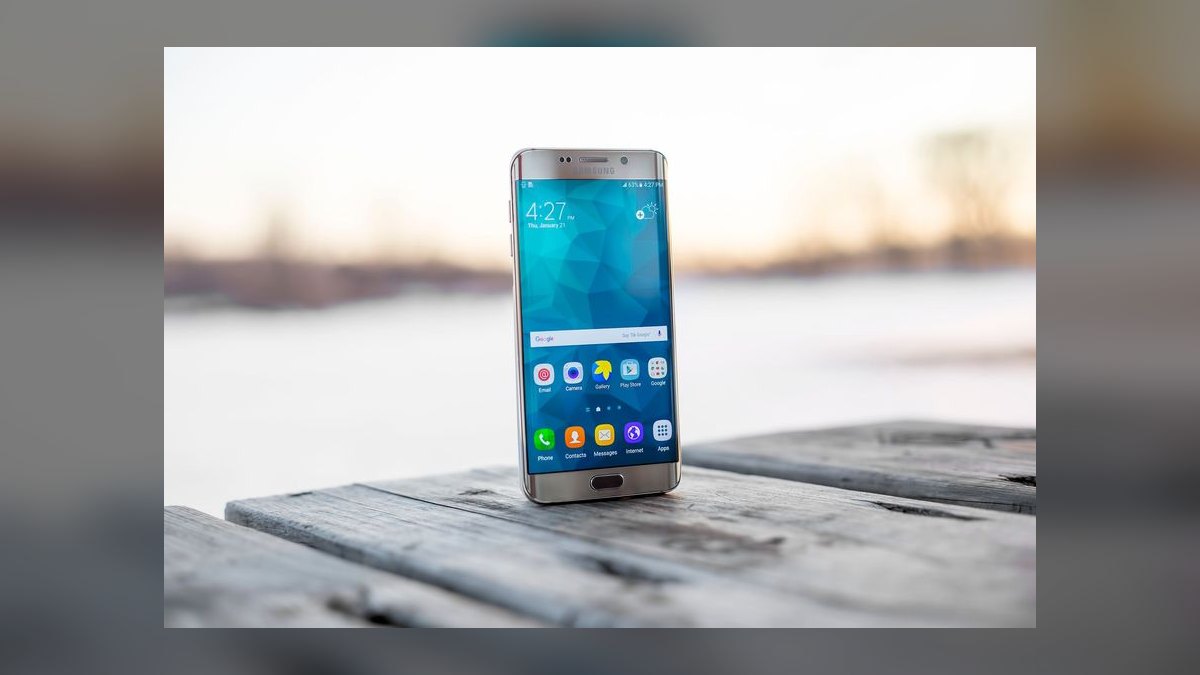
If you do not have both phones at once — the old one was lost, damaged, or already traded in — you are restoring from a cloud backup or from the account itself. This is precisely why the account-based approach and the offline .vcf matter: they are the only paths that survive the loss of the source device.
If you are crossing platforms, use the vendor's dedicated tool for the full move, but understand its limits. Contacts, photos, calendars, and messages generally cross over reasonably well. Purchased apps, app-internal data, and subscription entitlements do not. Plan for a re-download and re-login pass afterward.
If you are dealing with a badly fragmented address book — several accounts, hundreds of duplicates, years of accumulated junk — treat the transfer as an opportunity rather than an obstacle. Export everything to .vcf, consolidate on a computer where you have a real keyboard and a proper view of the data, clean it once, then import the cleaned file into a single account and sync that account to the new device. It takes an hour and buys you a decade of a tidy address book. Doing this cleanup on a phone screen, one record at a time, is how people end up abandoning it halfway through.
Related questions
What if I already wiped my old phone?
Restore from your most recent cloud backup, or sign into the account that held the contacts — if sync was on, the data is still in the cloud regardless of the device's state. Check your email for any .vcf you sent yourself. Carrier backup services are a last resort.
Do contact photos and notes transfer?
Names, numbers, and emails almost always survive. Photos, notes, custom labels, and relationship fields depend on the path — full device-to-device transfers preserve them best, vCard exports preserve most, and SIM copying destroys nearly all of them.
How do I get rid of the duplicates that appeared?
Wait a full day for sync to settle first. Then use the built-in merge suggestions in the Contacts app rather than a third-party cleaner. Many apparent duplicates are linked records from two accounts and are harmless.
Can I transfer contacts without Wi-Fi?
Yes. Use the wired device-to-device transfer with the cable and adapter, or move a .vcf file between devices over Bluetooth or physical storage. Cellular data also works for cloud restores, though it can consume significant data on a large backup.
Should work contacts live in my personal account?
No. Put them in a managed work account so they survive a device change, stay with the organization if you leave, and remain subject to your employer's retention and security policies rather than your personal cloud.
FAQ
How long does transferring contacts to a new phone take?
Contacts alone move in seconds — the data is tiny. A full device transfer including photos, apps, and messages typically runs 30 to 90 minutes over a cable and considerably longer over Wi-Fi or a cloud restore. If you only need contacts, signing into the account takes under two minutes.
Do I have to pay anything to transfer my contacts?
No. Every official path — Quick Start, Google's restore and cable copy, Move to iOS, Switch to Android, and plain account sync — is free and built into the operating system. The only situation where money appears is if a full cloud backup exceeds your free storage tier, and even that is avoidable by backing up to a computer or using the direct cable transfer.
Why do some of my contacts show up on the new phone and others don't?
Almost always one of two causes: the missing entries were stored locally on the old device or its SIM rather than in a synced account, or the new phone's Contacts app is filtered to display only one account. Check the account filter first, then check whether the old phone had a "Device" or "On My Phone" bucket.
Is copying contacts to the SIM card a good backup?
No. SIM storage holds a small, capped number of entries and strips out emails, photos, company names, and secondary numbers. It is a lossy format that made sense on feature phones and causes real data loss today. Export a .vcf instead.
What is the safest single thing I can do before switching phones?
Export your entire address book as a .vcf file and store it somewhere that is neither phone — cloud storage or a laptop. It takes about ninety seconds, costs nothing, and converts any transfer failure from a permanent loss into a quick re-import.
When can I safely wipe the old phone?
After you have verified matching contact counts, spot-checked several records including one with a photo and one with multiple numbers, confirmed your authenticator and banking apps are re-enrolled on the new device, and lived with the new phone for about two weeks. Trade-in deadlines create pressure to move faster; resist where you can.
Sources
- https://support.apple.com/en-us/HT210216 — Apple: Use Quick Start to transfer data to a new iPhone or iPad
- https://support.apple.com/en-us/HT201196 — Apple: Move from Android to iPhone or iPad
- https://support.apple.com/en-us/HT203783 — Apple: Set up and use iCloud Contacts
- https://support.google.com/contacts/answer/1069522 — Google: Import, export, and back up contacts
- https://support.google.com/android/answer/6193424 — Google: Switch to a new Android phone
- https://support.google.com/pixelphone/answer/7129740 — Google: Set up your Pixel phone and transfer data
- https://support.microsoft.com/en-us/office/import-contacts-to-outlook-bb796340-b58a-46c1-90c7-b549b8f3c5f8 — Microsoft: Import contacts to Outlook
- https://www.consumerreports.org/electronics/cell-phones/how-to-switch-from-android-to-iphone-a1094457477/ — Consumer Reports: How to switch phones without losing data
- https://www.fcc.gov/consumers/guides/cell-phone-unlocking-faqs — FCC: Consumer guidance on cell phone unlocking and switching
Related on PULSE
- How do I back up my phone before an upgrade?
- What's the safest way to clean up duplicate contacts?
- How do I move my authenticator app to a new phone?
- Should work contacts live in a personal or managed account?
- How do I transfer contacts when the old phone is broken or lost?
- What actually happens to your data during a trade-in wipe?
 telcoHow do I check if my phone is unlocked in 2027?
 telcoHow do I choose the right cellular plan for my needs in 2027?
 telco5G home internet vs fiber: which is better for home internet in 2027?
 telcoWhat is the best cell phone plan for international travel in 2027?
 telcoCell phone vs landline: which is better in 2027?
 telcoCricket Wireless vs Metro by T-Mobile: which is better in 2027?
 telcoBest Cellular and Wireless Carrier in New York in 2027
 telcoBest Smartwatches with Cellular in 2027
 telcoBest 5G Phones in 2027
 telcoBest Budget Cell Phone Carriers in 2027