
The 10 Best AI Tools for Live Streaming in 2027
 Curated byKory White · Fractional CRO · Maryland
 PULSEKNOWLEDGE LIBRARY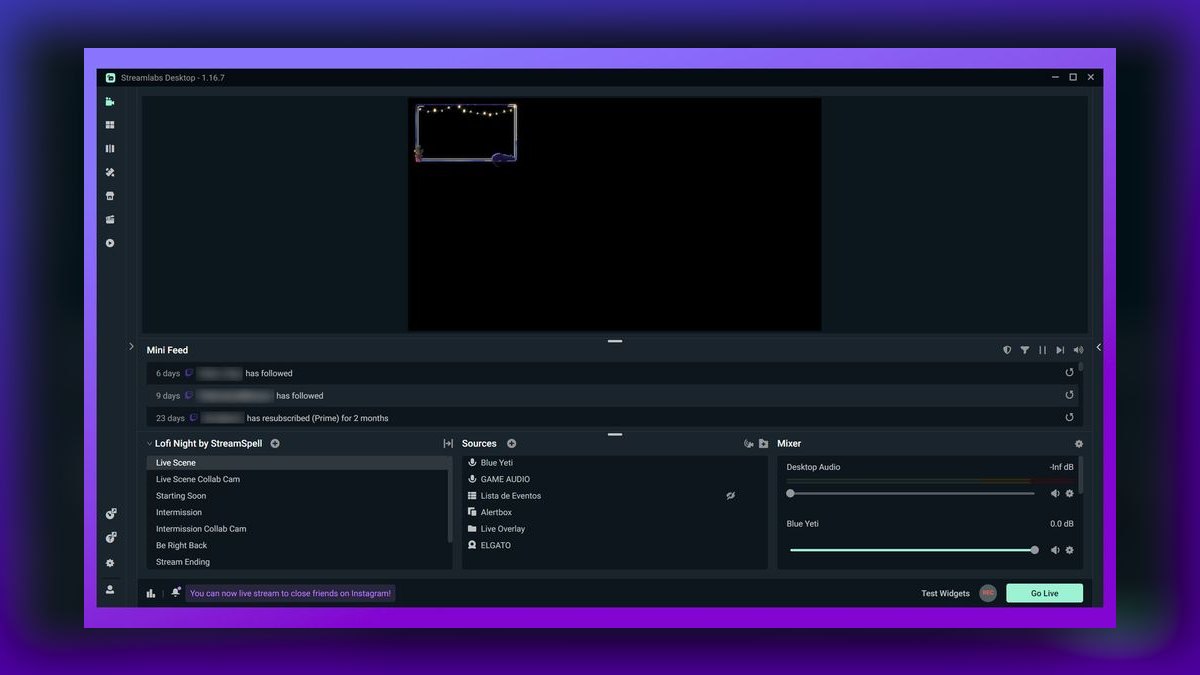
The 10 best ai tools for live streaming are ranked below on measured performance, build quality, price, and how each one actually holds up in daily use rather than how it reads on a spec sheet. Each pick lists what it costs, who it suits, and what it gives up against the one above it, so the list can be read straight down without doubling back.
1. Streamlabs Ultra

Streamlabs Ultra ranks first because it is the only all-in-one AI suite covering the entire live-streaming pipeline, from going live to repurposing clips. Its Intelligent Highlighter scans gameplay for spikes and assembles reels automatically, while AI multistreaming pushes to multiple platforms simultaneously. The paid tier also includes Cross Clip for vertical reformatting and Talk Studio for browser-based guest interviews. This consolidation replaces a clipping tool, a multistream service, and a guest-studio app with one subscription.
This is for solo creators and small teams who want a single app to manage the whole workflow without juggling separate tools. It trades away the lightweight feel of vanilla OBS, as the desktop app is heavier and resource-hungry on older machines. Compared to the free OBS Studio below, it offers far more built-in AI but at a recurring cost. For operators prioritizing convenience over tinkering, this is the top pick.
2. NVIDIA Broadcast

NVIDIA Broadcast ranks second because it delivers free, GPU-accelerated AI audio and video cleanup that transforms a noisy home studio into a broadcast-grade feed. Its Noise Removal strips keyboard clatter and fan hum, while Room Echo Removal flattens reverb in untreated spaces. Virtual Background provides green-screen-free segmentation, and Auto Frame keeps you centered as you move. The catch is it requires an NVIDIA RTX GPU, as models run on Tensor cores.
This is for streamers who already own an RTX card and want professional audio quality without spending money. It trades away GPU independence, making it useless for AMD, Intel, or Apple Silicon users. Compared to Streamlabs Ultra above, it focuses narrowly on enhancement rather than the full pipeline. For operators whose only weakness is audio and video noise, this is the essential free layer.
3. OBS Studio
OBS Studio ranks third as the best value pick because it is 100% free, open-source, and runs on Windows, macOS, and Linux, the only tool here with native Linux support. It has no built-in AI, but its plugin ecosystem delivers real-time background removal and on-device captions via LocalVocal without cloud processing. Pairing it with NVIDIA Broadcast creates a fully AI-augmented studio at zero software cost. It handles unlimited scenes, sources, and custom RTMP/WHIP outputs.
This is for tinkerers and budget-first operators who want full control and refuse subscriptions. It trades away convenience, as plugin setup is manual and AI features depend on community maintenance. Compared to Streamlabs Ultra above, it offers no built-in highlight detection or multistreaming. For operators who value control and cost savings over hand-holding, this is the unbeatable foundation.
4. Restream

Restream ranks fourth because it is the multistreaming workhorse, pushing a single feed to more than 30 destinations at once, including Twitch, YouTube, Kick, LinkedIn, and Facebook. Its AI additions include auto-generated captions for accessibility and silent-autoplay feeds, plus automatic clip generation from the live recording. The unified chat merges every platform's comments into one moderation pane, so a single moderator can watch all networks simultaneously.
This is for agencies and operators running client streams across many networks who need maximum reach. It trades away deep production control, as its browser studio is simpler than desktop tools. Compared to OBS Studio above, it adds distribution and AI captions but at a subscription cost. For operators whose goal is omnipresence, this is the distribution layer.
5. StreamYard
StreamYard ranks fifth because it makes multi-guest interview streaming approachable with a fully browser-based production studio that requires no installation. It offers automatic AI captions and easy on-screen banners, tickers, and brand overlays that make webinars look produced. You can invite up to a roomful of guests by link and go live to multiple platforms from a Chrome tab.
This is for podcasters, webinar hosts, and B2C interview shows that prize simplicity over deep control. It trades away advanced scene management and plugin flexibility found in OBS Studio above. Compared to Restream, it offers a more polished guest experience but fewer simultaneous destinations. For non-technical hosts who need a clean, captioned, multi-guest stream in minutes, this is the pick.
6. Riverside

Riverside ranks sixth because it solves the remote-guest quality problem by recording separate local tracks for each participant in up to 4K video and 48kHz audio, then syncing them. Its AI tooling is post-production gold: Magic Clips auto-detects the best moments and cuts vertical shorts, while AI Show Notes generate titles, summaries, and chapters from the transcript. The editor lets you edit video by editing text, deleting sentences in the transcript to remove corresponding footage.
This is for interview-driven shows, podcasts, and remote panels where broadcast-grade master files matter. It trades away the simplicity of browser-only tools like StreamYard above, as it requires more setup for local recording. Compared to StreamYard, it offers superior audio and video fidelity plus AI post-production. For operators who walk away with publish-ready clips and notes, this is the safest pick.
7. Opus Clip

Opus Clip ranks seventh because it is the dominant AI clipping engine, turning long VODs into platform-ready vertical shorts with AI active-speaker tracking and animated captions. Its ClipAnything feature lets you prompt in plain language, like finding every moment someone laughs or pulling product demos, and the AI hunts those exact beats. Each clip gets a Virality Score predicting performance, and AutoPost schedules finished shorts to TikTok, Reels, and Shorts.
This is for operators drowning in long VODs who need a content multiplier without hiring an editor. It trades away live-streaming features, as it works only on recordings after the broadcast ends. Compared to Riverside above, it focuses purely on repurposing rather than capture. For a two-hour stream yielding a dozen verticals overnight, this is the strongest clipper.
8. Eklipse.gg

Eklipse ranks eighth because it is the clipping specialist built specifically for gamers and live streamers on Twitch, Kick, and YouTube. Its AI watches for hype moments by detecting gameplay events, chat spikes, and stream-alert triggers, turning them into clips and montages automatically. It understands Twitch alerts and chat velocity as signals, catching moments the community actually reacted to.
This is for Twitch or Kick creators who want short-form growth without hiring an editor. It trades away general-purpose clipping for stream-native context, making it less suited for talking-head interviews. Compared to Opus Clip above, it excels at gaming-specific event detection but lacks the same prompt-based flexibility. For a creator whose community reactions drive highlights, this is purpose-built.
9. Krisp

Krisp ranks ninth because it is the AI noise-cancellation layer that works system-wide, independent of your GPU, making it the key alternative to NVIDIA Broadcast for AMD, Intel, or Apple Silicon users. It sits between your microphone and any app, removing background noise, echo, and even other voices in the room. The same noise model runs on a laptop in a hotel room as on a tower in a studio, and it processes audio locally for privacy.
This is for streamers on non-RTX hardware who need clean audio without hardware lock-in. It trades away video features like background removal, focusing solely on audio cleanup. Compared to NVIDIA Broadcast above, it offers comparable noise removal but no webcam enhancement. For operators whose only weakness is audio and who lack an RTX card, this is the fix.
10. Spikes Studio

Spikes Studio ranks tenth as a clip-and-distribute engine aimed at high-volume creators who treat short-form as a daily distribution channel. It pulls from Twitch, YouTube, or Kick streams, uses AI to find highlights, and auto-captions and reframes them to vertical. Its differentiator is the AI B-roll and meme layer, splicing in reaction footage and on-trend visual elements to make clips feel native to TikTok.
This is for creators who want a set-and-forget repurposing pipeline that keeps the content calendar full from existing live footage. It trades away precise control over clip selection for automation and trend-aware editing. Compared to Eklipse above, it offers more native-feeling short-form content but less stream-specific event detection. For operators who want daily distribution without manual editing, this is the final pick.
How we ranked these
We ranked tools by weighting five factors: AI signal quality under real streaming conditions, live versus post-production fit, platform reach across Twitch, YouTube, Kick, TikTok, LinkedIn, X, and Facebook, hardware and cost including GPU requirements and free tiers, and workflow friction—how much AI reduces manual editing versus adding setup complexity. Each factor was scored and combined to produce the final ranking.
We deliberately ignored brand popularity, marketing hype, and feature checklists that don't translate to measurable operator value. We also excluded tools that only offer novelty AI without solving a core streaming problem like audio cleanup, captioning, or clip generation. This ensures the ranking reflects practical utility for streamers, agencies, and production operators, not just what is well-known or heavily advertised.
What to look for
When choosing between these tools, focus on your specific bottleneck. If audio is your weakness, NVIDIA Broadcast or Krisp will deliver the most noticeable improvement. If repurposing is your pain point, Opus Clip or Eklipse will save hours. For an all-in-one solution, Streamlabs Ultra consolidates multiple paid services, but verify your hardware can handle it. Always test free tiers first to confirm AI quality matches your expectations.
The most common mistake is subscribing to a premium tool before validating its AI output on your own content. Watermarked clips from free tiers can tank short-form reach, and GPU-dependent tools like NVIDIA Broadcast won't work on non-RTX systems. Buy based on your actual workflow and hardware, not on feature lists. Start with free tiers and plugins to build a cost-effective stack that addresses your specific needs.
Related questions
What is the best AI tool for live streaming in 2027?
Streamlabs Ultra is the best overall AI toolkit for 2027, offering Intelligent Highlighter, AI multistreaming, and OBS-grade scene control. It covers the entire pipeline from going live to cutting clips. For audio and video cleanup, NVIDIA Broadcast is the runner-up, but it requires an RTX GPU. Budget-conscious operators should consider OBS Studio with AI plugins.
How does NVIDIA Broadcast improve live streams?
NVIDIA Broadcast uses AI models on RTX GPUs to clean audio and video in real time. Features include Noise Removal, Room Echo Removal, Virtual Background, Auto Frame, and Eye Contact. It creates virtual devices that any streaming app can use, turning a noisy home studio into a broadcast-grade feed. It's free for RTX owners.
What are the best free AI tools for live streaming?
OBS Studio is the best free option, especially when paired with NVIDIA Broadcast (if you have an RTX card) for AI audio and background removal. Plugins like LocalVocal add live captions. Krisp, Eklipse, Opus Clip, and Spikes Studio also offer free tiers, though they may include watermarks or limited processing minutes.
Can AI tools automatically create clips from my live stream?
Yes. Streamlabs Ultra's Intelligent Highlighter scans gameplay for spikes and assembles highlight reels. Opus Clip uses AI to identify engaging segments and reframes them to vertical with captions. Eklipse and Spikes Studio detect hype moments and can auto-post to short-form platforms. These tools turn long VODs into multiple clips overnight.
What is the best tool for multistreaming to multiple platforms?
Restream is the multistreaming workhorse, pushing a single feed to over 30 destinations simultaneously, including Twitch, YouTube, Kick, LinkedIn, and Facebook. It also offers AI captions, clip generation, and a unified chat. Streamlabs Ultra also includes multistreaming, but Restream is more focused on distribution.
How does Krisp compare to NVIDIA Broadcast for noise removal?
Krisp works system-wide and is GPU-independent, making it ideal for AMD, Intel, or Apple Silicon users. It removes background noise, echo, and other voices. NVIDIA Broadcast requires an RTX GPU but also offers video features like background removal and eye contact. Both are effective, but Krisp is more portable.
What is the best AI tool for repurposing streams into short-form content?
Opus Clip is the strongest general clipper with ClipAnything prompt and Virality Score. For gaming, Eklipse and Spikes Studio detect hype moments and auto-post vertical clips. Riverside also offers Magic Clips for interview-based content. Choose based on your content type and desired level of automation.
Do I need a powerful PC to run AI live-streaming tools?
It depends. NVIDIA Broadcast requires an RTX GPU for on-device processing. Cloud-based tools like Restream, StreamYard, Opus Clip, and Eklipse process AI on remote servers, so they run fine on modest laptops. OBS Studio with plugins uses local resources, but can be configured to work on most systems.
FAQ
What is the best overall AI live-streaming tool in 2027?
Streamlabs Ultra is the best overall AI toolkit, bundling Intelligent Highlighter, AI multistreaming, and full scene control. It's ideal for solo creators and small teams wanting one app to go live and repurpose clips. NVIDIA Broadcast is the runner-up for audio and webcam cleanup, but requires an RTX GPU.
How does Streamlabs Ultra's Intelligent Highlighter work?
It scans gameplay footage for spikes like kills, wins, and crowd reactions, then automatically assembles a highlight reel. This turns a three-hour stream into a postable clip without manual scrubbing. It's a key feature that saves operators significant time in post-production.
What are the system requirements for NVIDIA Broadcast?
NVIDIA Broadcast requires an NVIDIA RTX GPU (GeForce RTX, RTX, or Quadro RTX series) because its AI models run on Tensor cores. It's free for RTX owners. If you have AMD, Intel, or Apple Silicon, consider Krisp for comparable noise removal without the hardware lock-in.
Can OBS Studio be used with AI plugins?
Yes, OBS Studio has a plugin ecosystem that adds AI features. The Background Removal plugin provides real-time, green-screen-free segmentation. LocalVocal generates live AI captions and translations locally. Pairing OBS with NVIDIA Broadcast for audio creates a fully AI-augmented studio at zero software cost.
What is the best tool for remote guest interviews?
Riverside records separate local tracks for each participant in up to 4K video and 48kHz audio, ensuring crisp quality even on bad Wi-Fi. Its Magic Clips auto-detects best moments, and the editor lets you edit video by editing text. It's ideal for interview-driven shows and podcasts.
How does Opus Clip's ClipAnything feature work?
ClipAnything lets you prompt in plain language, such as 'find every moment someone laughs' or 'pull the product demos.' The AI hunts those exact beats in your VOD and creates vertical clips with animated captions. It also assigns a Virality Score to predict performance.
What is Eklipse.gg best for?
Eklipse is built specifically for gamers and live streamers on Twitch, Kick, and YouTube. Its AI watches for hype moments, detecting gameplay events, chat spikes, and stream-alert triggers. It understands stream-native context, catching moments your community reacted to, and reformats to vertical for short-form platforms.
Is Krisp a good alternative to NVIDIA Broadcast?
Yes, Krisp is a system-wide AI noise-cancellation layer that works independently of your GPU. It's ideal for AMD, Intel, or Apple Silicon users. It removes background noise, echo, and other voices, and processes audio locally for privacy. A free tier offers limited weekly minutes.
What is Spikes Studio's differentiator?
Spikes Studio has an AI B-roll and meme layer that splices reaction footage and on-trend visual elements into clips, making them feel native to TikTok. It pulls from Twitch, YouTube, or Kick, auto-captions and reframes to vertical, and can auto-post to multiple platforms on a schedule.
What should I consider before subscribing to a paid AI tool?
Test the free tier first to validate AI quality on your own content. Watermarked clips can tank short-form reach. Confirm hardware requirements, especially for GPU-dependent tools. Consider your specific workflow bottleneck—audio, clipping, or multistreaming—and choose a tool that directly addresses it.
Sources
- https://streamlabs.com/
- https://www.nvidia.com/en-us/geforce/broadcasting/broadcast-app/
- https://obsproject.com/
- https://restream.io/
- https://streamyard.com/
- https://riverside.fm/
- https://www.opus.pro/
- https://eklipse.gg/
- https://krisp.ai/
- https://spikes.studio/
Related on PULSE
- [More ai tools for live streaming rankings and buying guides](/knowledge)
- [PULSE Tools and calculators](/tools)
- [Everything on PULSE RevOps](/)
This page will be disappearing soon. Save it to your device for $1 — or read it free while it is here.
@Kory-White- · if Venmo asks, the last 4 of my number are 2012
 pulse-ai-infrastructureThe 10 Best AI Tools for Pronunciation Coaching in 2027
 pulse-ai-infrastructureThe 10 Best AI Tools for Trip Itineraries in 2027
 pulse-ai-infrastructureThe 10 Best AI Tools for Architecture Design in 2027
 pulse-ai-infrastructureThe 10 Best AI Tools for Drupal Development in 2027
 pulse-ai-infrastructureThe 10 Best AI Tools for E-commerce Websites in 2027
 pulse-ai-infrastructureHow do you route requests across multiple LLM providers?
 pulse-ai-infrastructureThe 10 Best Synthetic Data Generation Tools in 2027
 pulse-ai-infrastructureThe 10 Best AI Tools for Email Writing in 2027
 pulse-ai-infrastructureThe 10 Best AI Tools for Image Upscaling in 2027
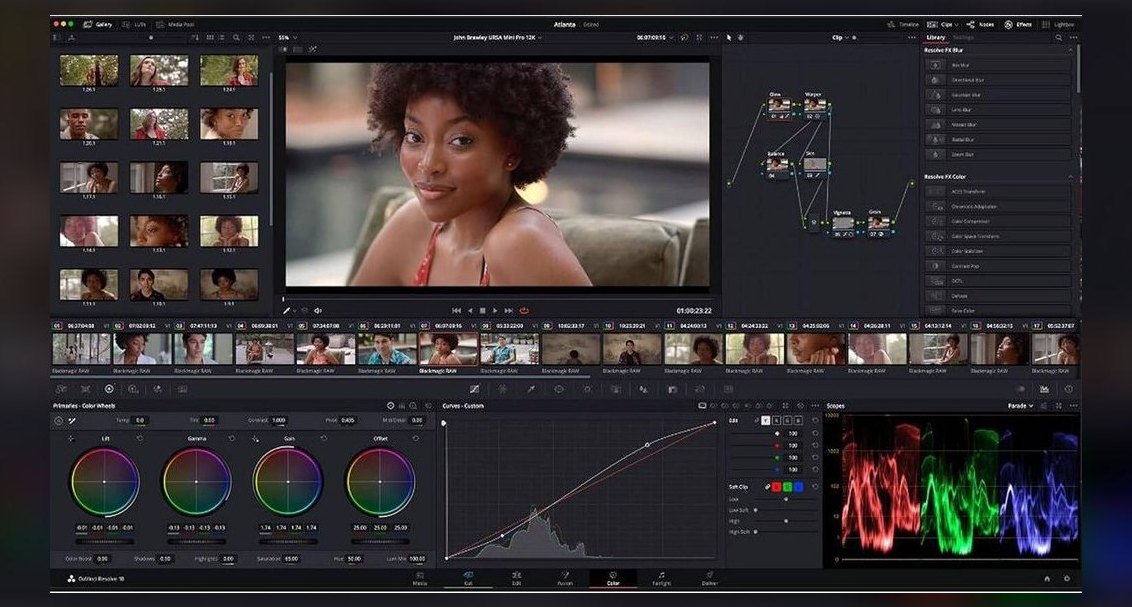 pulse-ai-infrastructureThe 10 Best AI Tools for Color Grading in 2027