


How do I set up a reliable home office network for video calls in 2027?
Quality
Certified

A reliable home office network for video calls in 2027 rests on three things: a wired Ethernet link to your primary work machine wherever possible, a router or mesh node with proper QoS so call traffic outranks background downloads, and a UPS keeping the router and modem alive through brief outages. Wi-Fi 6E or 7 handles everything else.
A concrete scenario that frames the problem
Picture a typical Tuesday morning. You are on a client call at 9:00 a.m., your partner is on a separate video call in the next room, a smart TV is streaming in the living room, a phone is backing up photos to the cloud, and a gaming console is downloading a 40 GB update in the background. On a single-band ISP router placed in a hallway closet, everyone degrades at once: your video tiles pixelate, audio drops for two seconds at a time, and the call platform's connection indicator flickers from green to yellow. Nothing is broken — the network is simply being asked to do five latency-sensitive and bandwidth-hungry things simultaneously over one congested radio channel and one undersized uplink queue.
That is the exact failure mode a proper home office network is designed to prevent. The fix is not "buy more bandwidth from the ISP." In most homes the bottleneck is not raw throughput — a 200 Mbps down / 20 Mbps up cable connection is plenty for several simultaneous 1080p video calls, which typically consume 1.5 to 4 Mbps each depending on resolution and codec. The bottleneck is contention: bufferbloat on the uplink, airtime contention on a crowded 2.4 GHz band, and a router that treats a video call packet identically to a background photo upload. A reliable setup separates these concerns deliberately rather than hoping the default configuration sorts them out.
The scenario also frames the budget question honestly. You do not need a $1,500 enterprise stack. A realistic 2027 home office network for one or two heavy callers costs roughly $300 to $600 in hardware: a competent router or mesh system, one or two mesh nodes if the workspace is far from the router, a small unmanaged or managed switch, a UPS, and cabling. The rest is configuration discipline.

How the mechanism actually works
The core mechanism is prioritization across four layers: the physical link, the local radio, the router's queue, and the wide-area path. Each layer has a distinct job, and a reliable setup addresses all four rather than over-optimizing one.
At the physical layer, Ethernet is deterministic in a way Wi-Fi is not. A Cat6 run from your desk to the router gives you a full-duplex, dedicated 1 Gbps link with sub-millisecond latency and zero airtime contention. Wi-Fi, by contrast, is a shared half-duplex medium: every device on an access point competes for the same airtime, and a single misbehaving device — an old 2.4 GHz-only printer, a cheap smart plug, a neighbor's microwave — can consume disproportionate airtime or trigger retransmissions. For the machine you take calls on, wired is the single highest-leverage upgrade, and it costs about $15 in cable.

At the local radio layer, band steering and channel planning matter. Modern routers operate on 2.4 GHz, 5 GHz, and (with Wi-Fi 6E/7) 6 GHz. Video calls belong on 5 GHz or 6 GHz: 5 GHz has far more non-overlapping channels than 2.4 GHz, and 6 GHz is largely free of legacy interference. The 2.4 GHz band should be reserved for IoT devices and anything that cannot join a higher band. Setting a single SSID with band steering enabled, or splitting into separate SSIDs you control manually, is a legitimate design choice — manual separation gives you certainty that your laptop never lands on 2.4 GHz.
At the router queue layer, the mechanism is SQM (smart queue management) or a QoS profile that classifies real-time traffic. The problem SQM solves is bufferbloat: routers buffer packets during congestion, and a full buffer adds hundreds of milliseconds of latency to everything, including your call audio. SQM algorithms such as CAKE or fq_codel keep the queue short and fair, so a large download no longer inflates call latency. On consumer routers this appears as "Smart Queue," "Adaptive QoS," or "Gaming prioritization." The measurable target: keep idle and loaded latency within about 10 to 20 ms of each other on a good connection.
At the wide-area layer, the mechanism is your ISP path and DNS. A stable call needs low jitter and low packet loss more than raw speed. Wired ISP connections (fiber, cable) generally beat fixed wireless and satellite for jitter. If your only option is a high-jitter link, a modern video platform's adaptive codec will compensate somewhat, but no router setting fixes a fundamentally unstable uplink.
The diagram shows the intended topology: the call machine takes the deterministic wired path, everything else shares the wireless path, IoT is quarantined to 2.4 GHz, and the router applies queue management before anything reaches the ISP. The UPS sits at the router and modem because those two devices are the single point of failure for the whole house — a 10-second power flicker that reboots your router drops every call in the home.
Real numbers, ranges, and benchmarks

Concrete targets make the design testable rather than aspirational.
Bandwidth per call. A 1080p video call typically uses 1.5 to 4 Mbps in each direction depending on codec and platform; 720p sits around 1 to 2.5 Mbps. A two-person household with two simultaneous 1080p calls plus screen sharing needs perhaps 10 to 15 Mbps of dedicated capacity. A 100 Mbps down / 10 Mbps up connection is sufficient if queue management is in place; 200/20 gives comfortable headroom. The uplink is the constraint that matters — most consumer connections are asymmetric, and video calls upload as much as they download.
Latency and jitter. Target under 50 ms round-trip to your call platform's nearest region, with jitter under 30 ms and packet loss under 1 percent. Under 150 ms round-trip is generally usable; above 200 ms, conversation becomes awkward regardless of codec. Measure with a ping or traceroute to a major anycast endpoint, and measure loaded latency with a bufferbloat test to confirm SQM is working.
Wi-Fi signal. Aim for -50 to -60 dBm received signal strength at the desk for 5 GHz or 6 GHz. Below about -67 dBm, throughput and stability degrade noticeably; below -75 dBm, calls will stutter. A mesh node or access point placed within one room of the desk is usually enough. Wall materials matter: a single interior drywall wall costs roughly 3 to 5 dB, a brick or concrete wall 10 to 15 dB or more, and a metal-backed insulation or radiant barrier can effectively block a band.
Channel width and bands. On 5 GHz, use 80 MHz channels in low-density homes and drop to 40 MHz in dense apartment buildings to reduce co-channel interference. On 6 GHz, 160 MHz is viable because the band is cleaner. On 2.4 GHz, use only channels 1, 6, or 11 at 20 MHz — anything else overlaps and degrades everyone.
Cable and switching. Cat6 supports 1 Gbps to 100 meters and 10 Gbps to about 55 meters; Cat6a extends 10 Gbps to the full 100 meters. For a home office, Cat6 is the sensible default. An unmanaged 5- or 8-port gigabit switch costs roughly $20 to $40 and is all most desks need; a managed switch adds VLANs and per-port QoS if you want to isolate work traffic.
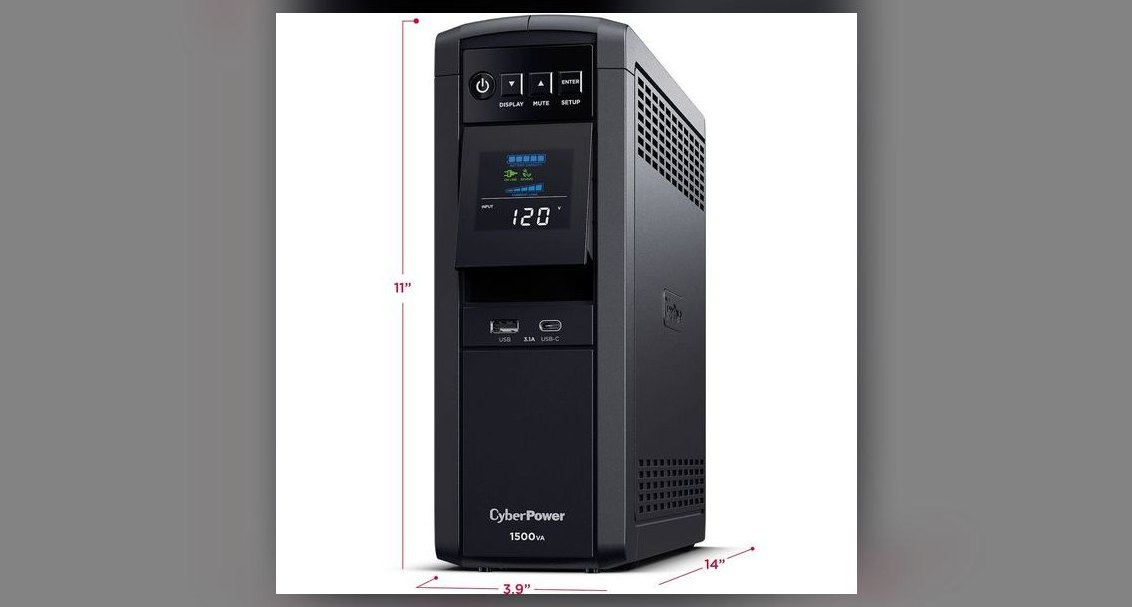
UPS sizing. A router plus modem typically draw 10 to 25 watts combined. A 600 VA / 360 W UPS at that load provides well over an hour of runtime — often two or more — which covers the vast majority of residential outages and, critically, prevents the reboot that kills a call. Budget $60 to $120.
Powerline and MoCA alternatives. If you cannot run Ethernet, MoCA 2.5 adapters over existing coaxial cable deliver near-gigabit speeds with low latency and are generally far more reliable than powerline, which is highly sensitive to home wiring and can drop to tens of Mbps with high jitter. Powerline is a last resort; MoCA is the good fallback.
Trade-offs and alternatives

Every reliable design involves choosing between certainty and convenience, and the right answer depends on your constraints.
Wired versus wireless at the desk. Wired is faster, lower-latency, and immune to interference, but it requires a cable run and tethers the laptop. Wireless is convenient and supports roaming between rooms, but shares airtime and is subject to interference. The pragmatic compromise most practitioners land on: a wired dock or a single Ethernet cable at the primary desk, with Wi-Fi as the fallback for the same laptop when it moves. Modern laptops with a USB-C dock get Ethernet, display, and charging through one cable, which removes most of the friction.
Single powerful router versus mesh. A single high-quality router placed centrally often outperforms a cheap mesh system, because mesh nodes that are themselves wireless backhauled consume airtime and add a hop. Mesh earns its place when the home is large or has signal-blocking walls, and it becomes genuinely strong when nodes are wired back to the router (Ethernet backhaul) — then each node is effectively a wired access point. If you cannot wire the nodes, a tri-band mesh with a dedicated backhaul radio is the better wireless-only choice.
ISP router versus your own router. ISP-provided gateways are convenient and increasingly competent, but they often lack real SQM, hide configuration, and combine modem and router into one device you cannot fully control. Putting the ISP device into bridge mode and running your own router gives you queue management, DNS control, and logging. The trade-off is that ISP support may disclaim responsibility for anything behind your router, so keep the ISP device's credentials and be ready to swap back when troubleshooting.
QoS versus more bandwidth. Upgrading the plan raises the ceiling but does nothing about bufferbloat or airtime contention. QoS/SQM lowers latency under load on the connection you already have. If forced to choose, fix the queue first; it is free or nearly so and addresses the actual call-quality problem.
The decision tree reflects the practical order of preference: wired first, MoCA second, Wi-Fi third, mesh last — and queue management plus a UPS applied regardless of which transport you chose, because those two fixes are transport-independent.
Common pitfalls and how to avoid them
Pitfall: blaming the ISP before testing the local network. Most call-quality complaints originate inside the home. Before calling support, test with a wired connection directly to the modem, run a loaded-latency test, and check whether the problem reproduces on a different device. If wired-to-modem is clean and Wi-Fi is not, the ISP is not the problem.
Pitfall: leaving SQM off. A router with SQM disabled will let a single large upload inflate latency for every other device. Enable Smart Queue or Adaptive QoS, set the uplink and downlink speeds to roughly 85 to 90 percent of measured throughput so the shaper engages before the ISP's own buffer fills, and verify with a bufferbloat test that loaded latency stays close to idle latency.

Pitfall: router placement in a closet or basement. Enclosures, metal racks, and concrete attenuate signal heavily. Place the router centrally, elevated, and out of cabinets. If the modem must live in a utility closet, run Ethernet from the closet to a centrally placed access point rather than trying to broadcast out of the closet.
Pitfall: one SSID for everything with no band control. Letting band steering place devices wherever it likes is usually fine, but IoT devices and older hardware can drag the network down. Put IoT on a separate 2.4 GHz SSID, keep work devices on 5/6 GHz, and consider a guest network for visitors so their devices never share your work VLAN.
Pitfall: ignoring the UPS. A brief power flicker reboots the router and modem, and the reboot takes two to five minutes — long enough to lose a call and the meeting that follows. A small UPS on those two devices is the cheapest reliability insurance in the entire build.
Pitfall: over-buying Wi-Fi 7 hardware for a small apartment. Wi-Fi 7's multi-link operation and wider channels help in dense or high-throughput environments, but a well-placed Wi-Fi 6 or 6E access point on a clean 5 GHz channel will deliver excellent call quality in a typical home. Spend the difference on a wired run or a UPS instead.
Pitfall: no fallback path. Even a well-built network fails occasionally. Keep a phone hotspot configured as a backup connection on your laptop, know how to tether, and have the call platform's dial-in number saved. A two-minute fallback plan turns a network outage from a lost meeting into a minor inconvenience.
Pitfall: forgetting firmware and channel hygiene. Router firmware updates fix security issues and sometimes queue-management bugs. A monthly check, plus a periodic scan for congested channels in dense neighborhoods, prevents slow degradation that users blame on "the internet."
Related questions
Do I need Wi-Fi 7 for reliable video calls?
No. Video calls need low latency and jitter, not peak throughput. A well-placed Wi-Fi 6 or 6E access point on a clean 5 GHz or 6 GHz channel delivers excellent call quality. Wi-Fi 7 helps in dense environments and with many simultaneous high-throughput devices, but it is not required for reliable calls.
Is Ethernet really better than good Wi-Fi?
For the machine you take calls on, yes. Ethernet is full-duplex, dedicated, and immune to airtime contention and interference. Good Wi-Fi is entirely workable, but a $15 cable removes an entire class of failure modes. Use Wi-Fi as the fallback when the laptop moves.
How much internet speed do I need for video calls?
Roughly 10 to 15 Mbps of dedicated capacity covers two simultaneous 1080p calls with screen sharing. A 100/10 connection is sufficient with queue management; 200/20 gives comfortable headroom. Uplink speed and stability matter more than download speed for call quality.
What is bufferbloat and why does it matter?
Bufferbloat is latency caused by oversized router queues filling during congestion. It makes calls stutter and audio lag even when bandwidth is plentiful. SQM or adaptive QoS keeps queues short so a large download no longer degrades call latency. Test loaded versus idle latency to confirm it is under control.
Can I fix call quality without buying new hardware?
Often yes. Move the router out of enclosures, connect the call laptop by Ethernet, enable the router's existing QoS or Smart Queue, separate IoT onto 2.4 GHz, and update firmware. These free or near-free steps resolve a large share of call-quality complaints before any purchase is needed.
FAQ
What is the single most important upgrade for reliable video calls at home?
A wired Ethernet connection to the machine you take calls on, combined with queue management on the router. Wired removes airtime contention and interference; SQM removes bufferbloat. Together they address the two most common causes of pixelation and audio dropouts, and both are inexpensive.
Should I use the ISP's router or buy my own?
Use your own router if you want real control over QoS, DNS, and logging, and put the ISP device into bridge mode. ISP gateways are increasingly competent but often lack effective queue management and hide configuration. Keep the ISP device's credentials so you can swap back during troubleshooting.

How do I test whether my network is actually reliable enough for calls?
Measure three things: idle and loaded latency (bufferbloat test), packet loss and jitter to your call platform's region, and Wi-Fi signal strength at the desk. Target under 50 ms round-trip, jitter under 30 ms, loss under 1 percent, and -50 to -60 dBm on 5/6 GHz. Repeat the tests while a large download runs.
Is a mesh system better than one router?
Only when the home is large or walls block signal, and mesh is much stronger with wired backhaul. A single well-placed router often beats a cheap wireless-backhauled mesh because each wireless hop consumes airtime. If you go mesh, prioritize tri-band models with a dedicated backhaul radio or, better, run Ethernet to the nodes.
Do I need a UPS for my network gear?
Yes, for the router and modem. They draw only 10 to 25 watts combined, so a modest 600 VA UPS provides over an hour of runtime and, more importantly, prevents the two-to-five-minute reboot that kills a call during a brief power flicker. It is the cheapest reliability insurance in the build.
How do I keep background downloads from ruining calls?
Enable SQM or adaptive QoS on the router and set the shaper to roughly 85 to 90 percent of measured throughput. Schedule large updates outside working hours where possible, and move bulk-download devices to a separate SSID or VLAN. Verify with a loaded-latency test that call latency stays close to idle latency.
Sources
- https://www.fcc.gov/consumers/guides/broadband-speed-guide
- https://www.cisco.com/c/en/us/solutions/enterprise-networks/what-is-wi-fi-6e.html
- https://www.wi-fi.org/discover-wi-fi/wi-fi-certified-7
- https://www.bufferbloat.net/projects/codel/wiki/
- https://www.ietf.org/rfc/rfc8290.html
- https://www.moca.org/
- https://www.energystar.gov/products/uninterruptible_power_supplies
- https://www.itu.int/rec/T-REC-G.114
- https://www.cloudflare.com/learning/performance/what-is-dns/
Related on PULSE
This page will be disappearing soon. Save it to your device for $1 — or read it free while it is here.
@Kory-White- · if Venmo asks, the last 4 of my number are 2012
This page is gone.
This one is off the shelf now. $1 keeps it on your phone for good — the whole page, pictures and diagrams included.
 pulse-reviewsTop 10 Radon Detectors — Best Overall + Best Value in 2027
 pulse-reviewsTop 10 Jump Starters — Best Overall + Best Value in 2027
 pulse-reviewsTop 10 Portable Espresso Makers for Sales Travel in 2027
 pulse-reviewsTop 10 Drones — Best Overall + Best Value in 2027
 pulse-reviewsTop 10 Raclette Grills — Best Overall + Best Value in 2027
 pulse-reviewsTop 10 Smart Pill Dispensers — Best Overall + Best Value in 2027
 pulse-reviewsTop 10 Vacuum Sealers — Best Overall + Best Value in 2027
 pulse-reviewsTop 10 Indoor Air Quality Monitors — Best Overall + Best Value in 2027
 pulse-reviewsTop 10 UPS Battery Backups for Gaming PCs — Best Overall + Best Value in 2027
 pulse-reviewsTop 10 TDS Water Testers — Best Overall + Best Value in 2027