


The 10 Best AI Tools for Photo Editing in 2027
Quality
Certified
The 10 best ai tools for photo editing are ranked below on measured performance, build quality, price, and how each one actually holds up in daily use rather than how it reads on a spec sheet. Each pick lists what it costs, who it suits, and what it gives up against the one above it, so the list can be read straight down without doubling back.
1Adobe Photoshop with Firefly
It ranks first because it is the only tool here that returns generative output on its own editable layer, so you can mask it, drop opacity, or repaint 40% of it and keep the rest. Generative Fill, Generative Expand, and Generative Remove cover compositing work no batch tool touches. Firefly trains on licensed and Adobe Stock imagery, which matters when an agency legal review reads your delivery terms. Standalone runs about $22.99/month.
This is for retouchers, advertising shooters, and anyone whose client marks up a file three times before approval. It trades speed away entirely — a real-estate shooter delivering 30 images by morning finishes in Luminar Neo while you are still building masks. Firefly operations also meter against generative credits that scale by plan tier, so heavy generative volume hits ceilings. Pair it with Lightroom via the roughly $9.99/month Photography plan.
2Adobe Lightroom Classic

Second place goes to the catalog engine that handles the scale Photoshop cannot: batch develop settings, AI Denoise, and Select People with per-feature sub-masks for teeth, eyes, hair, and clothing across thousands of frames. Generative Remove lives here too. Its AI Denoise is not the outright quality leader, but it runs inside the catalog where your files already are, with no round-trip and no bit-depth risk.
Built for wedding, event, and volume shooters processing 3,000 to 4,000 frames per job. It gives up per-pixel compositing control — moving a product eight inches left requires Photoshop. Against DxO PhotoLab, Lightroom loses a marginal edge on RAW detail extraction but wins on not forcing a second application into your pipeline. The bundled Photography plan means most users get it alongside Photoshop anyway.
3Topaz Photo AI

Third because it is the strongest single-purpose reconstruction engine on the list: DeNoise, Sharpen, and Gigapixel unified in one app, with enlargement up to roughly 6x. That is the gap between a 12MP capture and a printable large-format enlargement. The license is about $199 one-time including a year of model updates; renewal is optional and the software keeps working without it. Processing is GPU-bound, measured in seconds per RAW file.
For wildlife, sports, and concert shooters whose bottleneck is high-ISO cleanup and cropping, plus anyone rescuing archive files. It does nothing for culling, color grading, or compositing — it is a specialist you round-trip into. Against DxO PhotoLab it upscales far better; DxO extracts more RAW-stage detail. At aggressive settings, fabric weave, hair, and distant foliage render as plausible pattern rather than real texture.
4DxO PhotoLab Elite

Fourth on the strength of DeepPRIME XD, which denoises and demosaics as one joint problem on the RAW file rather than cleaning up after demosaicing — structurally recovering detail a JPEG-stage denoiser cannot reach. Its lab-measured optical modules profile a specific body-plus-lens pair, correcting distortion, vignetting, and chromatic aberration against real measurements. Elite runs around $229 perpetual; PureRAW, the pre-processor-only build, around $119.
Aimed at landscape, astro, and low-light shooters who care more about pulling maximum signal from a file than about throughput. It has no generative tools and weak retouching, so it lives upstream of your real editor. Compared to Topaz, DxO wins on RAW-stage noise and optics but cannot upscale meaningfully. The PureRAW route is the cheaper way in if you only want the denoise engine feeding Lightroom.
5Imagen AI

Fifth because it attacks the largest unglamorous time block in volume photography: culling and global editing. It learns your edit style from your own Lightroom catalog rather than imposing a preset look, and handles culling on top. Pricing is roughly per-image in the cents range, or subscription tiers. It round-trips through Lightroom, so it slots into an existing catalog instead of forcing a migration.
For wedding and event photographers running 25 or more shoots a year, where three to four hours of culling per job compounds into 225 to 350 annual hours. It does no retouching and no cleanup. Use it to reduce 4,000 frames to about 1,200 for human review, not to pick the final 800 — a model cannot see that the soft frame of the crying grandmother is the keeper.
6Evoto
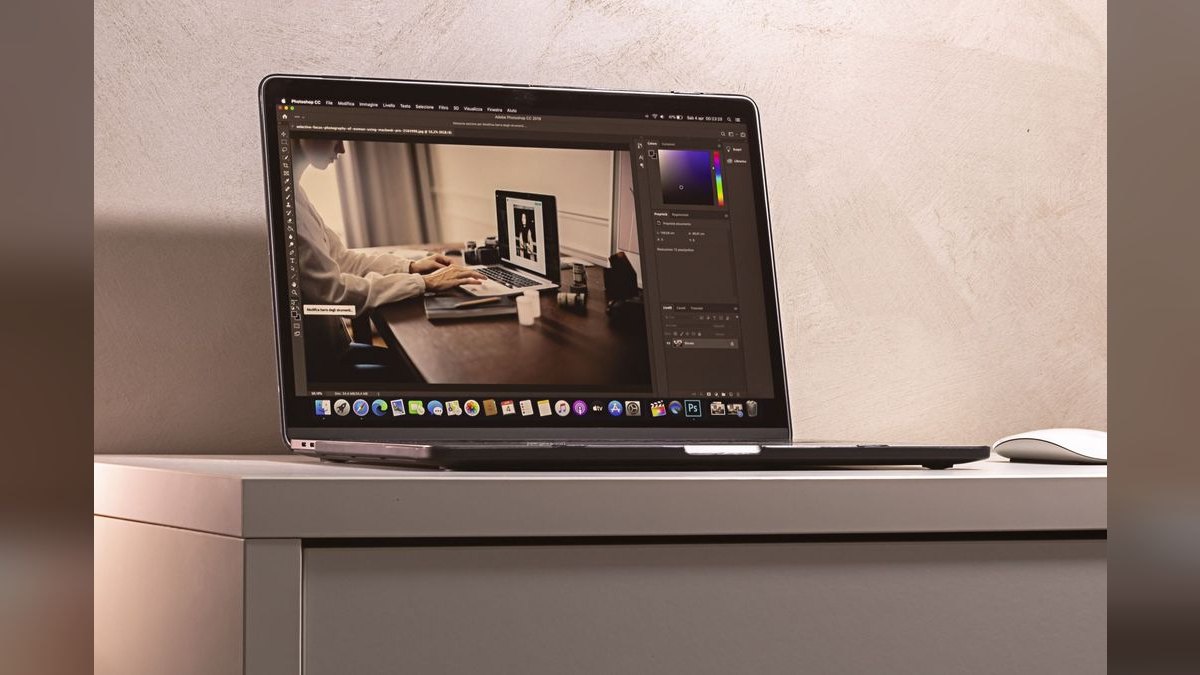
Sixth for batch portrait retouching with consistent recipes applied across a full shoot — skin, teeth, eyes, and stray hair on the 60 to 100 frames per wedding that actually get printed. It replaces most manual frequency-separation labor on school, sports, and event galleries. Pricing is credit-based with a free monthly allotment and paid packs, so model your cost per delivered portrait rather than per month.
Built for high-volume portrait pipelines where consistency across hundreds of faces matters more than any single frame. It will not survive advertising or beauty work where every pixel gets scrutinized and revised. Where Imagen AI compresses culling and global look, Evoto compresses retouch — they solve adjacent blocks and studios often run both. Watch the default intensity; over-smoothed skin reads as fake at 100%.
7ON1 Photo RAW
Seventh, and the best AI capability per dollar if recurring fees are a hard no: roughly $99 to $100 one-time buys NoNoise AI, Resize AI, Tack Sharp AI, Super Select AI, Generative Erase, and sky replacement in a single perpetual license. Modules also sell separately. That single payment covers all three AI classes — masking, reconstruction, and generation — where competitors charge separately for each.
For hobbyists, part-time shooters, and anyone taking slow quarters who needs software that keeps working without a monthly charge. It trades away the outright quality lead in every individual category — Topaz denoises better, Photoshop generates better. Against the $9.99/month Adobe Photography plan, ON1 pays for itself around month ten, though you stop receiving the model improvements that matter in a fast-moving field.
8Photoroom
Eighth, and first by a wide margin for e-commerce: background removal that survives hair and glassware edges, AI Backgrounds generating context-appropriate scenes from a prompt, and batch templates that hold hundreds of listings visually consistent. Pro runs around $9.99/month, with an API for teams automating catalog pipelines. For a team shooting 400 SKUs a month, that template consistency is the entire job.
For product sellers, marketplace operators, and catalog teams — verticals with essentially no culling and no portrait retouch. It is nearly useless for weddings, landscapes, or anything needing RAW development. The API is what separates it from doing the same work manually in Photoshop: throughput at catalog scale. Calibrate the generated backgrounds against your brand's existing shots or your listings drift visually over a quarter.
9Skylum Luminar Neo
Ninth for the widest spread of generative and relighting tools at a consumer price — GenErase, GenSwap, and GenExpand — on subscriptions around $99/year, with lifetime licenses offered periodically. Its slider-driven approach finishes a 30-image real-estate delivery while a Photoshop user is still building masks. Speed over control is a deliberate design choice, not a limitation.
For real-estate, travel, and enthusiast shooters who need a finished look fast and will not be revising files for a client three times. It gives up layered control entirely: you accept the result or regenerate. Its defaults skew stylized — heavy structure and aggressive sky replacement that demo well and oversell your images. Find the intensity sliders on day one, before those defaults train your eye.
10Capture One Pro
Tenth because its AI is supporting cast rather than headline: AI masking is solid, but you buy this for the color pipeline and tethering reliability with Phase One, Fujifilm, Sony, and Canon bodies. Subscription runs around $179/year, perpetual near $299 — the most expensive entry here, and the one with the least AI per dollar. It ranks on studio workflow strength, not on machine learning.
For commercial and studio shooters working tethered, where a dropped connection during a client session costs more than any edit-speed gain. Skin-tone rendering out of the box is its real argument. Against Lightroom Classic it wins on tethering and color, loses on AI feature breadth and on price. If you are not shooting tethered and not fighting color, Lightroom does more of this list's work for less.
How we ranked these
Ranking weighted four measurable workloads: culling throughput, global RAW development, reconstruction quality across denoise, sharpen, and upscale, and generative or batch retouching. Each tool was scored on published pricing, licensing model, whether denoise runs pre-demosaic on the RAW file, batch capability, round-trip friction into an existing catalog, and GPU cost per file. Vertical fit mattered: wedding volume, e-commerce SKU pipelines, and single-frame advertising work were scored separately.
Deliberately ignored: before-and-after marketing sliders, benchmark scores derived from vendor-supplied sample files, and social hype around individual generative features. Demo reels are cherry-picked from ideal captures and predict nothing about your sensor's noise signature. Raw feature counts were skipped too — a tool with forty AI buttons that misses your largest time block is worse than one that removes three hours weekly. Novelty was not a ranking input.
What to look for
Map your hours before you compare features. Time one week honestly: how long does culling take, how many frames genuinely need denoise, how many portraits get real retouch work? Then buy against the biggest number. A wedding shooter losing three hours per gallery to culling needs Imagen or Evoto, not a better upscaler. An e-commerce team needs Photoroom's batch templates and API, not layered compositing.
The common mistake is assembling five specialists into a five-app round trip that burns more time shuffling files than any single tool saves. Two apps is a workflow; five is a hobby. Subscribe to what you open daily, buy perpetual for the occasional specialist — Topaz near $199 with optional renewal, ON1 around $99. Then run your own worst files through every free trial before paying.
Related questions
Do I need both Photoshop and Lightroom?
For most working photographers, yes — they solve different problems. Lightroom handles catalog-scale RAW processing, batch develop settings, and AI masking across thousands of frames. Photoshop handles per-frame compositing, layered generative work, and the pixel-level control an agency revision cycle demands. Adobe's Photography plan bundles both plus 20GB of storage at roughly $9.99 monthly, so the choice rarely comes down to cost.
Is AI denoise better than shooting at lower ISO?
No. Denoise recovers a degraded signal; it never beats capturing clean data in the first place. What it actually changes is your minimum usable ISO — reception frames previously discarded at ISO 12800 become deliverable. Treat it as extending your working range under bad light, not as permission to underexpose and clean up later. Expose correctly, then denoise what the venue forced on you.
Can AI tools replace a professional retoucher?
For volume portrait work — school photos, sports, event galleries — batch retouching genuinely replaces most manual frequency-separation labor, and tools like Evoto apply consistent recipes across a full shoot. For advertising, beauty, and campaign work where every pixel is scrutinized and the client marks up the file three times, AI accelerates a skilled retoucher rather than replacing one.
What hardware do AI photo tools actually need?
Denoise and upscale are GPU-bound, not CPU-bound. A modern discrete GPU with adequate VRAM, ample system RAM, and fast local storage matter far more than raw processor clock speed. Processing hundreds of RAW files through DeepPRIME or Topaz is measured in seconds per file, which makes overnight batching a real planning item. Check each vendor's published requirements — they have risen steadily.
Should photojournalists use generative editing at all?
Generally no. Most news and documentary standards prohibit adding or removing content from a frame. Class-one masking and class-two denoise are typically acceptable as ordinary processing, since neither fabricates pixels. Class-three generation — Generative Fill, Generative Remove, GenSwap — crosses into fabrication and can end a career. Know your outlet's specific written policy before you open a generative tool on assignment work.
How much time does AI culling actually save on a wedding gallery?
Culling 4,000 frames by hand at two to four seconds each runs three to four hours. AI culling flags blinks, duplicates, and soft focus reliably, cutting that meaningfully. The right use is reducing 4,000 frames to about 1,200 for human review, not selecting the final 800 — models cannot judge the moment, and the tear-streaked imperfect frame is often the keeper.
Why does RAW-stage denoise beat JPEG-stage cleanup?
The strongest engines — DxO DeepPRIME XD, Topaz Photo AI, Lightroom AI Denoise — operate before demosaicing, treating noise reduction and demosaicing as one joint problem instead of demosaicing first and cleaning up the mess afterward. That gives the model access to the original sensor mosaic, so it recovers detail a JPEG-stage denoiser structurally cannot reconstruct at any setting.
Is a subscription or a perpetual license the better buy?
Subscriptions deliver continuous model improvements, and in this field a two-year-old denoise model is meaningfully behind. Perpetual licenses give you fixed cost and software that keeps working through a slow quarter. The honest split: subscribe to whatever you open every single day, buy perpetual for the specialist you reach for occasionally. Topaz's perpetual-plus-optional-renewal structure is the most rational compromise available.
FAQ
Which AI photo editor is best overall for professionals in 2027?
Adobe Photoshop with Firefly for compositing and layered retouch, paired with Lightroom for RAW catalog work. That pairing covers nearly every professional need across culling, global develop, masking, and generative cleanup in one ecosystem with one preset library. The Photography plan at roughly $9.99 monthly makes it the default professional stack on price alone, before capability enters the argument.
What is the best AI photo tool that does not require a subscription?
ON1 Photo RAW at roughly $99 to $100 one-time bundles NoNoise AI, Resize AI, Tack Sharp AI, Super Select AI, Generative Erase, and sky replacement into a single perpetual license — the most AI capability per dollar here. Topaz Photo AI near $199 one-time is the specialist choice, and DxO PhotoLab Elite sells perpetually around $229.
Which tools handle noise and low-light cleanup best?
DxO PhotoLab with DeepPRIME XD and Topaz Photo AI lead, because both denoise at the RAW stage jointly with demosaicing rather than cleaning up after. Lightroom's AI Denoise is excellent and already lives inside your catalog, which is frequently worth more than a marginal quality edge once you count the round-trip time across a full gallery.
Can AI editors realistically handle a thousand-image wedding gallery?
Yes. Imagen AI learns your edit style from your own Lightroom catalog and handles culling, round-tripping through Lightroom so no platform migration is required. Evoto batches portrait retouching with consistent recipes across a full shoot. Together they compress the two largest time blocks — culling and retouch — which is where 225 to 350 annual hours actually go.
Is AI-generated content safe to sell to clients?
Firefly is trained on licensed and Adobe Stock imagery and positioned for commercial safety, but always verify the specific tool's terms for your specific use. Output from models trained on scraped datasets can carry rights uncertainty in advertising and brand work with legal review. Keep a layered master so you can prove which regions were generated, or reverse them.
What is the best AI editor for e-commerce product photography?
Photoroom, at roughly $9.99 monthly for Pro. Background removal handles genuinely difficult edges like hair and glassware, AI Backgrounds generate context-appropriate scenes from a prompt, and batch templates plus an API keep hundreds of listings visually consistent. A team shooting 400 SKUs monthly has almost no culling or portrait retouch load — the entire bottleneck is background and template work.
How do Firefly generative credits work?
Firefly generative operations are metered in credits, with allotments that scale by plan tier. Light users never notice the ceiling; heavy generative users hit it. Before you commit a client deadline to Generative Fill or Generative Expand, estimate your monthly generation volume against your plan's allotment. Running out mid-project on a deliverable date is a scheduling failure, not a software one.
What is the most common mistake with AI denoise?
Over-denoising and calling it clean. Aggressive settings turn hair into plastic, fabric weave into smooth fill, and distant foliage into green mush. It looks acceptable at fit-to-screen and collapses at 100% or in print. Calibrate at full magnification on eyes, hair edges, and textured fabric, then back off until texture survives. A slightly noisy image still reads as photographic.
Can I batch-apply generative removal across a whole gallery?
Don't. Class-one masking batches beautifully across thousands of frames because nothing is fabricated. Class-three generation does not — removing an object across 200 frames unattended reliably produces warped hands, duplicated background elements, and smeared patterns, and frame 147 reaches the client because nobody reviewed it. Keep every generative operation a per-frame decision a human makes and inspects.
Does upscaling replace shooting at higher resolution?
No. Gigapixel-class upscaling, which enlarges up to roughly 6x, reconstructs plausible detail rather than real detail. It is a rescue tool for files you already have, not a capture strategy. If you know a print is going large, capture large. Upscaling a small JPEG compounds every compression artifact already baked into that file, and it shows in fine repeating patterns.
Sources
- https://www.adobe.com/products/photoshop.html
- https://www.adobe.com/products/photoshop-lightroom.html
- https://www.topazlabs.com/topaz-photo-ai
- https://www.dxo.com/dxo-photolab/
- https://skylum.com/luminar
- https://www.captureone.com/en/products/capture-one-pro
- https://www.on1.com/products/photo-raw/
- https://www.photoroom.com/
- https://www.imagen-ai.com/
- https://evoto.ai/
Related on PULSE
This page will be disappearing soon. Save it to your device for $1 — or read it free while it is here.
@Kory-White- · if Venmo asks, the last 4 of my number are 2012
This page is gone.
This one is off the shelf now. $1 keeps it on your phone for good — the whole page, pictures and diagrams included.
 pulse-ai-infrastructureThe 10 Best AI Tools for Design Mockups in 2027
 pulse-ai-infrastructureThe 10 Best AI Tools for Business Dashboards in 2027
 aiThe 10 Best AI Tools for Web Caching in 2027
 pulse-ai-infrastructureThe 10 Best AI Tools for Docker for Web Apps in 2027
 pulse-ai-infrastructureThe 10 Best AI Tools for Favicon and Icon Design in 2027
 pulse-ai-infrastructureThe 10 Best AI Tools for Competitor Analysis in 2027
 pulse-ai-infrastructureThe 10 Best AI Tools for Building Chrome Extensions in 2027
 pulse-ai-infrastructureThe 10 Best AI Tools for Web Code Refactoring in 2027
 pulse-ai-infrastructureHow do you deploy AI models at the edge in 2027?
 pulse-ai-infrastructureThe 10 Best Data Labeling Platforms for AI in 2027